MySQL databases are used by many websites and applications to store information such as user accounts, website settings, blog posts, products, orders, and form submissions. Popular applications, including WordPress, Joomla, Laravel, and many PHP-based systems, require a MySQL or MariaDB database.
This guide explains how to create a MySQL database and database user in DirectAdmin, view the database connection details, access the database through phpMyAdmin, import an existing database, and troubleshoot common errors.
Step 1: Log In to DirectAdmin
Log in to your DirectAdmin account.
Step 2: Open Databases
-
Go to Account Manager.
-
Click Databases.
Step 3: Create the Database
-
On the MySQL Databases page, select the domain for which you want to create a database. If your account has only one domain, leave the default selection.
-
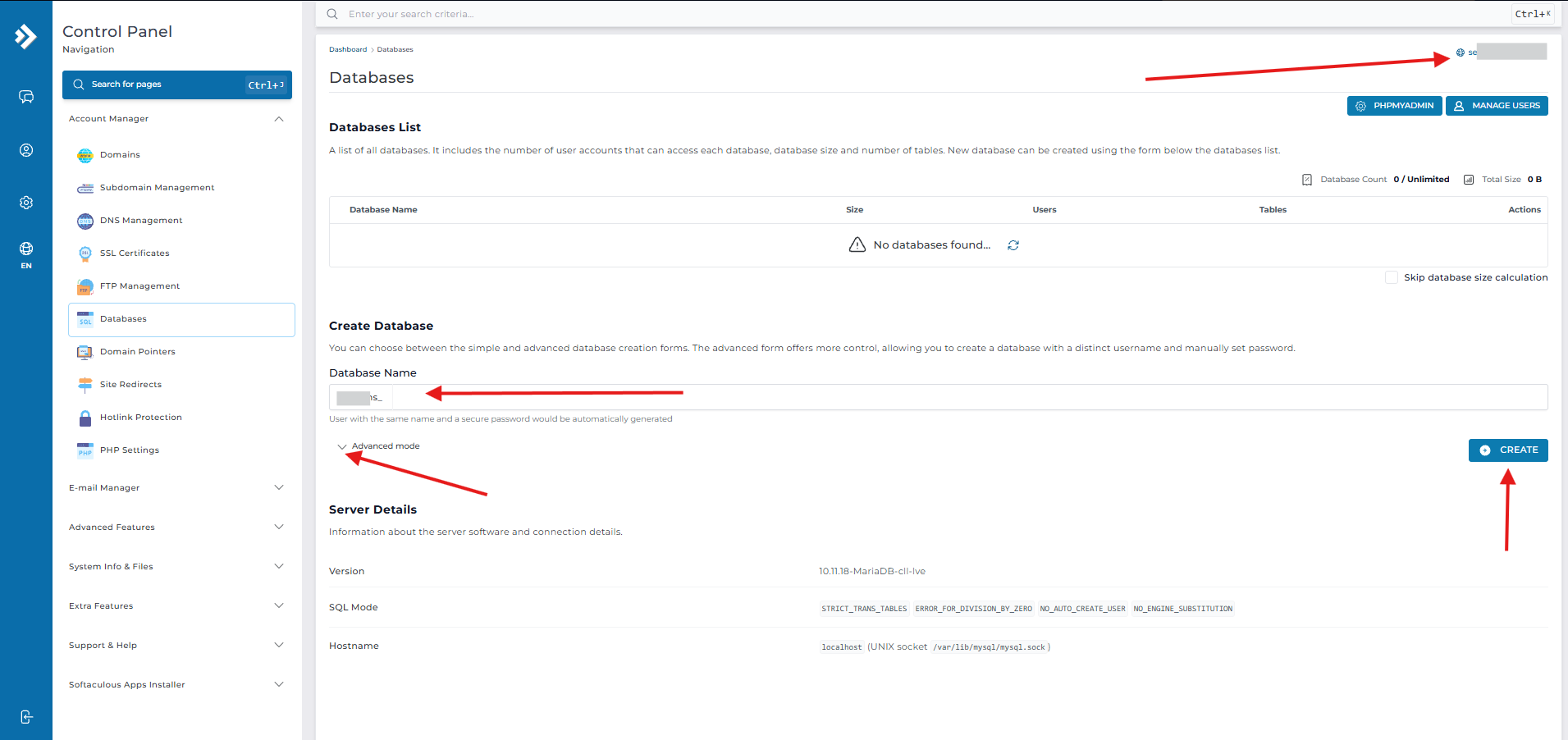
Enter a database name in the Database Name field, as shown in the screenshot below. For example:
mydb. -
Click Advanced Mode if you want to customise the database details further.
-
Enter a username in the Database User or Database Username field, or leave the default value. For example:
mydbuser. -
Enter a strong password, or use the built-in password generator.
-
Click Create.
-
Your database details will be displayed immediately after creation for future reference.
Managing Your Database
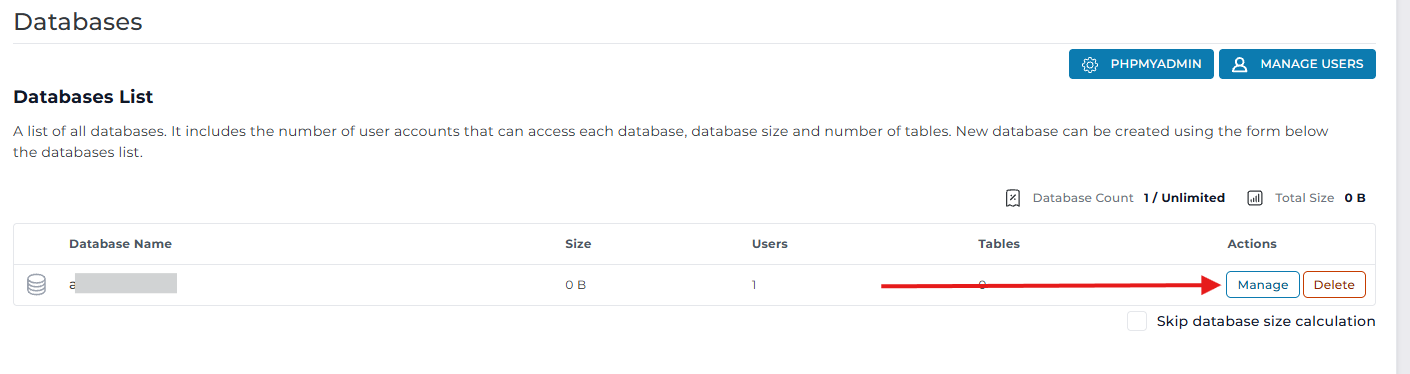
To manage your database, click Manage next to the database you created, as shown in the screenshot below. You will then be able to access additional management options for that database.
To open phpMyAdmin, click the phpMyAdmin button to access your phpMyAdmin dashboard.