


Two-factor authentication (2FA), called Two-step verification in AmailPlus, adds an extra check when you sign in to webmail. Alongside your password, you use a temporary code from an authenticator app on your phone.
Before starting, have your mailbox password and phone ready. Finish any work in webmail: AmailPlus warns that completing registration signs you out of all devices.
1. Log In to Your AmailPlus Webmail
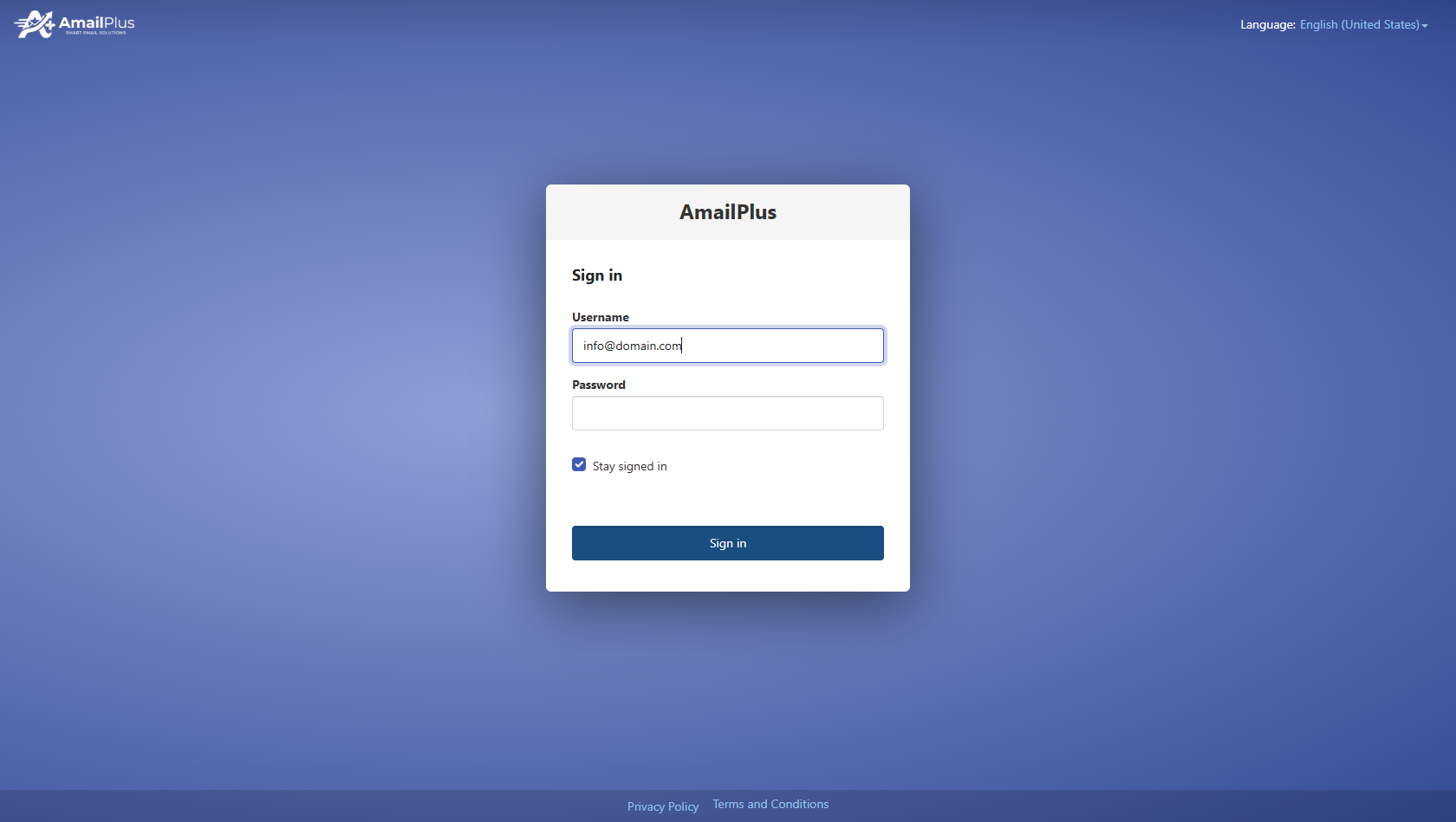
Open webmail.amailplus.com in your browser. Sign in with your full email address, such as [email protected], and your mailbox password.
2. Open Settings
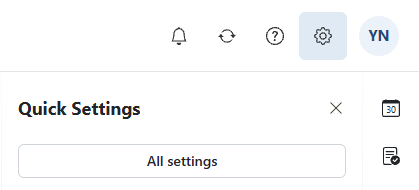
Click the Settings gear in the top toolbar, then click All settings in the Quick Settings panel.
3. Navigate to Two-Step Verification
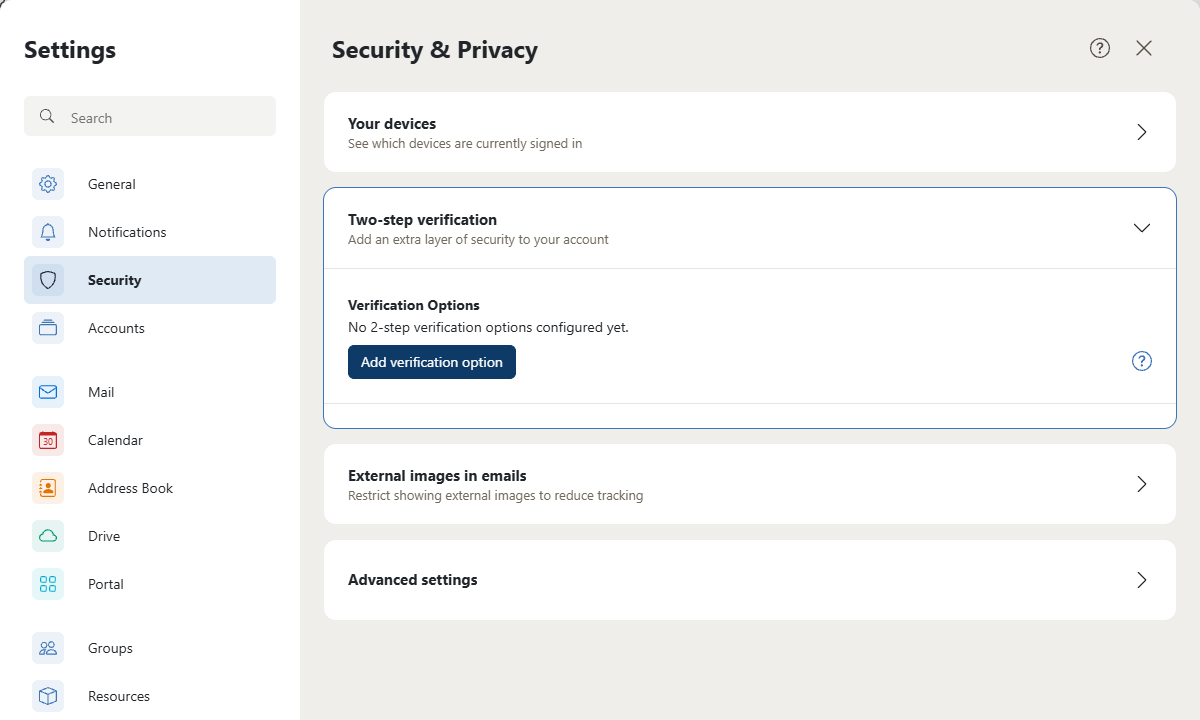
- Select Security in the left-hand menu.
- Expand Two-step verification in the Security & Privacy panel.
- Under Verification Options, click Add verification option.
4. Install an Authenticator Application
Install Google Authenticator or a compatible authenticator app from your phone's official app store. Open the app and get ready to add an account.
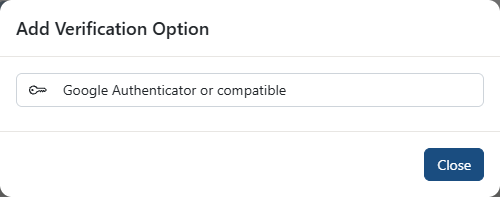
Back in AmailPlus, select Google Authenticator or compatible in the Add Verification Option window.
5. Link Your Authenticator App
- AmailPlus opens Authenticator Registration and displays a QR code.
- In your authenticator app, choose to add an account and scan the QR code displayed in your own mailbox.
- If you cannot scan it, use the app's manual setup option and enter the setup key displayed below the QR code.
- The app generates a temporary authentication code. Enter the current code in the Authentication code field in AmailPlus.
- Click Ok to verify the code and complete registration.
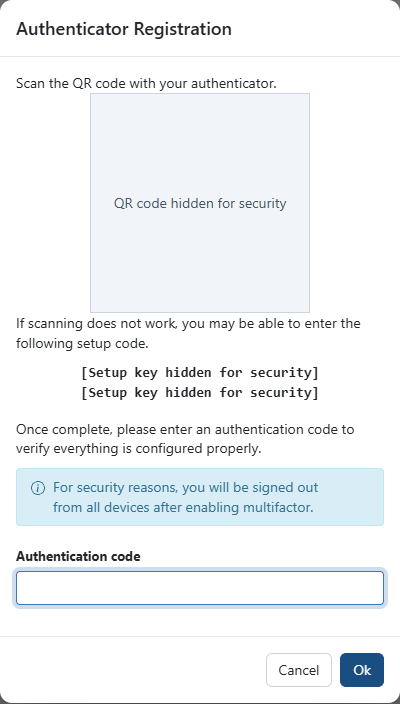
The QR code and setup key are hidden in this guide. Use the unique details shown in your own mailbox, and keep them private.
Important: Completing registration signs you out of all devices. Keep your phone available so you can sign in again using your authenticator code.
6. Setup Complete
After AmailPlus accepts your code and completes registration, sign in again with your email address and password, then enter the current code from your authenticator when prompted. Return to Settings → All settings → Security → Two-step verification to review your verification options.
If a code is rejected, check that you selected the correct account in your authenticator, use its latest code, and ensure your phone's date and time are set automatically. Keep access to your authenticator when changing phones. If you lose access and cannot sign in, contact Aveshost Support for assistance.
