


You can add your AmailPlus mailbox to the Gmail mobile app on Android, iPhone or iPad using IMAP. This guide explains the mobile setup and the correct AmailPlus incoming and outgoing server settings.
Important: Gmail mobile and Gmail in a web browser are different.
Google is retiring Gmail's web-based connections to external mailboxes. New connections may already be restricted. From January 2027, Google says Gmail will remove third-party Send as, Gmailify and Check mail from other accounts (POP). Connecting a non-Google mailbox directly in the Gmail mobile app remains supported. Read Google's announcement.
Our recommendation: Use AmailPlus webmail, install the AmailPlus web app for quick access, or use Outlook with IMAP and SMTP. These options avoid relying on Gmail's retiring web-based connection features. If you prefer Gmail on your phone, follow the mobile instructions below.
Choose how you want to access AmailPlus
- AmailPlus webmail: Open webmail.amailplus.com to access your mailbox and workspace directly.
- AmailPlus web app: Add an app icon for convenient access. Follow our PC installation guide or Android installation guide. This is the AmailPlus web app, separate from Gmail.
- Outlook: Use our guides for Outlook Classic, new Outlook on PC, or Outlook on Android.
- Gmail mobile app: Connect directly to AmailPlus using the settings below. This does not add your AmailPlus mailbox to Gmail on a computer.
Before you begin
- Your AmailPlus service must be active and your mailbox must already exist.
- Have your full email address, such as
[email protected], and mailbox password ready. The password may differ from your Aveshost client-area or Google account password. - Confirm you can sign in to AmailPlus webmail.
- Install or update the Gmail app and connect your phone to the internet.
Throughout this guide, [email protected] is an example. Replace it with your own full AmailPlus email address. Screen labels can vary by app version.
1. Find your AmailPlus server settings
In the Aveshost client area, open Services → My Products & Services, select your AmailPlus service and open Client & Device Setup.
| Setting | Value |
|---|---|
| Account type | IMAP |
| Incoming server | imap.amailplus.com |
| Incoming port | 993 |
| Incoming security | SSL/TLS |
| Outgoing server | smtp.amailplus.com |
| Outgoing port | 465 |
| Outgoing security | SSL/TLS |
| Alternative outgoing connection | 587 with STARTTLS |
| Username for both servers | Your full email address, for example [email protected] |
| Password for both servers | Your AmailPlus mailbox password |
| SMTP authentication / Require sign-in | Enabled |
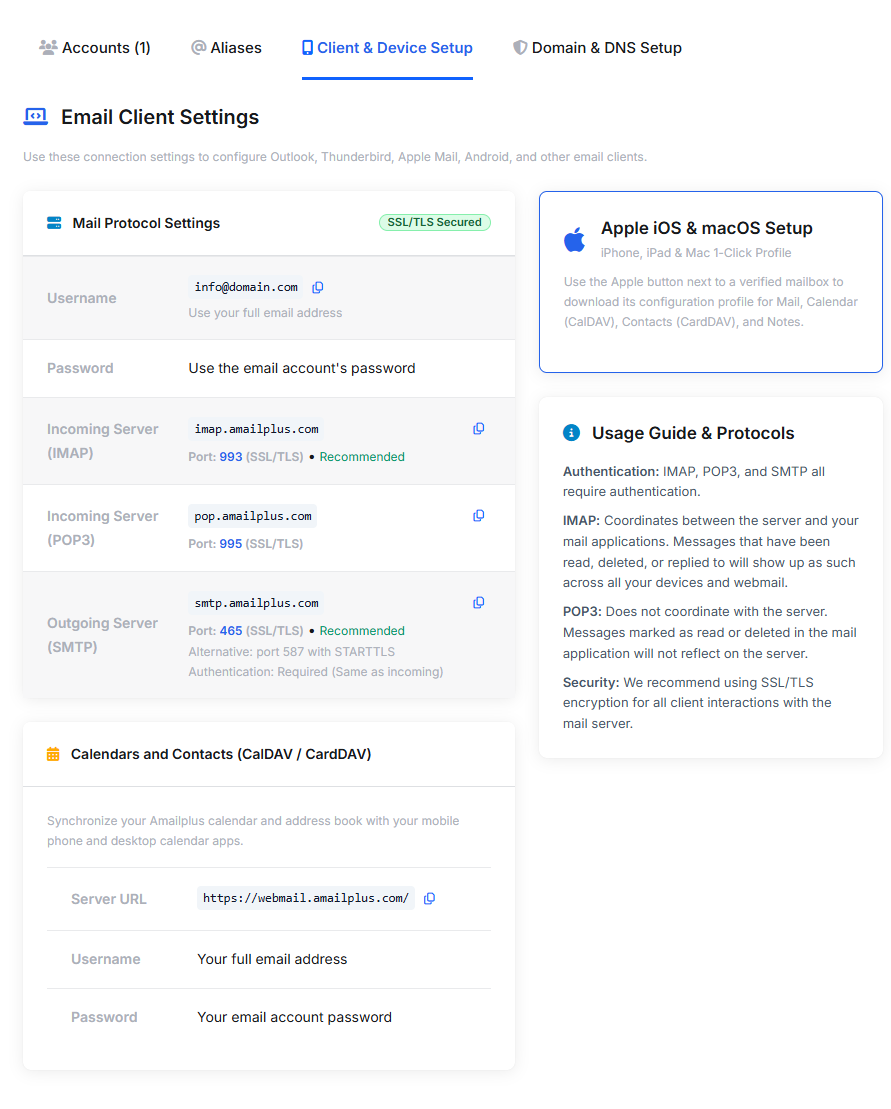
AmailPlus connection settings in the Aveshost client area. The screenshot uses an example email address; it is not a Gmail setup screen.
Use the exact server names above. Do not enter mail.amailplus.com, imap.gmail.com or smtp.gmail.com for this mailbox. Server fields need the hostname only, without https://.
2. Add your mailbox in the Gmail app
Android
- Open Gmail and tap your profile icon at the top right.
- Choose Add another account → Other.
- Enter your full AmailPlus email address and tap Next.
- Select Personal (IMAP), enter your mailbox password and continue.
iPhone or iPad
- Open Gmail and tap your profile icon.
- Choose Add another account → Other (IMAP).
- Enter your full AmailPlus email address and continue to the server settings.
AmailPlus is an external IMAP mailbox. Choose Other, rather than Google, Exchange or Microsoft 365.
3. Configure the incoming server
On the incoming mail screen, enter or confirm:
- Username: your full AmailPlus address, for example
[email protected]. - Password: your mailbox password.
- Server / IMAP server:
imap.amailplus.com. - Port:
993, where shown. - Security type: SSL/TLS, where shown.
Continue to let Gmail validate the incoming connection. If the app automatically fills a server name based on your domain, replace it with the AmailPlus IMAP hostname above.
4. Configure the outgoing server
On the outgoing mail screen, enter or confirm:
- SMTP server:
smtp.amailplus.com. - Port:
465, where shown. - Security type: SSL/TLS, where shown.
- Require sign-in: enabled.
- Username: your full AmailPlus address.
- Password: the same mailbox password used for incoming mail.
If you use the alternative outgoing connection, pair port 587 with STARTTLS. Do not mix port 465 with STARTTLS or port 587 with implicit SSL/TLS.
Continue through the remaining prompts. If offered, choose your sync and notification preferences, label the account AmailPlus, and enter the sender name you want recipients to see, such as John Doe.
5. Check that sending and receiving work
- Open the AmailPlus Inbox and allow the initial sync to finish.
- Compose a test message to another address you control. Check that the From address is your AmailPlus address before sending.
- Reply from the other address and confirm that the reply arrives in your AmailPlus Inbox.
- Compare the mailbox with webmail if messages appear to be missing.
Use your profile icon to switch accounts. The All inboxes view can display messages from several accounts together; always check the sending address when composing.
What this setup includes: IMAP and SMTP configure email. They do not add your AmailPlus Drive, calendar or address book to Gmail. Use AmailPlus webmail for the full workspace.
Can I use AmailPlus inside Gmail on my computer?
This mobile setup does not connect AmailPlus to mail.google.com. Google's retirement of external-account web features is separate from the Gmail app's direct IMAP support.
For everyday desktop access, we recommend AmailPlus webmail, the installable AmailPlus web app, or Outlook. Existing Gmail web connections may work during Google's transition, but should not be relied on as a long-term setup. See Google's current timeline.
Troubleshooting
- Incorrect username or password: Enter the complete email address, remove accidental spaces and test the mailbox password in webmail. Do not use your Google password for AmailPlus.
- Receiving works but sending fails: Recheck
smtp.amailplus.com, the port and encryption pair, and SMTP authentication. Supply the full address and password for outgoing mail too. - Cannot connect: Recheck
imap.amailplus.comon port 993 with SSL/TLS. Try another trusted network if the connection is blocked. - Certificate warning: Check the hostname and your device's date and time. Keep encryption enabled and contact Aveshost Support if the warning persists.
- Webmail works but Gmail rejects the password: If your mailbox has additional security enabled, check its app-password options or ask Aveshost Support which credential to use. Do not enter a one-time verification code as the mailbox password.
- Messages are not arriving: Check webmail first. If they are missing there too, check your domain's AmailPlus DNS setup. If only Gmail is affected, review account sync and the phone's background-data settings.
Need help? Contact Aveshost Support with your app version and the exact error. Never share passwords or verification codes in a support message.
Gmail menu references: Google's Android setup guide and iPhone and iPad setup guide. Guide checked: 8 November 2026.
