


Uploading your website in DirectAdmin is simple. You can use the File Manager inside DirectAdmin or upload your files using FTP. This guide covers the easiest method using File Manager.
Method 1: Upload Your Website Using File Manager
Step 1: Log in to DirectAdmin
Log in to your DirectAdmin control panel from your client area.
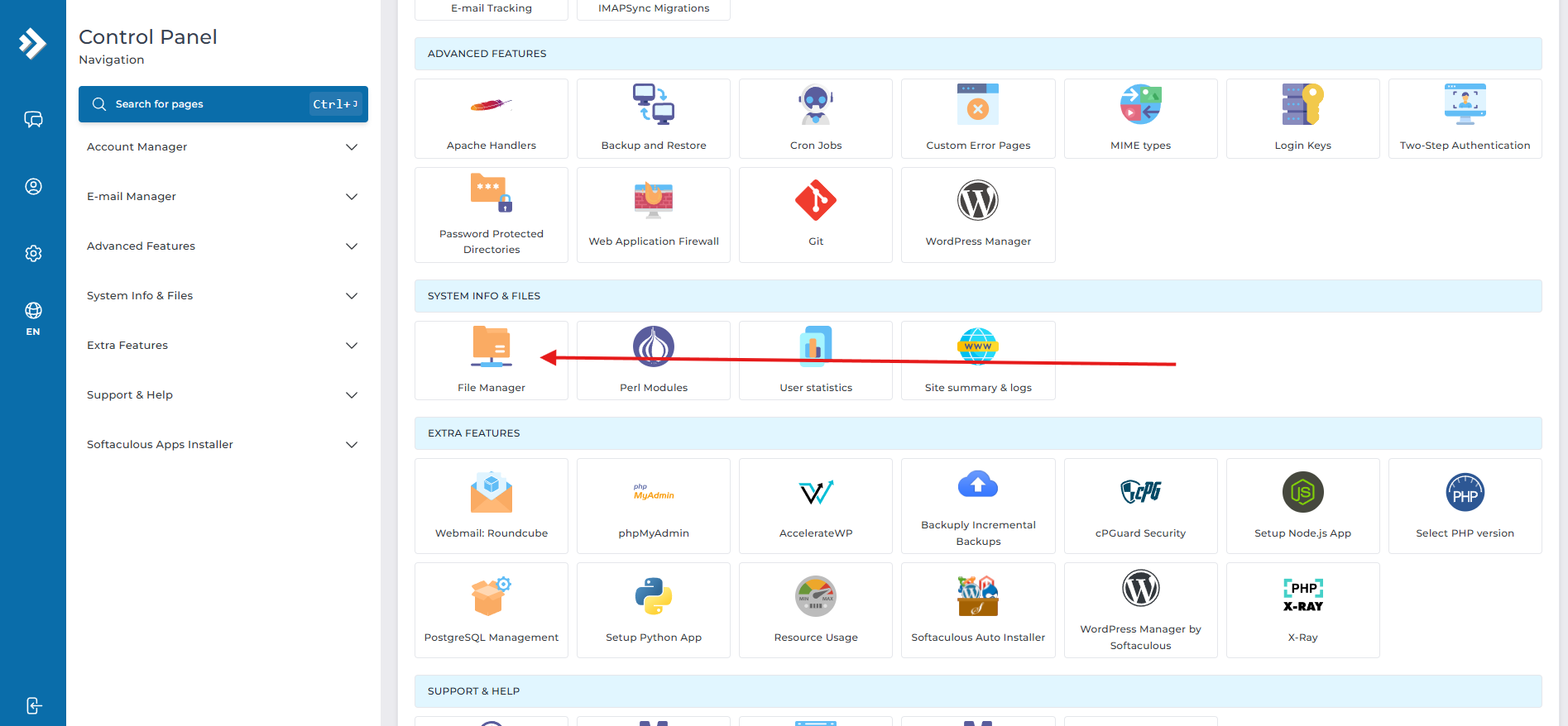
Step 2: Open File Manager
From the DirectAdmin dashboard, click on File Manager.
Step 3: Go to the public_html folder
Open the folder named:
• public_html
This is the main web root for your website. Any files placed here will be accessible on your domain.
Step 4: Upload your website files
Click the Upload Files button and select your website files from your computer.
You can upload:
• HTML files
• PHP files
• CSS and JavaScript files
• images and media files
• ZIP archives containing your full website
Step 5: Extract ZIP file if needed
If you uploaded your website as a ZIP archive:
• select the ZIP file
• click Extract
• move the extracted files into public_html if necessary
Make sure your main website files are directly inside public_html, not inside an extra nested folder.
For example, this is correct:
• public_html/index.php
• public_html/index.html
This is not correct:
• public_html/mywebsite/index.php
unless you intentionally want the site in a subfolder.
Step 6: Confirm your homepage file exists
Your website should include one of these main files:
• index.php
• index.html
Without one of these, your website may show a blank page, directory error, or forbidden message.
Method 2: Upload Your Website Using FTP
If you prefer FTP:
1. Create or use your FTP account in DirectAdmin
2. Connect using an FTP client such as FileZilla
3. Upload your website files into the public_html folder
Important Tips
• Upload your files to the correct domain’s public_html
• Remove any default placeholder page if present
• Extract ZIP files fully before testing the website
• Make sure index.php or index.html is in the root of public_html
Need Help?
If your website does not load after upload, check:
• file placement
• missing index file
• file permissions
• database connection settings for dynamic websites like WordPress or Laravel