


Once your AmailPlus email account has been created, you can access it from a web browser using your full email address and mailbox password. This guide shows you how to open AmailPlus webmail, sign in and start using your inbox.
1. Confirm that your email account has been created
Before signing in, make sure your AmailPlus service is active and the email account you want to use has already been created. For example, [email protected] must exist as a mailbox before you can sign in with it.
- Have your full email address and its mailbox password ready.
- Your mailbox password may be different from the password for your Aveshost client account.
- If someone manages email for your business, ask them to confirm that your mailbox is ready and provide your sign-in details securely.
If you have not purchased a service yet, see How to Purchase Business Email Hosting (AmailPlus). If you already have a service but your mailbox has not been created, contact your email administrator or Aveshost Support for assistance.
2. Open AmailPlus webmail
- Open your preferred web browser.
- Enter https://webmail.amailplus.com in the address bar and press Enter.
- The AmailPlus sign-in page will open. The address may include /appsuite/; this is the webmail application.
You can use this direct link whenever you need to check your email, without first signing in to the Aveshost client area. Bookmark it for convenient access.
3. Sign in to your email account
- In the Username field, enter the full email address you created, such as [email protected]. Do not enter only info or only your domain name.
- In the Password field, enter the password for that mailbox. Passwords are case-sensitive, so check that Caps Lock is not enabled unintentionally.
- Review Stay signed in. Use it only on a private device you trust; clear the checkbox on a shared or public computer.
- Click Sign in.
- If your account requires an additional verification step, complete the on-screen prompt using your configured verification method.
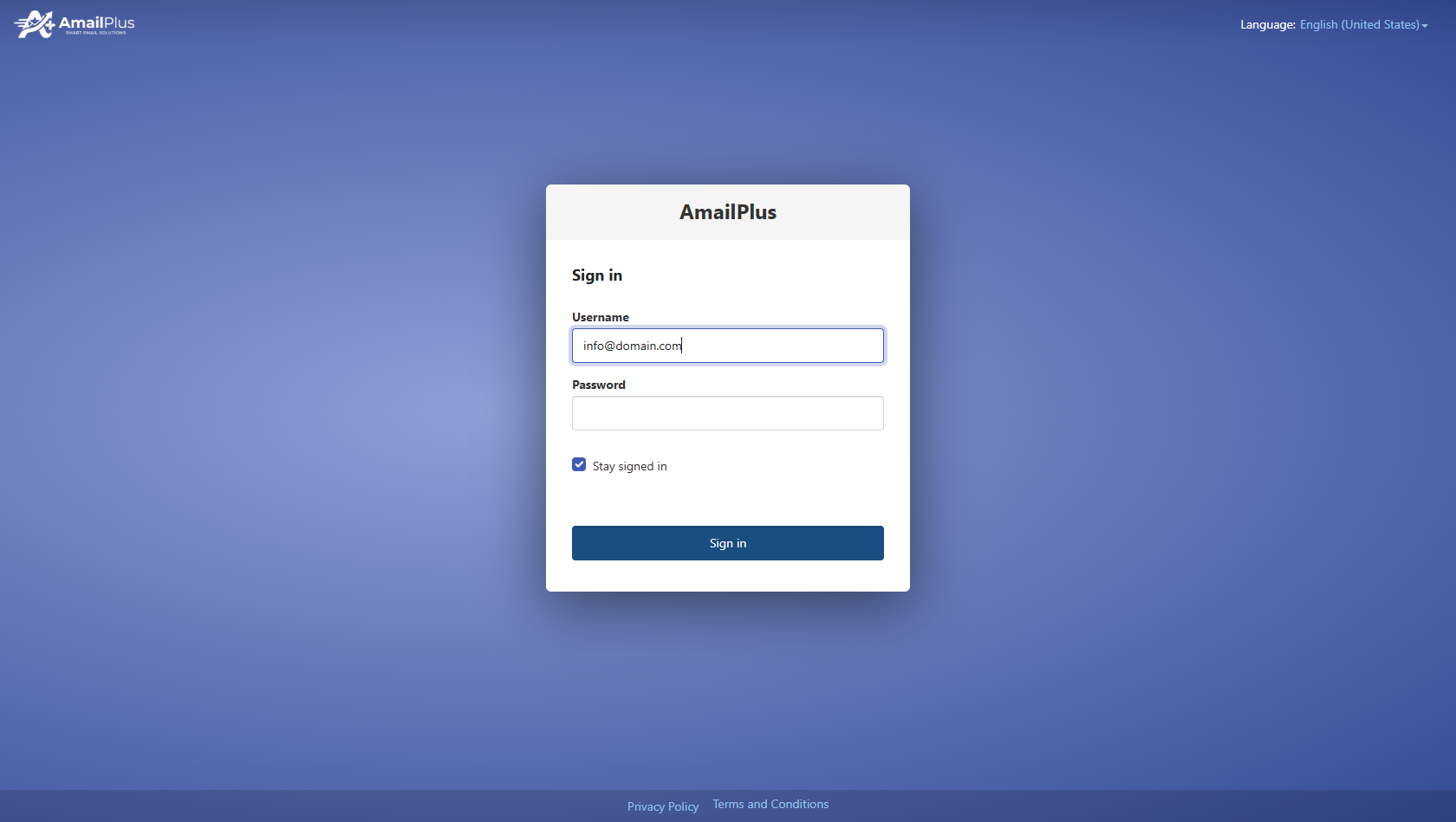
Enter your full email address and mailbox password, then click Sign in. The address shown is an example.
Note: Replace [email protected] with your own email address. The password field is left blank in this screenshot for demonstration.
4. Open your inbox
After a successful sign-in, AmailPlus opens your webmail workspace. If this is your first visit, you may see introductory prompts or a slightly different starting screen. Follow any relevant prompts, then choose Mail to access your messages.
- Select Inbox in the left sidebar to view incoming email.
- Click a message to read it in the reading area.
- Use New email to compose a message.
- Use the Search email field to find messages.
- The sidebar also provides folders such as Drafts, Sent, Spam and Trash.
- Use the top navigation to open available apps, such as Calendar or Drive. Available features and storage depend on your service.
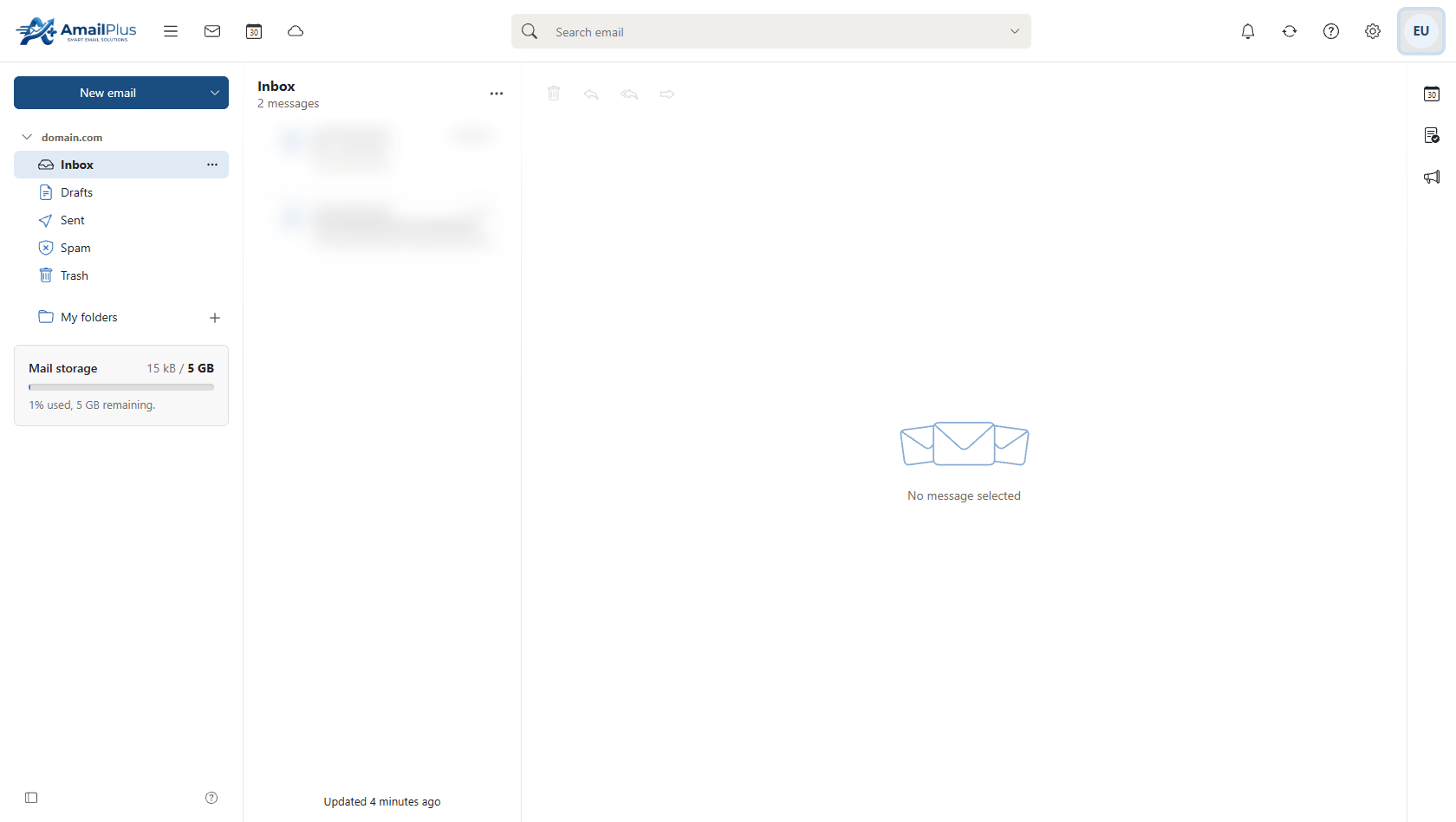
Your AmailPlus inbox.
A newly created mailbox may have no messages yet. This does not prevent you from signing in. If you can access webmail but cannot send or receive email, ask your administrator or Aveshost Support to check the mailbox and domain's email configuration.
5. Sign out when you finish
- Click your initials or profile icon in the upper-right corner to open My account.
- Click Sign out.
- On a shared computer, close the browser window after signing out.
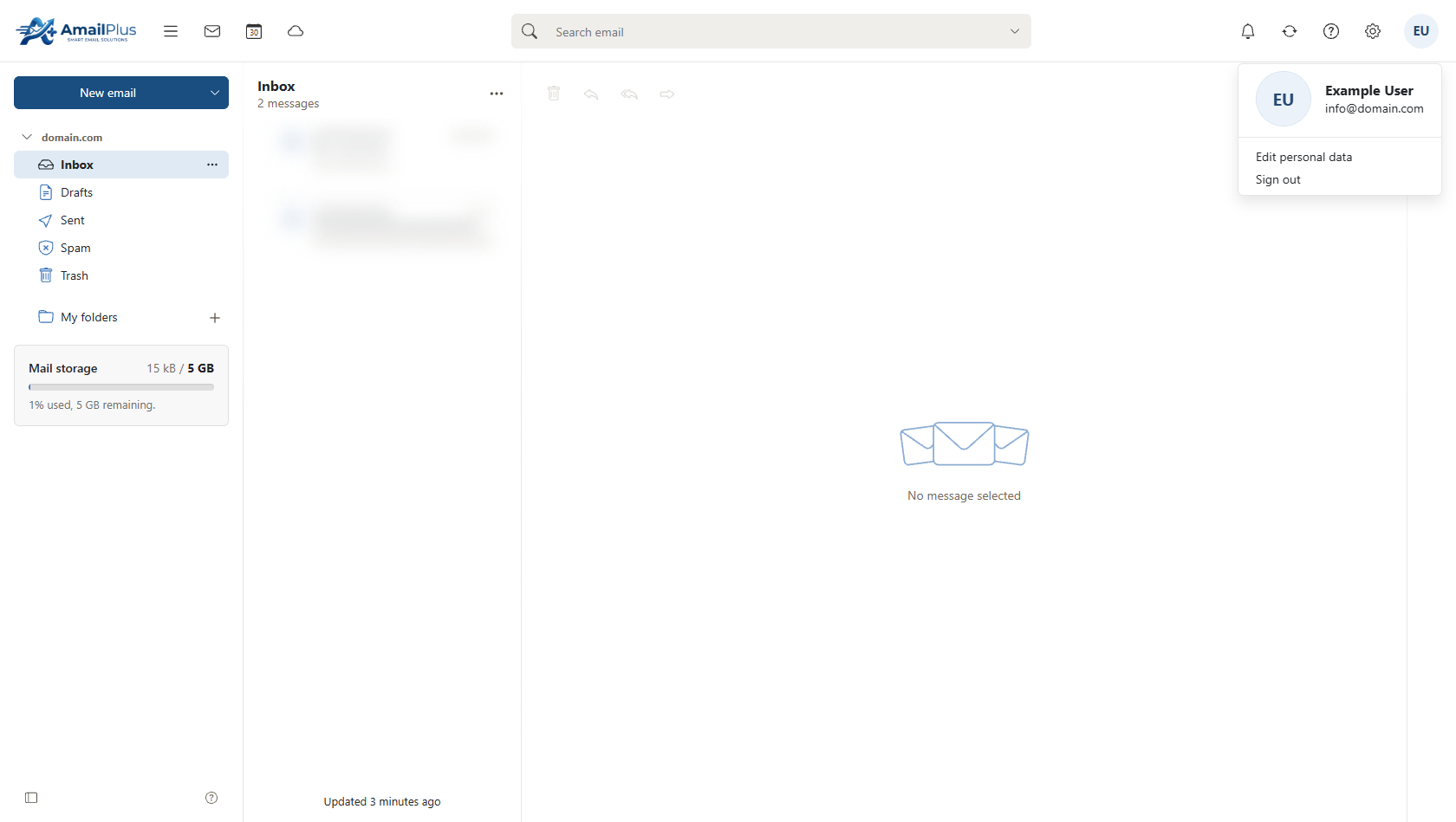
Open My account and select Sign out when you have finished, especially on a shared device.
Having trouble signing in?
- Username or password is not accepted: Check the full email address for spelling mistakes, remove accidental spaces and verify the mailbox password. Do not assume your Aveshost client-area password is also your email password.
- You do not know the password: Ask your email administrator or Aveshost Support for help resetting the mailbox password. Do not share your password in a support message.
- The mailbox has not been created: Confirm that the service is active and that this specific email account exists.
- A different mailbox opens automatically: Check the address shown in My account. Sign out before signing in to the intended mailbox.
- The page will not load: Check your internet connection and confirm you are using https://webmail.amailplus.com. Try reloading the page or using a current browser.
Need help? Contact Aveshost Support and describe the error you see. Include the affected email address through the support channel, but never include your password or verification codes.
