


Add AmailPlus webmail to your Android phone through Google Chrome so you can open it from an app icon. Follow the screenshot sequence below.
Before you begin
- Your AmailPlus service must be active and the mailbox must already exist.
- Have your full email address, such as [email protected], and its mailbox password ready. This may differ from your Aveshost client-area password.
- Check that you can sign in to AmailPlus webmail before configuring the app.
Replace [email protected] with your own address. Menu names can vary with the version of your operating system or app.
These screenshots have been adapted for AmailPlus. Browser wording, app icons and installation prompts may differ by version.
Step 1: Open Chrome on your phone
Once your AmailPlus mailbox has been created, open Google Chrome on your Android phone.
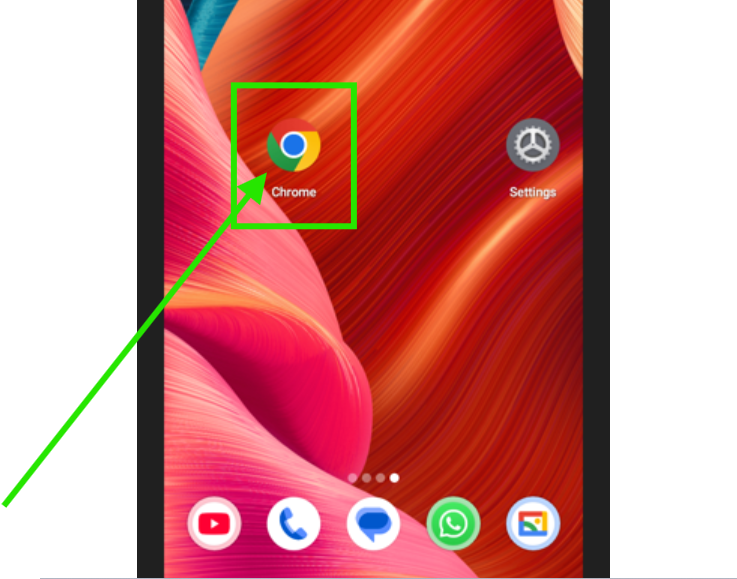
Step 2: Visit the AmailPlus webmail page
Tap the browser's search or address bar.
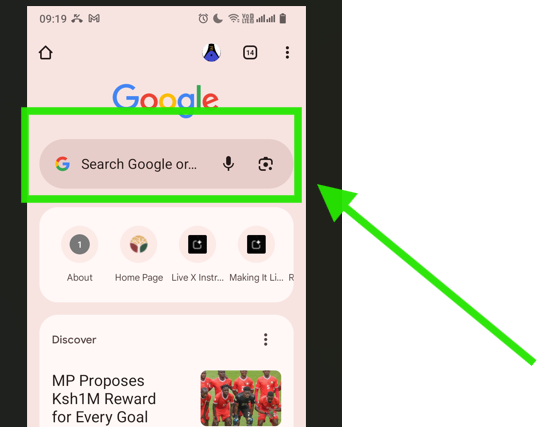
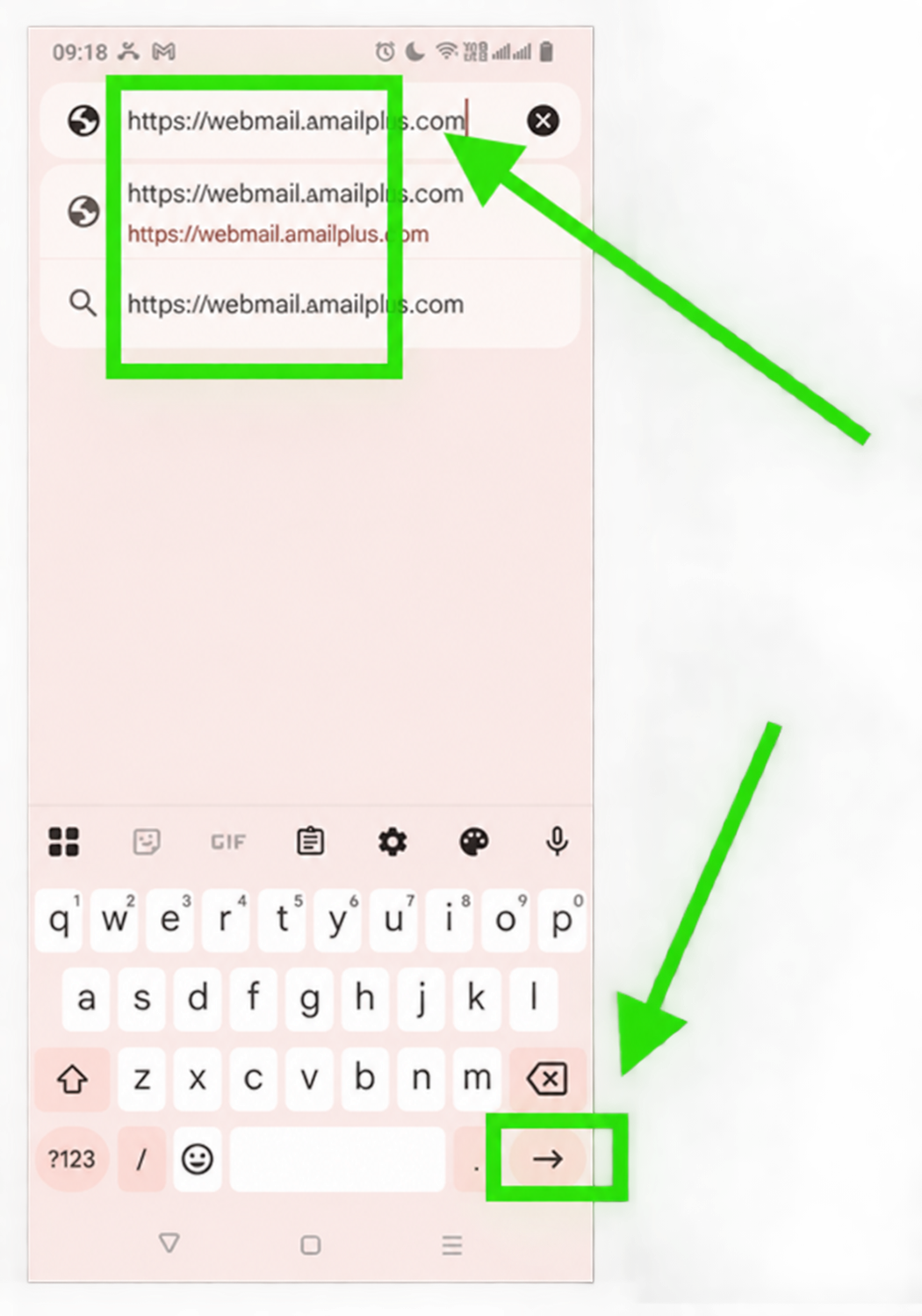
Enter https://webmail.amailplus.com, then press the keyboard's Enter / Go arrow.
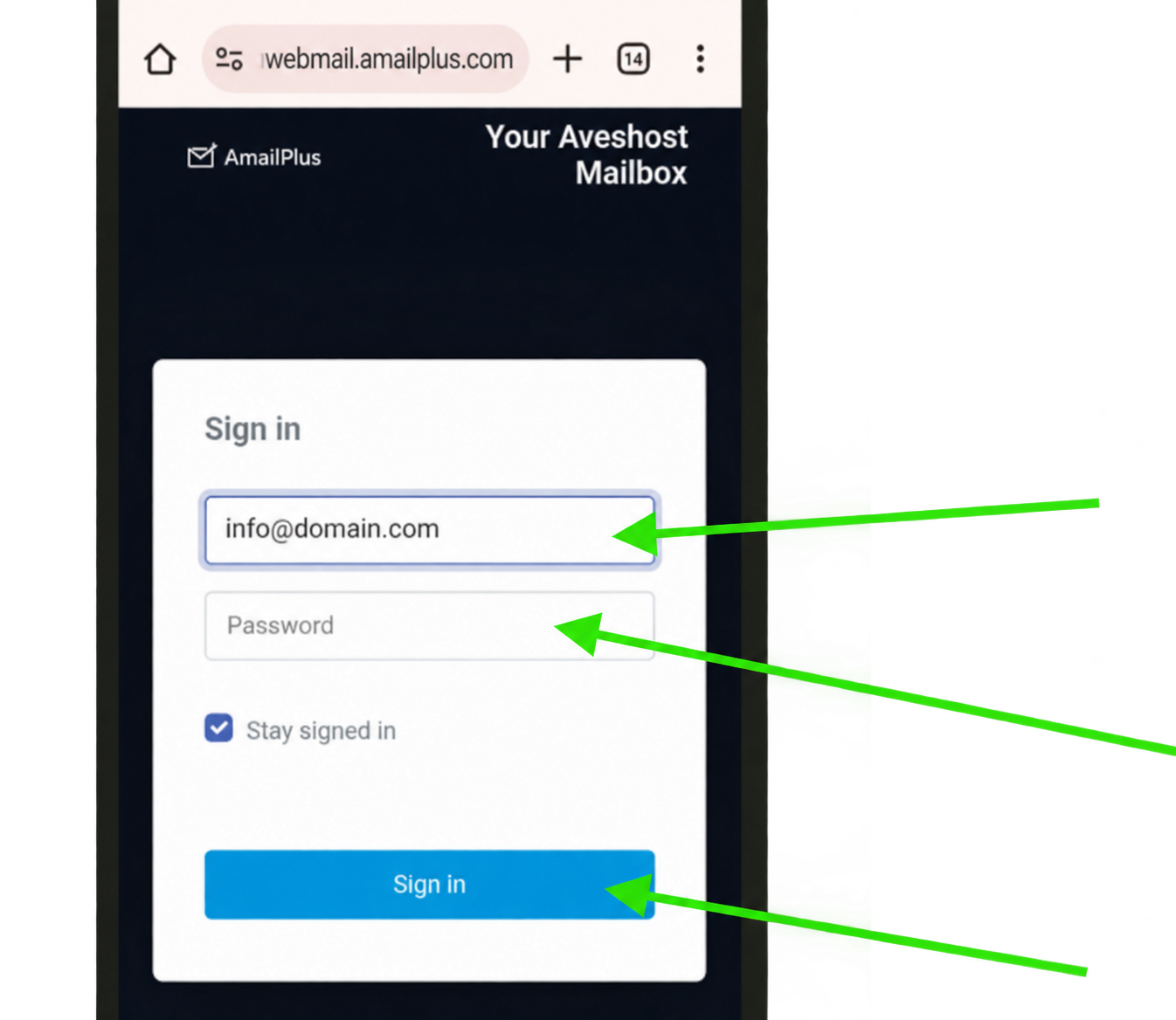
Step 3: Sign in to your mailbox
Enter your full AmailPlus email address, such as [email protected], and the mailbox password. Tap Sign in and complete any account verification requested. Use Stay signed in only on a private phone you trust.
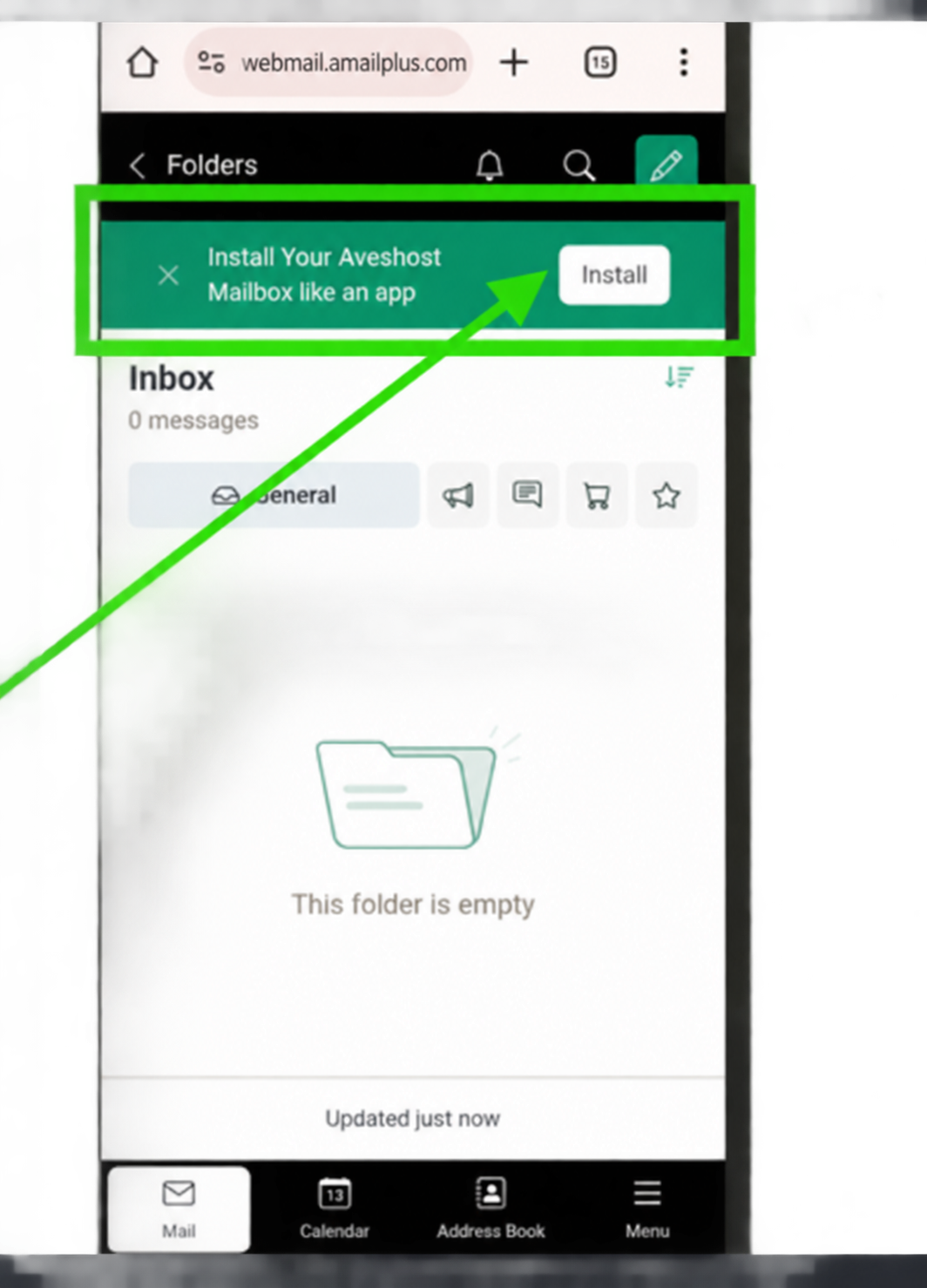
Step 4: Look for an installation prompt
If webmail shows a banner offering to install your mailbox as an app, tap Install. If no banner appears, continue to Step 6 and use Chrome's menu.
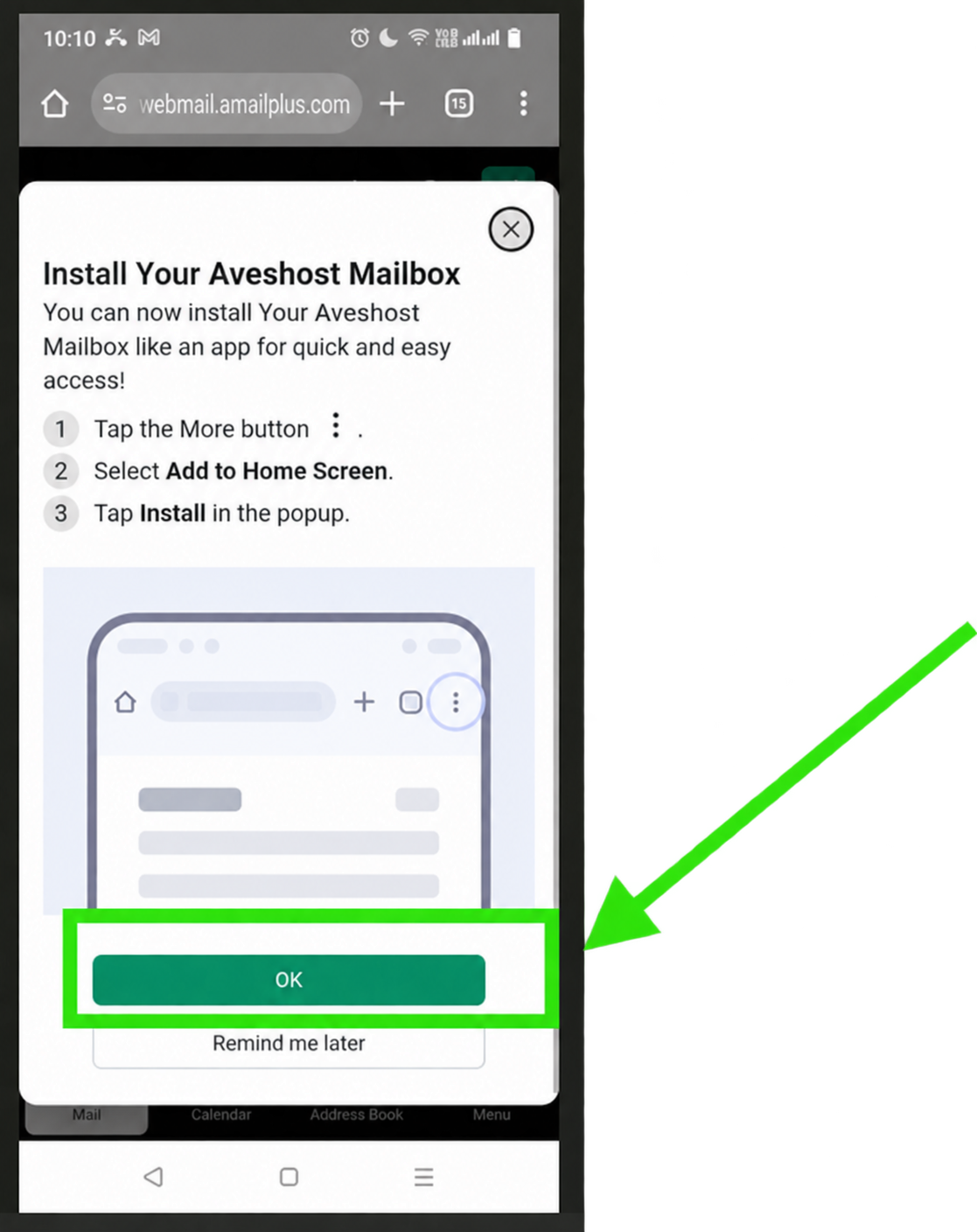
Step 5: Read the installation instructions
If an installation instruction window appears, read the directions and tap OK. Chrome completes the installation through its own menu.
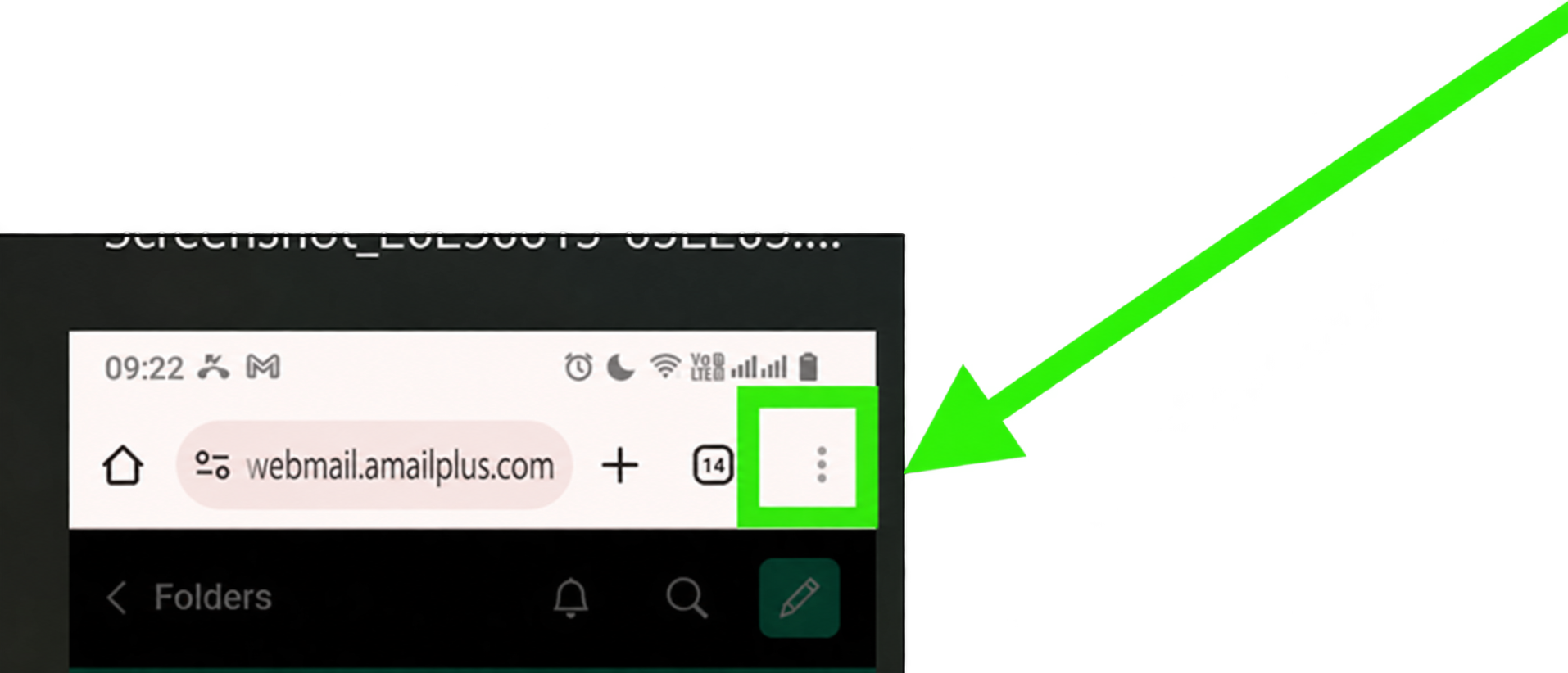
Step 6: Open Chrome's installation menu
Tap Chrome's three-dot menu (⋮) in the top-right corner of the browser.
Scroll down and select Install and create shortcut. Some versions show Install app or Add to Home screen.
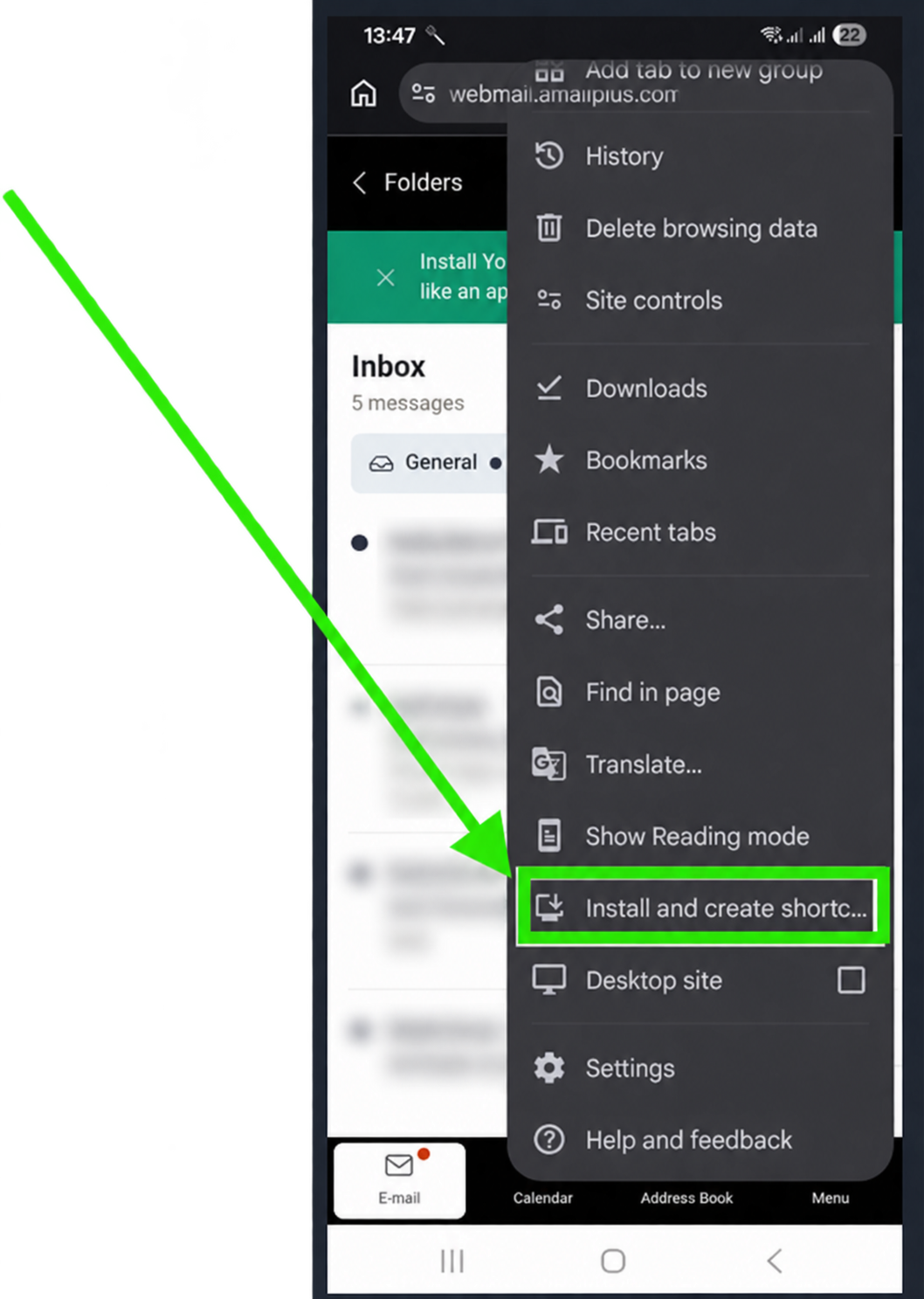
The menu is Chrome's browser menu, not the menu inside your mailbox.
Step 7: Choose Install
Select Install or Install the app when offered. Confirm that the site is webmail.amailplus.com and follow any remaining installation prompts.
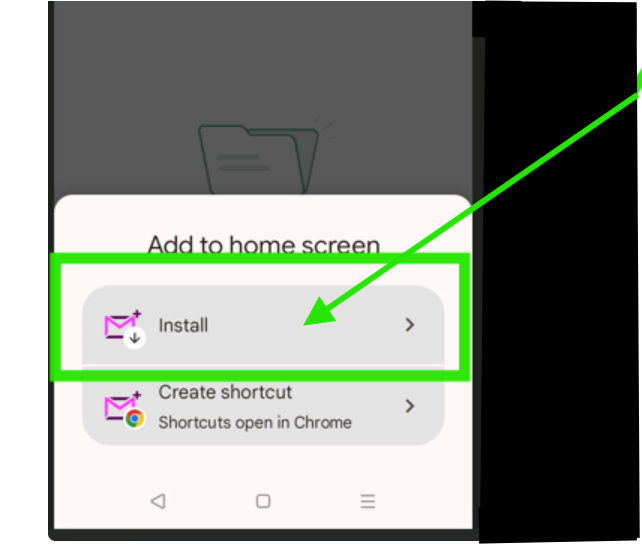
If only Create shortcut is available, you can use it for quick access. A shortcut may open Chrome rather than a separate app window.
Step 8: Find the app on your phone
Wait for installation to finish. Close Chrome and look for the AmailPlus icon on your home screen or in the app drawer.
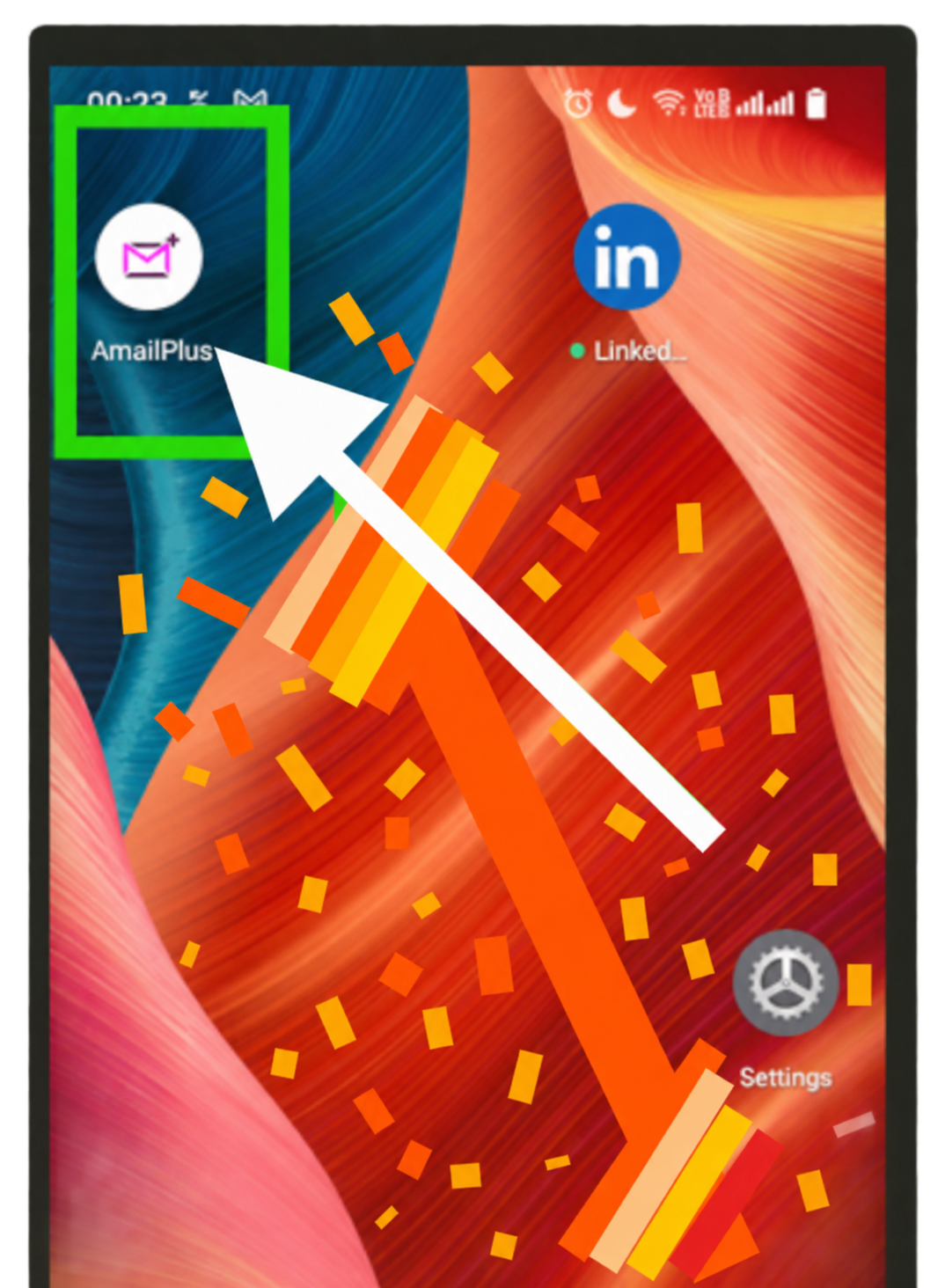
Step 9: Open your mailbox
Tap the app icon. Sign in again if requested, then open Mail or Inbox.
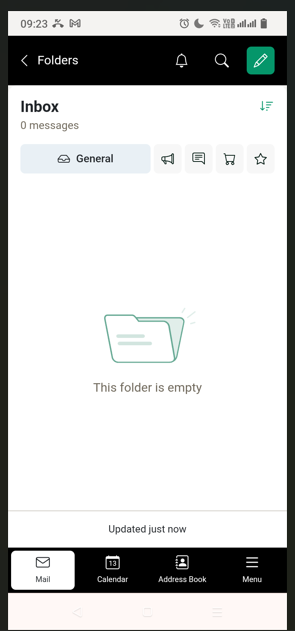
The app uses your existing AmailPlus mailbox. It does not create another account. You need an internet connection to send and receive new messages.
Check your setup
- Open AmailPlus from its icon.
- Send an email to an external address and confirm that a reply reaches your Inbox.
- For notifications, allow them when prompted and check Android's notification settings for the app or Chrome.
If the installation option is missing
- Update Chrome and reload webmail in a normal, non-Incognito tab.
- Open webmail directly in Chrome, rather than an in-app browser.
- Check whether AmailPlus is already installed.
- On a managed phone, app installation may depend on your organisation's policies.
- Use a shortcut or continue using webmail if app installation is unavailable.
To remove the app later, go to Android Settings → Apps, select it and tap Uninstall. This removes the app from your phone, not the mailbox.
Need help? Contact Aveshost Support with the app version and error message. Never share your password or verification codes.
Browser menu reference: Google Chrome: use web apps on Android.
