


Using Google Chrome
Add AmailPlus webmail as an app on your PC so you can launch your mailbox from its own shortcut.
1. Open Your Browser
Open Google Chrome on your PC. Use a normal browser window for these steps.
2. Visit the Webmail Page
Type https://webmail.amailplus.com in the address bar and press Enter.
3. Log In to Your Mailbox
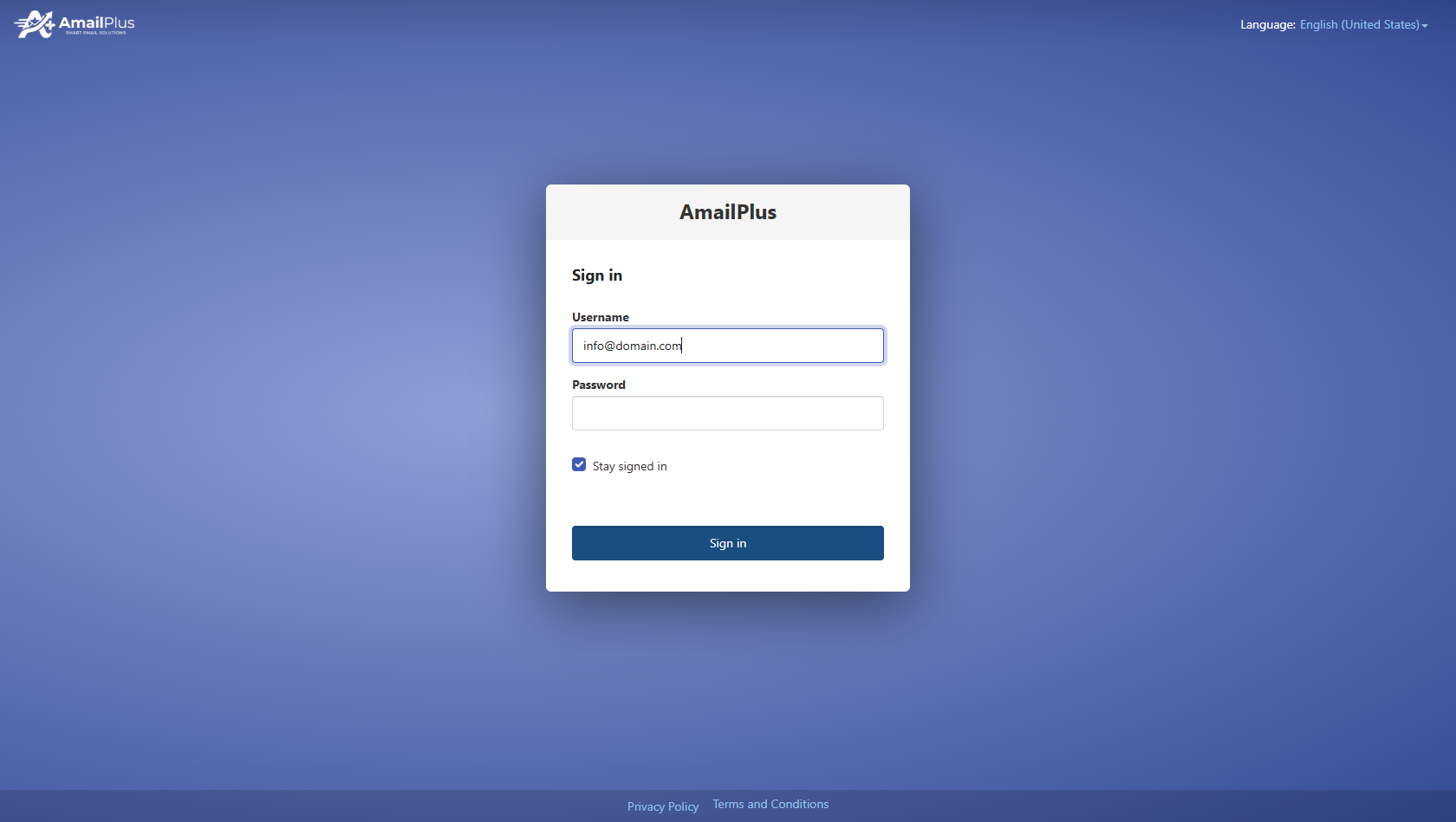
Enter your full AmailPlus email address and mailbox password, then select Sign in. Replace the example [email protected] with your own address. If you are already signed in, your mailbox opens directly.
4. Look for the Install Prompt
If an invitation to install your AmailPlus mailbox appears, read it and select OK to continue. The prompt may not appear in every browser or session; you can proceed directly to the browser menu in Step 5.
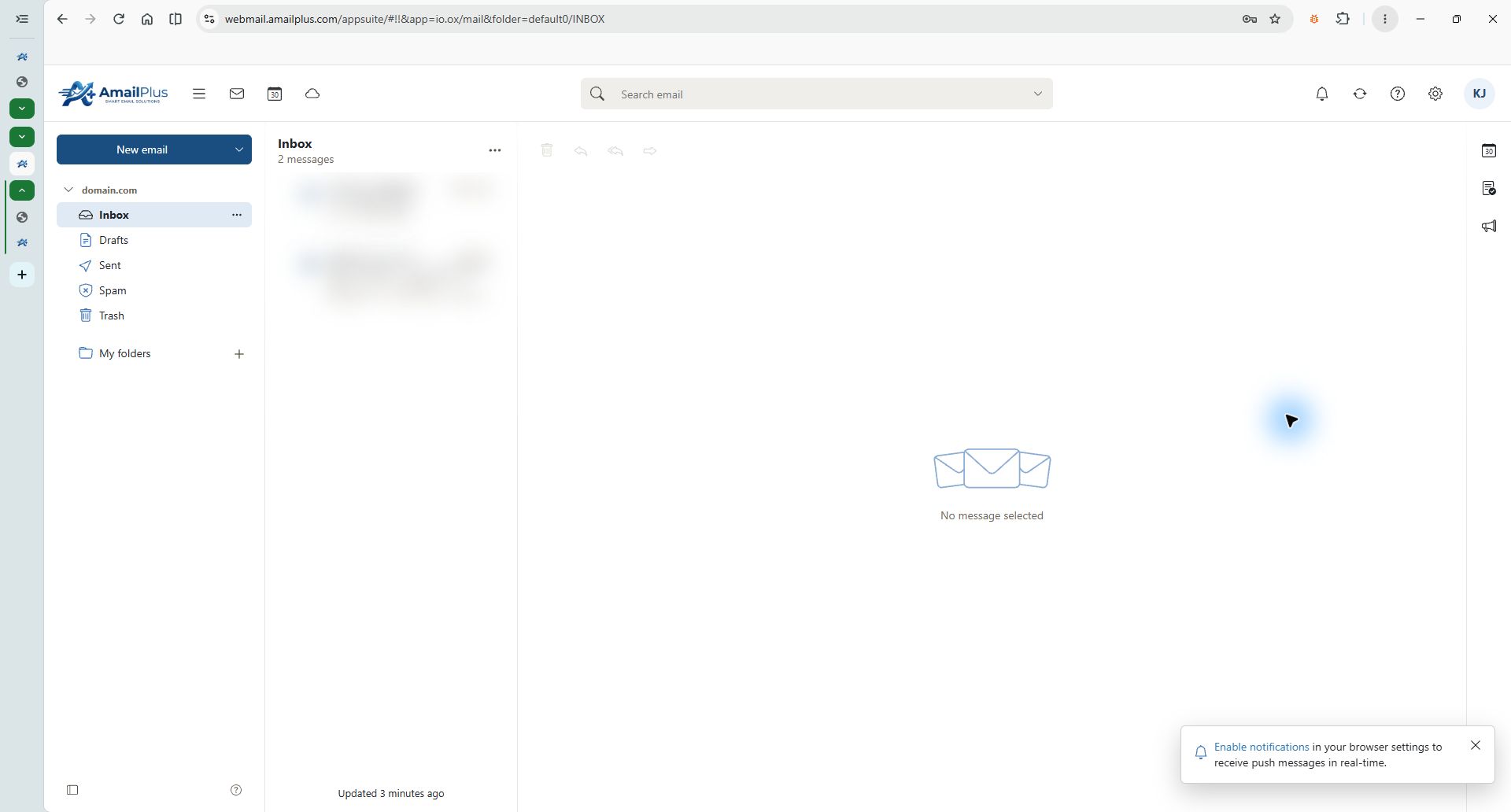
AmailPlus webmail captured in BrowserOS Neo. The example domain is anonymized and messages are blurred. An in-page installation prompt is not required.
5. Install the App (on Chrome browser)
- Open the browser's three-dot menu (⋮) in the upper-right corner.
- Select Cast, save, and share.
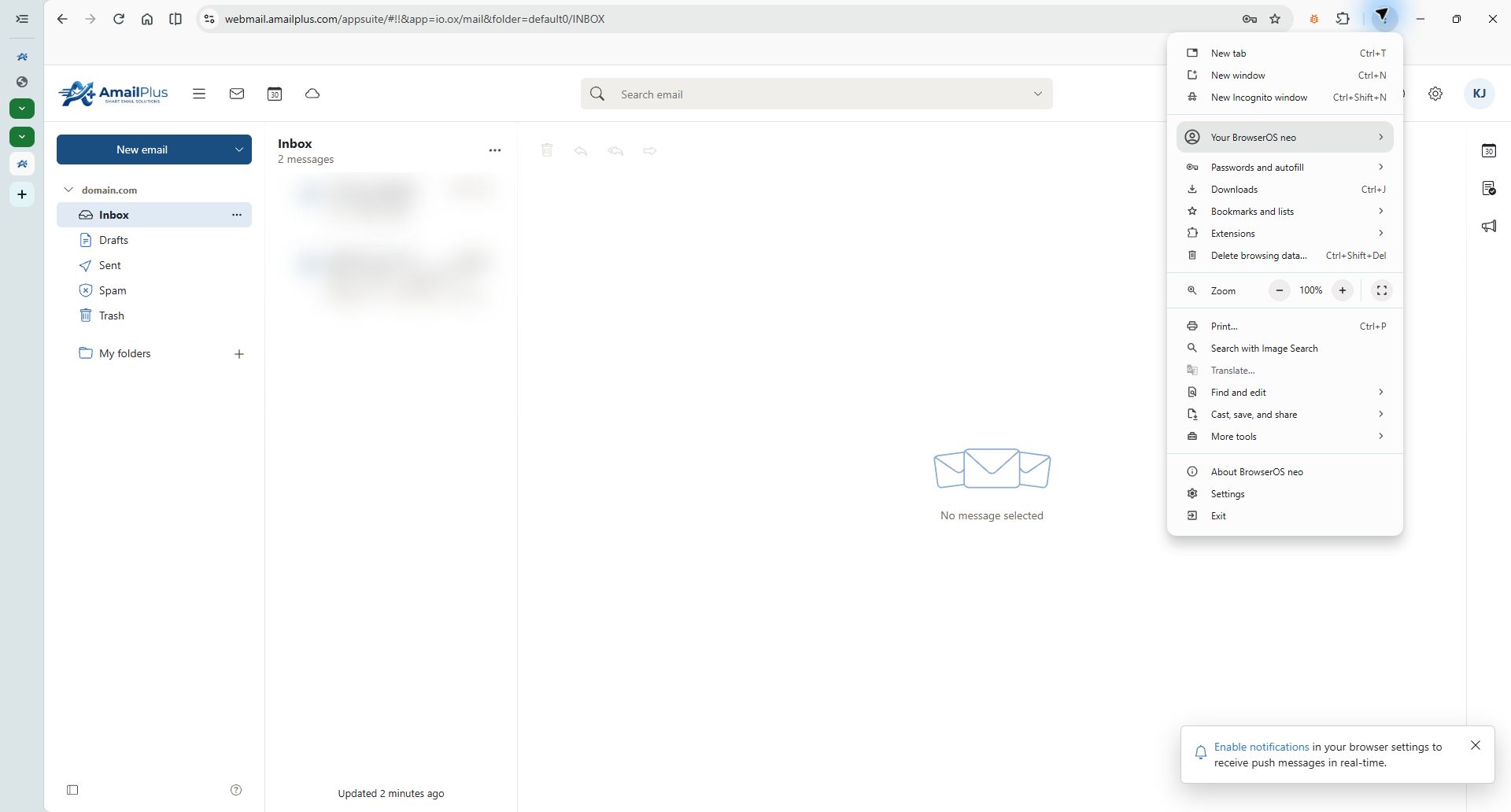
Fresh BrowserOS Neo screenshot showing the browser menu. The Chrome installation command is shown in the next step.
6. Click on “Install Page as App”
In Chrome's submenu, select Install page as app.... If an install icon appears beside the address bar, you can use that instead.
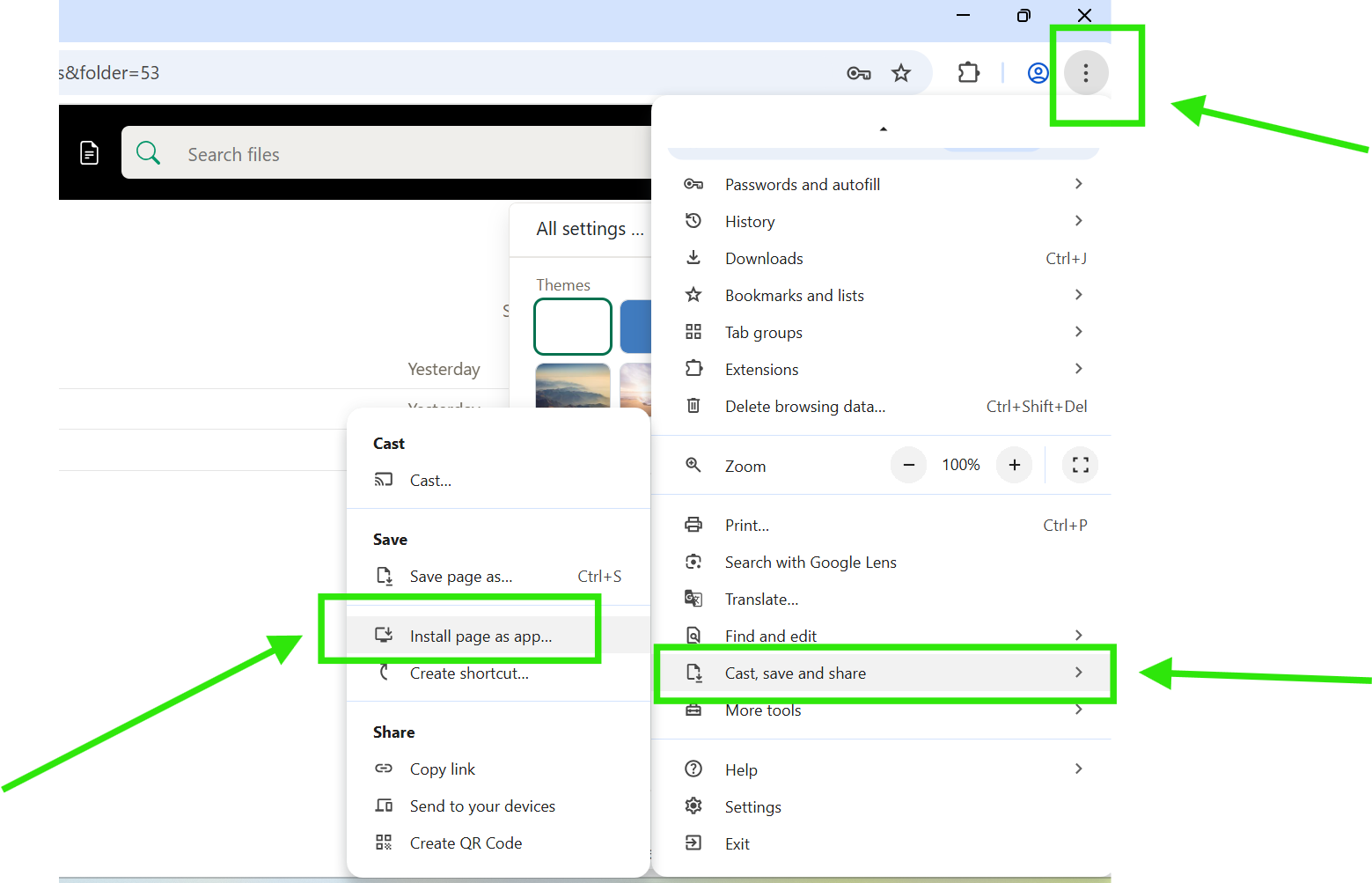
Chrome menu reference screenshot. Menu labels and available commands can differ by browser version. BrowserOS Neo may not provide the installation option; use Google Chrome for this step.
7. Install the App
In the confirmation dialog, check that the website is webmail.amailplus.com, then select Install. If an app-name field is editable, you can name it AmailPlus.
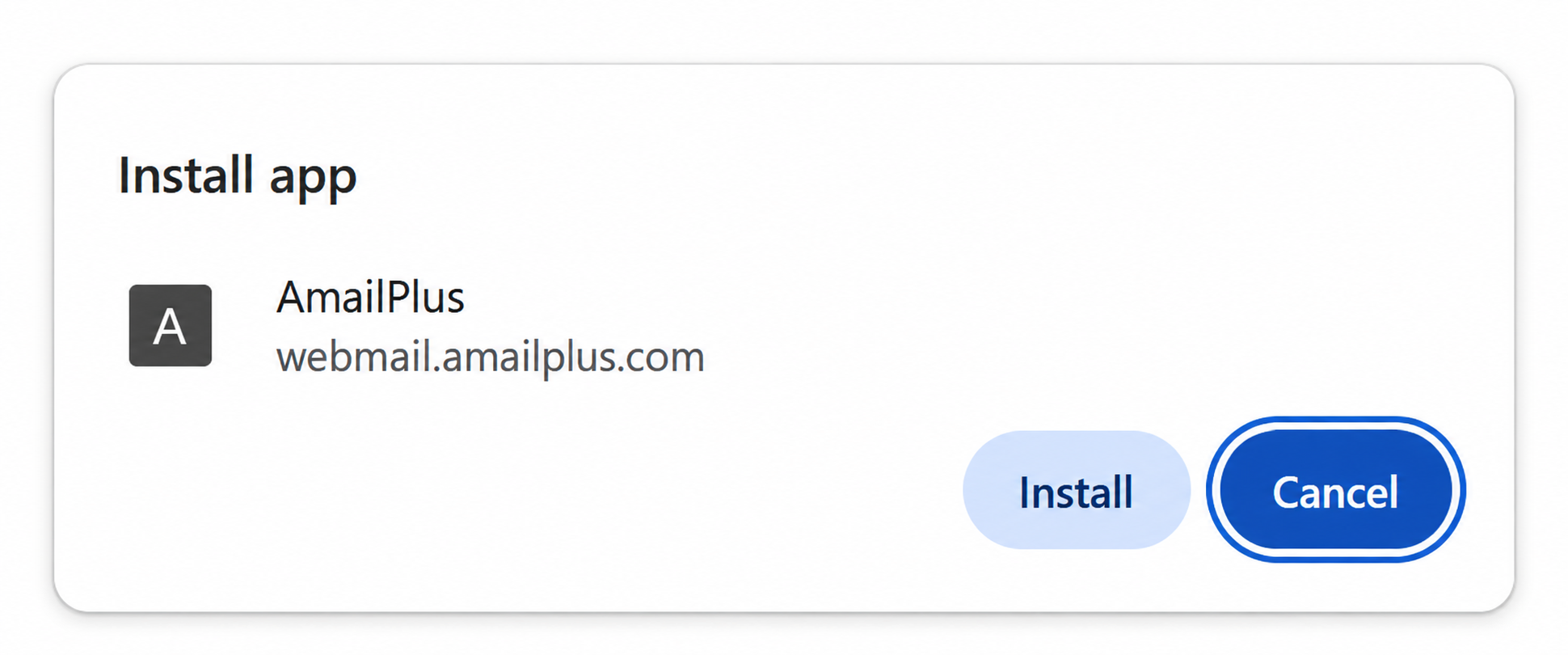
Example Chrome installation dialog adapted for AmailPlus. The exact app name and icon may vary.
All done!
Open AmailPlus from the shortcut created by your system. Sign in again if prompted. The app provides access to the same mailbox you use on the web, without needing to enter the webmail address each time.
To keep it handy on Windows, open the installed app, right-click its taskbar icon and select Pin to taskbar.
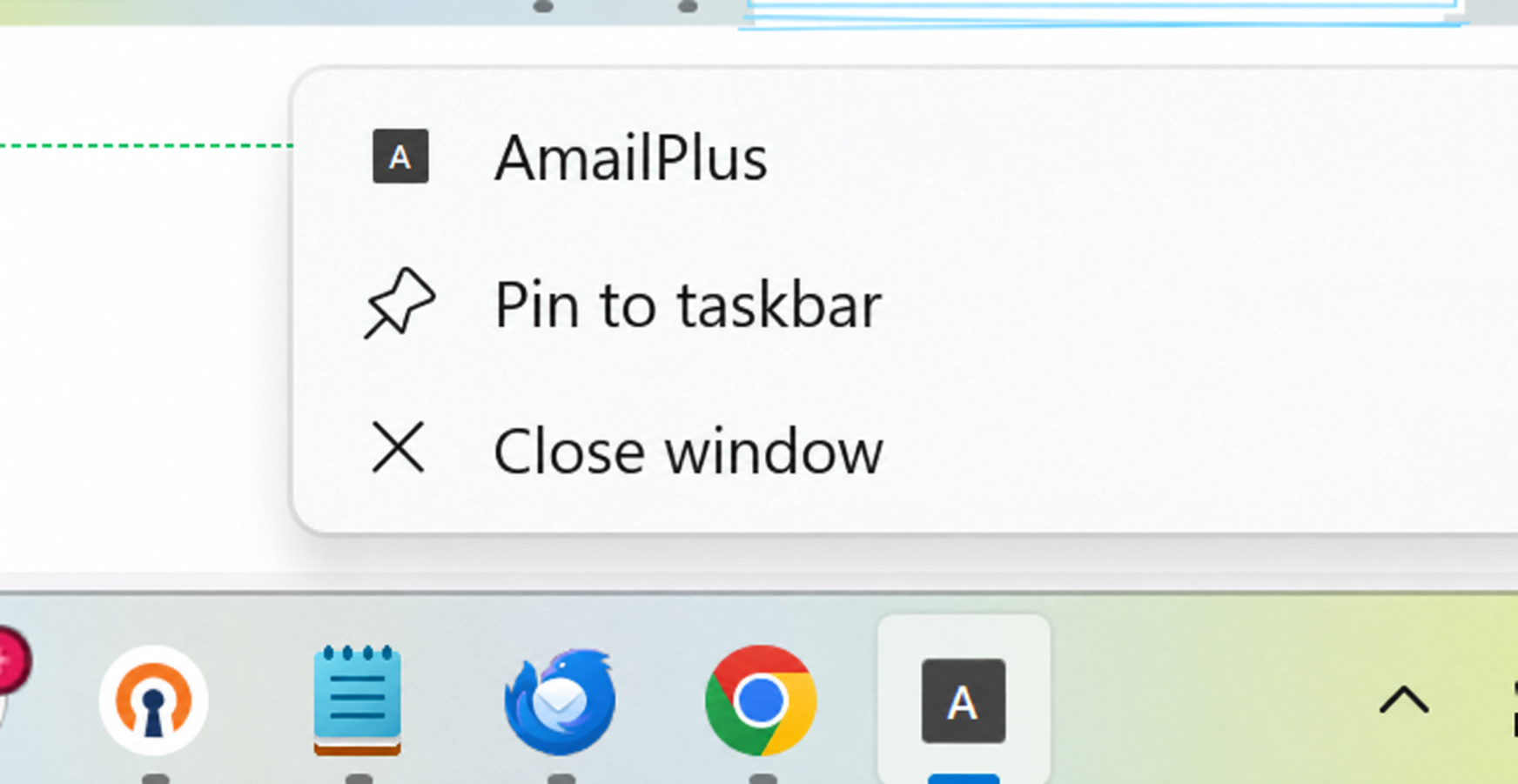
Example Windows taskbar menu adapted for AmailPlus.
If the install command is missing in Chrome, check whether the app is already installed and whether your organisation restricts app installation. You can continue using AmailPlus webmail in a browser.
For another desktop email option, see How to Set Up Your AmailPlus Emails in Outlook Classic.
Need help? Contact Aveshost Support.
