


Let people know when you are away by setting an out-of-office message for your Aveshost AmailPlus mailbox. Automatic replies can tell senders when you expect to return and who to contact in the meantime.
Step 1: Log in to AmailPlus
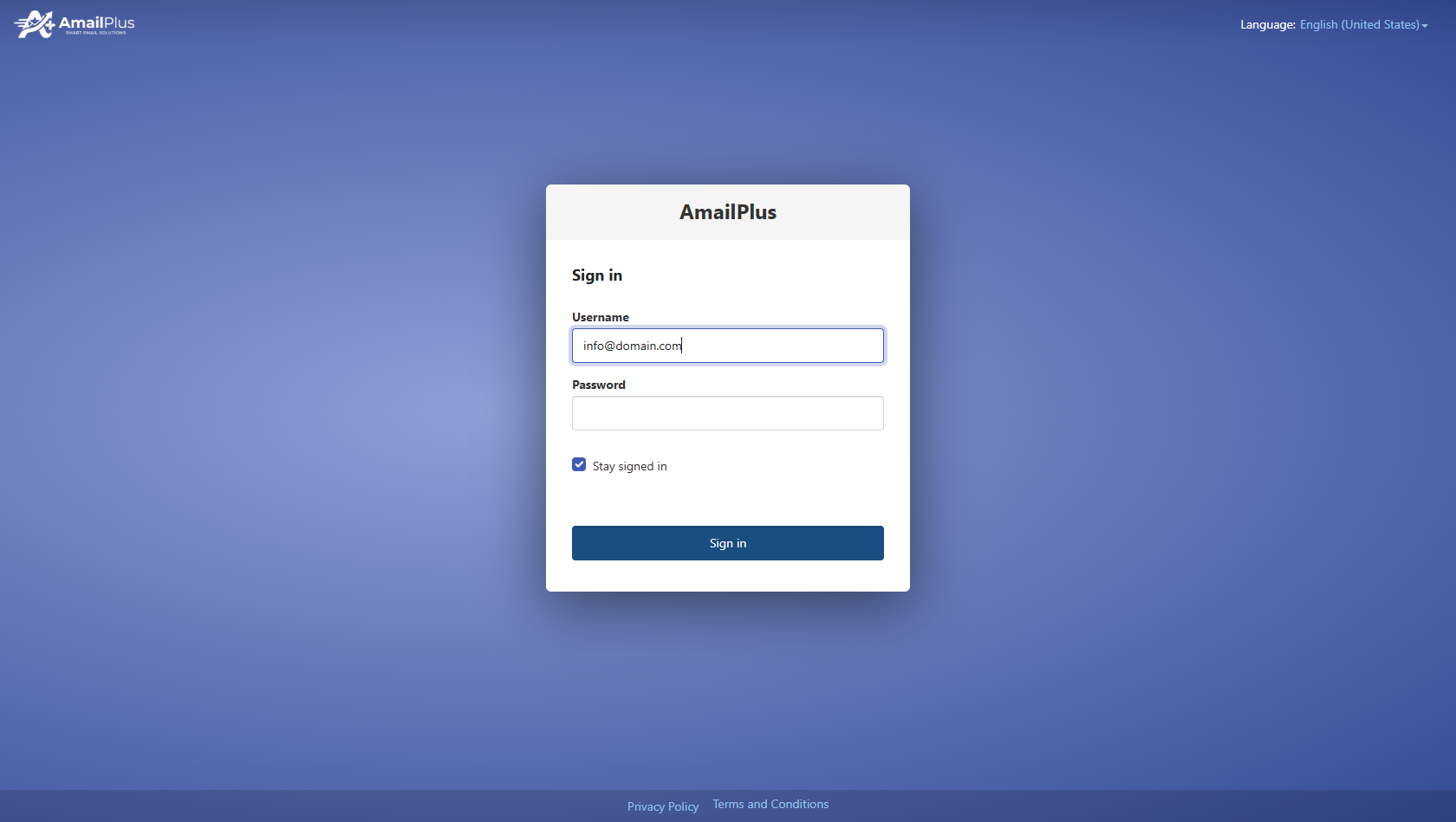
Open webmail.amailplus.com and sign in with your full email address and mailbox password. If you need help, follow How to Access Your AmailPlus Email.
Step 2: Open Settings
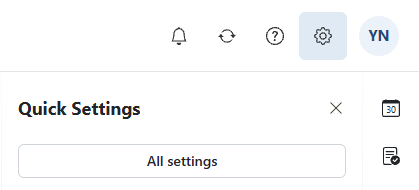
In the current desktop interface, click the gear icon in the top-right corner, then choose All settings from the Quick Settings panel.
Step 3: Open Automatic replies
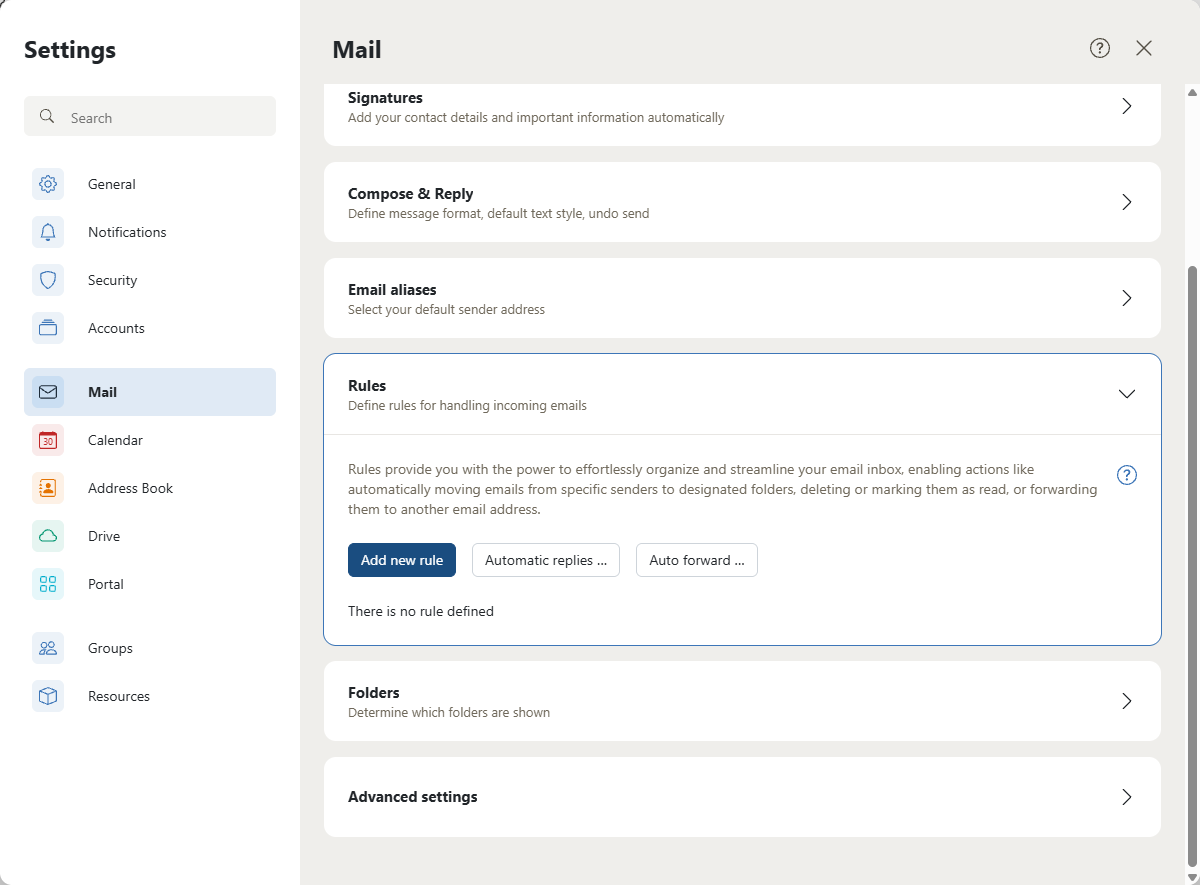
Select Mail in the left-hand menu. Scroll to Rules, expand the section and click Automatic replies….
Step 4: Write and schedule your auto-reply
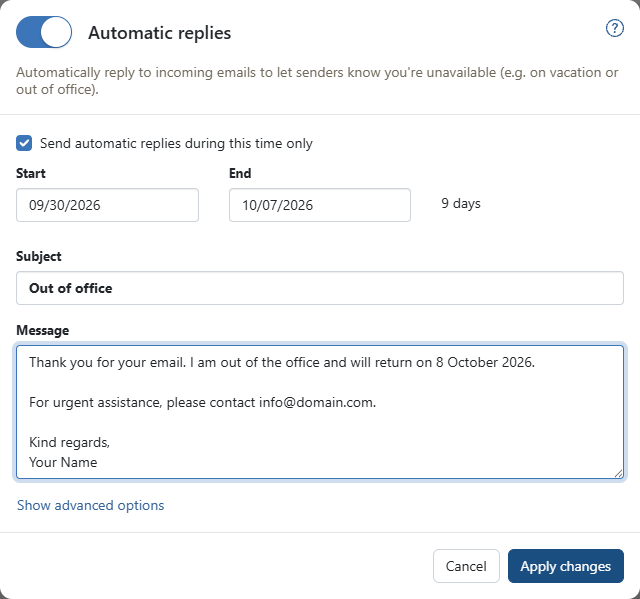
- Turn the Automatic replies switch on.
- To limit replies to your absence, select Send automatic replies during this time only, then choose your Start and End dates. Check that the dates cover the period you intend.
- Enter a clear Subject, such as Out of office.
- Write the response in the Message box. Include your return date and, if appropriate, an alternative contact.
- Review the message and dates, then click Apply changes.
Example message:
Thank you for your email. I am currently out of the office and will return on [return date]. I will respond as soon as possible after I return.
For urgent assistance, please contact [email protected].
Kind regards,
Your Name
Replace the return date, example address and name before saving.
Step 5: Check the saved settings and turn replies off when you return
After applying your changes, reopen Automatic replies and confirm the switch, message and schedule are saved. During the configured period, eligible incoming messages will receive your automatic response.
When you return: Go back to Settings > All settings > Mail > Rules > Automatic replies, turn the switch off and click Apply changes. This is especially important if you did not set a time limit.
Need help? Contact Aveshost Support if automatic replies are unavailable or your changes cannot be saved.
