


Use email forwarding in Aveshost AmailPlus to send incoming messages to another mailbox automatically. Use Auto forward for one destination, or create mail rules when you need separate recipients or conditions.
You will need your AmailPlus email address and password, plus the destination address. Replace [email protected] in the examples with the address that should receive your messages.
1. Setting Up an Auto Forward to One Email Account
Step 1: Sign in to AmailPlus
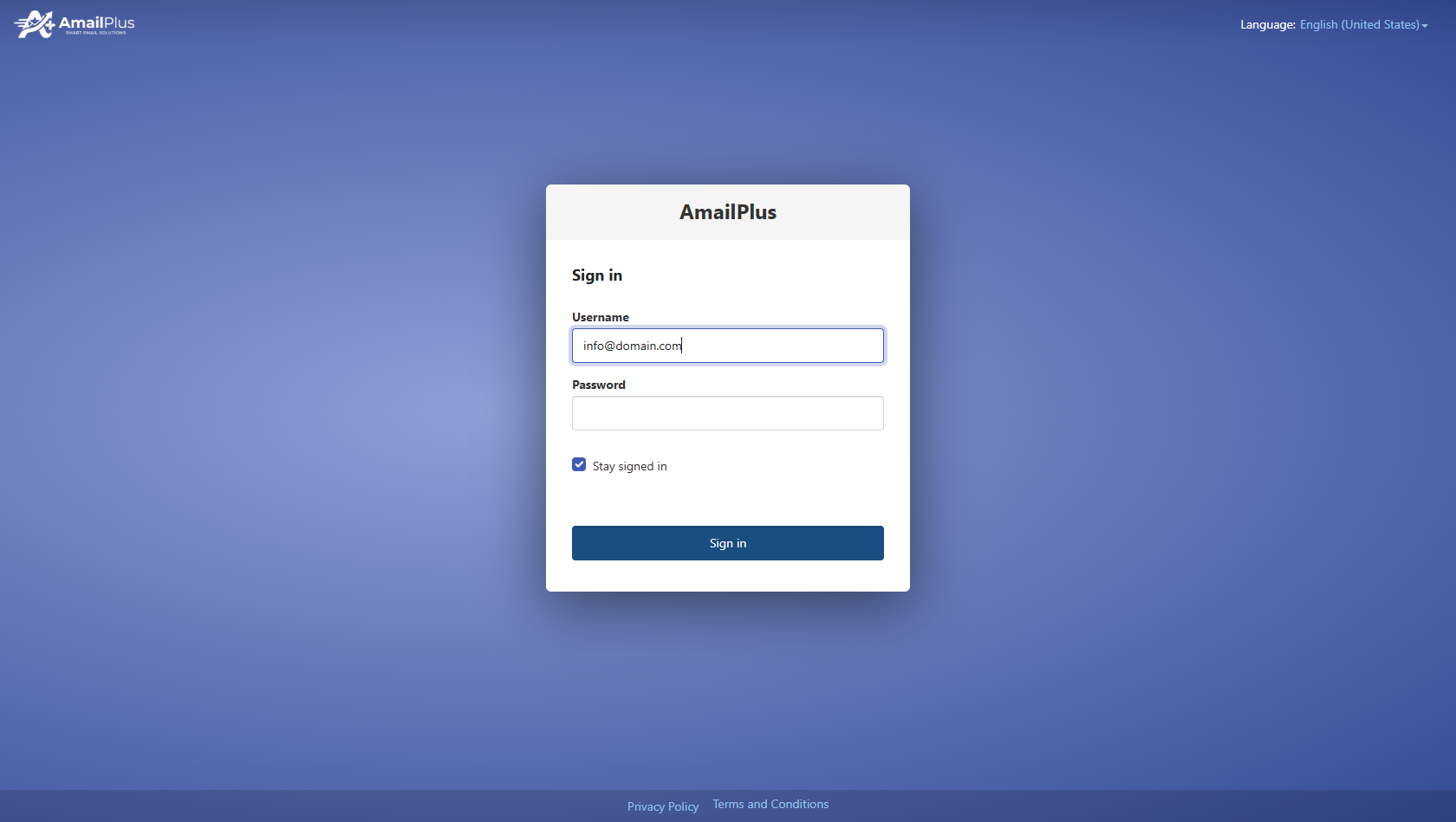
Open webmail.amailplus.com and sign in with your full email address and mailbox password.
Step 2: Open Mail settings
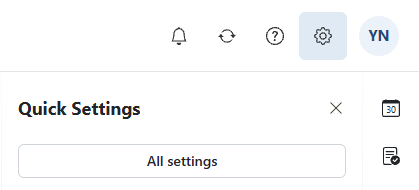
Click the Settings gear in the top toolbar, then select All settings.
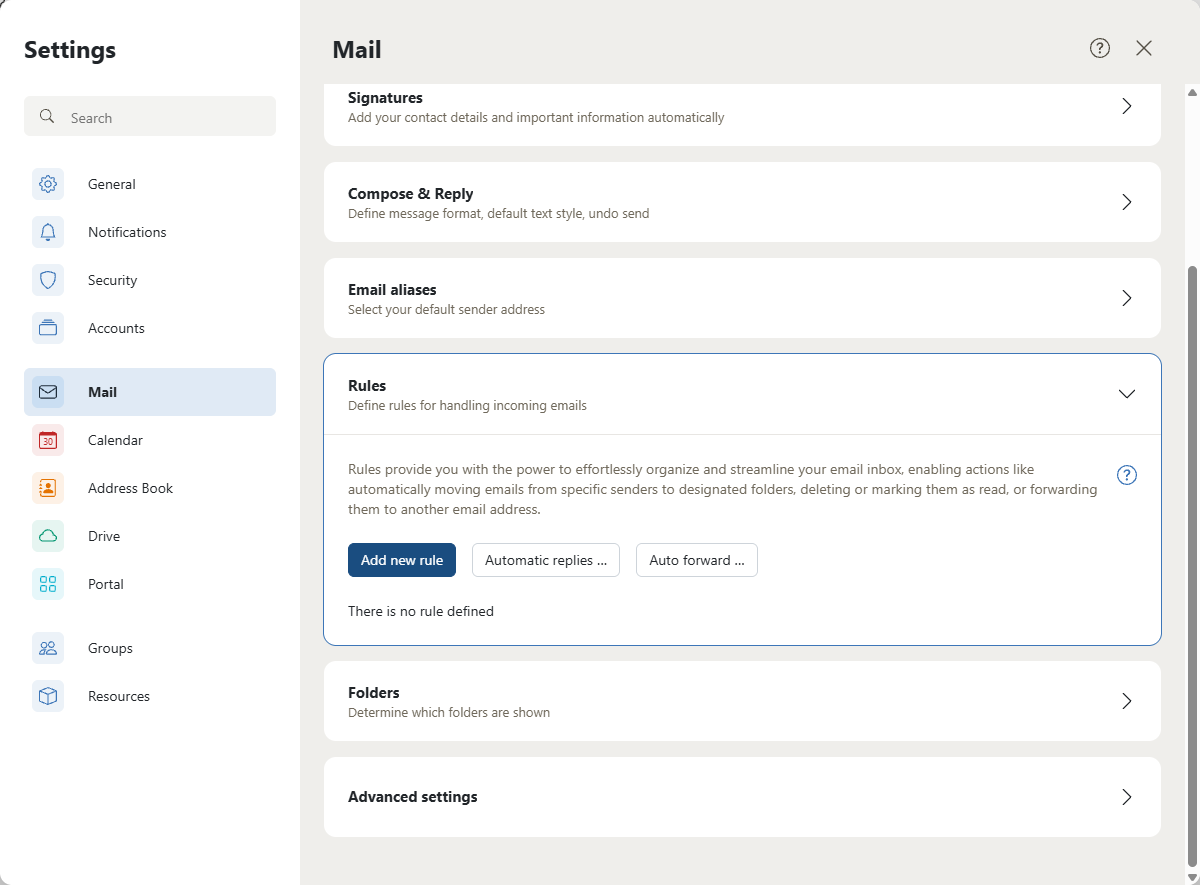
Select Mail, expand Rules, then click Auto forward ….
Step 3: Configure the forwarding address
- Turn on the Auto forward switch.
- In Forward all incoming emails to this address, enter the destination email address.
- Select Keep a copy of the message if you also want messages retained in your AmailPlus mailbox.
- Select Process subsequent rules if messages should continue through your other mail rules.
- Check the address carefully, then click Apply changes.
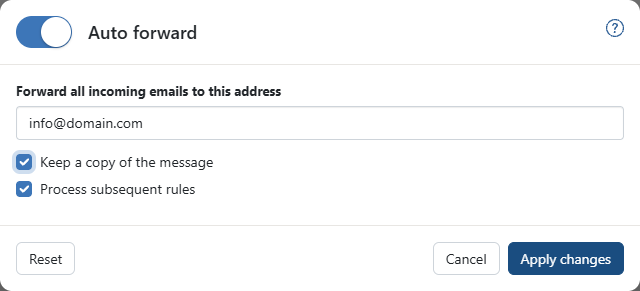
Keep a copy: Leave this selected if you want to read the messages in AmailPlus as well as at the destination. If it is cleared, forwarding does not itself retain a local copy; other matching rules can also affect delivery.
After saving, send a new test message to your AmailPlus address and check that it arrives at the destination. Existing messages are not forwarded retrospectively. To stop forwarding later, return to Auto forward, turn the switch off and click Apply changes.
2. Forwarding to Multiple Addresses Using Rules
Mail rules let you redirect matching messages to additional recipients. Create a separate rule for each destination, and allow subsequent rules to run when a message must reach more than one recipient. Recipient limits and external-forwarding restrictions can vary; contact Aveshost if a destination or additional rule is rejected.
Step 1: Add a new rule
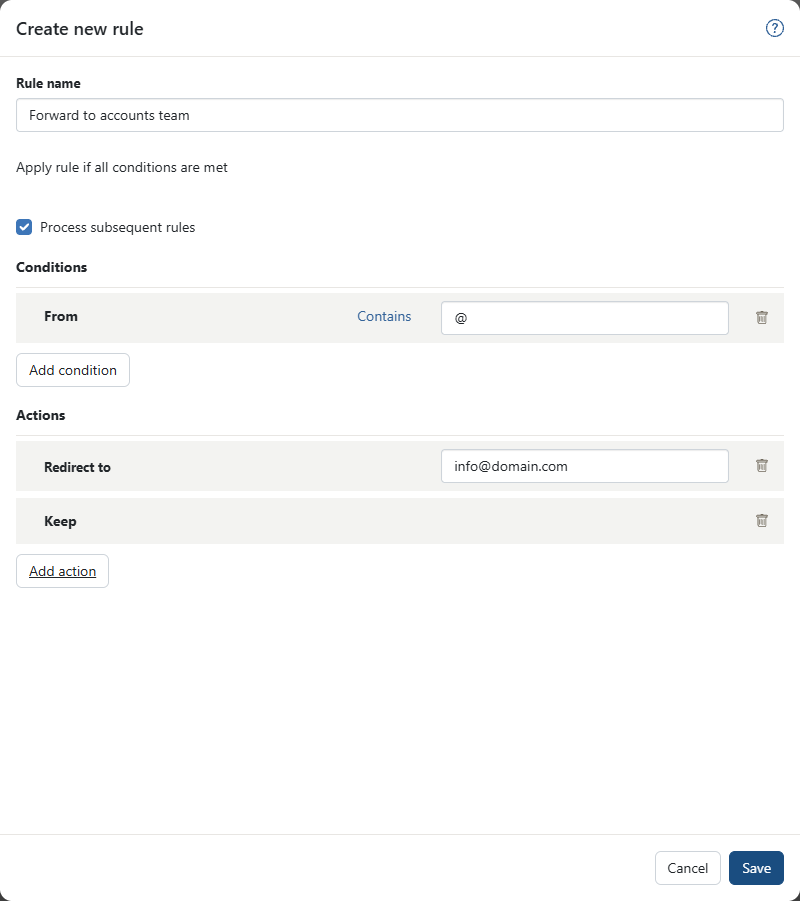
Go to Settings → All settings → Mail → Rules and click Add new rule. Give the rule a useful name, such as Forward to accounts team.
Step 2: Choose the condition
- Click Add condition and select From.
- Set the comparison to Contains.
- Enter @ to match messages whose From field contains an email address with an @ symbol. This is a broad match for ordinary email senders.
For selective forwarding, enter a specific sender instead, such as [email protected]. Only messages matching your condition will be redirected.
Step 3: Add the forwarding actions
- Click Add action and choose Redirect to.
- Enter the destination address, replacing [email protected] with your recipient.
- Click Add action again and choose Keep if a copy should remain in your AmailPlus mailbox.
- Select Process subsequent rules so later rules can also process the message.
Step 4: Save and repeat for other recipients
Click Save. Repeat these steps for each additional destination, using a different rule name and recipient. Review the order of your rules: an earlier rule that stops processing can prevent later forwarding rules from running.
Send a new test message after saving and check each destination. If you also enabled Auto forward in the first section, avoid duplicating the same destination in a rule. Do not configure recipients to forward messages back to each other, as this can create a forwarding loop.
Redirecting versus forwarding
Redirect to sends the message on while preserving the original sender in its From field. A message you manually forward from your mailbox is sent by you. This distinction helps the recipient understand where the original message came from.
Need help with forwarding or mail rules? Contact Aveshost Support.
