


GitHub Pages is a fast, reliable service for hosting static websites, developer portfolios, documentation sites, and frontend projects (built with HTML/CSS/JS, React, Astro, Next.js static export, or Jekyll) directly from a GitHub repository. By default, GitHub Pages assigns your site a generic URL formatted like https://username.github.io or https://username.github.io/repository-name.
Connecting your own custom domain registered with Aveshost (such as domain.com, www.domain.com, or a subdomain like docs.domain.com) gives your project a professional brand identity and automatic free HTTPS SSL encryption powered by Let’s Encrypt.
In this comprehensive, beginner-friendly tutorial, we will walk you through every step required to connect your Aveshost domain or subdomain to GitHub Pages, configure your A and CNAME DNS records with visual screenshots, add a permanent CNAME file to your repository, and enable Enforce HTTPS.
Prerequisites
- A domain name registered with Aveshost (see How to Register a Domain Name).
- Access to your Aveshost Client Area (or DirectAdmin control panel if your domain is attached to a shared hosting plan).
- A GitHub account with a public or private repository where GitHub Pages is enabled.
Official GitHub Pages IP Addresses (Quick Reference)
To point a root/apex domain (domain.com) to GitHub Pages, GitHub requires pointing four A (Address) Records to the following official GitHub Pages IPv4 addresses:
185.199.108.153
185.199.109.153
185.199.110.153
185.199.111.153
Optional IPv6 (AAAA) Records (if you wish to include IPv6 support):
2606:50c0:8000::153
2606:50c0:8001::153
2606:50c0:8002::153
2606:50c0:8003::153
Scenario 1: Pointing an Aveshost Domain (Domain-Only) to GitHub Pages
Follow this method if you purchased a domain name on Aveshost and want to point the entire domain (domain.com and www.domain.com) or a subdomain to GitHub Pages using Aveshost Client Area DNS Management.
Step 1: Point Your Domain to Aveshost Default Nameservers
- Log in to your Aveshost Client Area.
- In the top navigation bar, click on Domains > My Domains.
- Locate your domain name and click Manage (or the wrench icon).
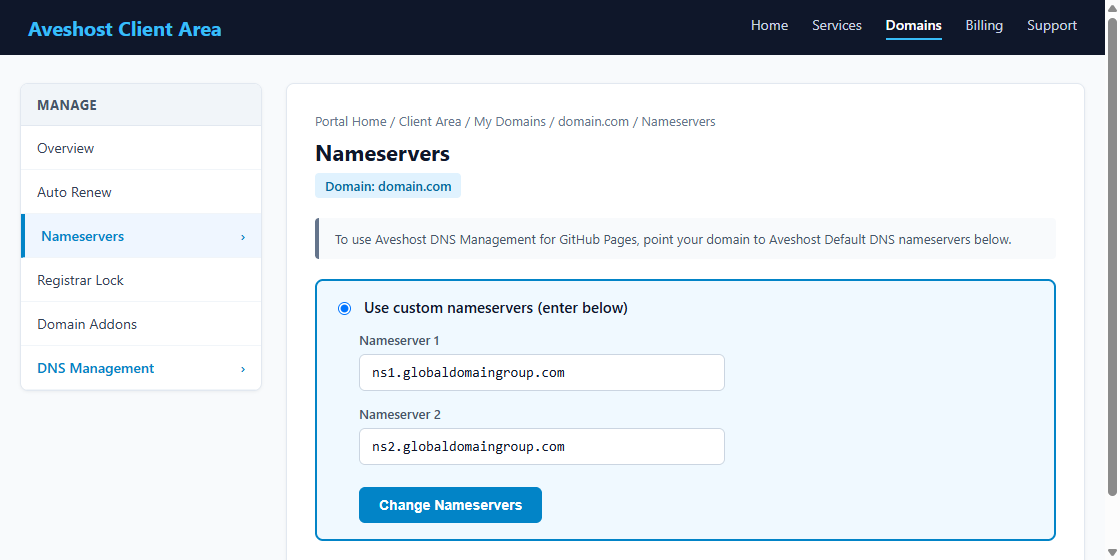
- In the left sidebar under Manage, click on Nameservers.
- Ensure your domain is using Aveshost’s default DNS management nameservers:
ns1.globaldomaingroup.com ns2.globaldomaingroup.com - If different nameservers are listed, select Use custom nameservers (enter below), enter the two nameservers above, and click Change Nameservers.
Step 2: Add GitHub Pages DNS Records in Aveshost DNS Management
- In the left sidebar of your domain management page, click on DNS Management.
- Delete any conflicting existing
AorCNAMErecords for@orwww(such as default parking records). - Click + Add New Record and enter the 4 GitHub Pages A Records for your root domain (
@) along with the CNAME Record forwww:
| Host Name | Record Type | Address / Value | TTL |
|---|---|---|---|
@ (or leave blank) |
A (Address) | 185.199.108.153 |
14400 |
@ (or leave blank) |
A (Address) | 185.199.109.153 |
14400 |
@ (or leave blank) |
A (Address) | 185.199.110.153 |
14400 |
@ (or leave blank) |
A (Address) | 185.199.111.153 |
14400 |
www |
CNAME (Alias) | username.github.io (replace username with your GitHub username) |
14400 |
username.github.io or orgname.github.io) — never include the repository name (do not put username.github.io/my-repo in DNS). GitHub automatically routes traffic to the right repository based on Step 3 below.
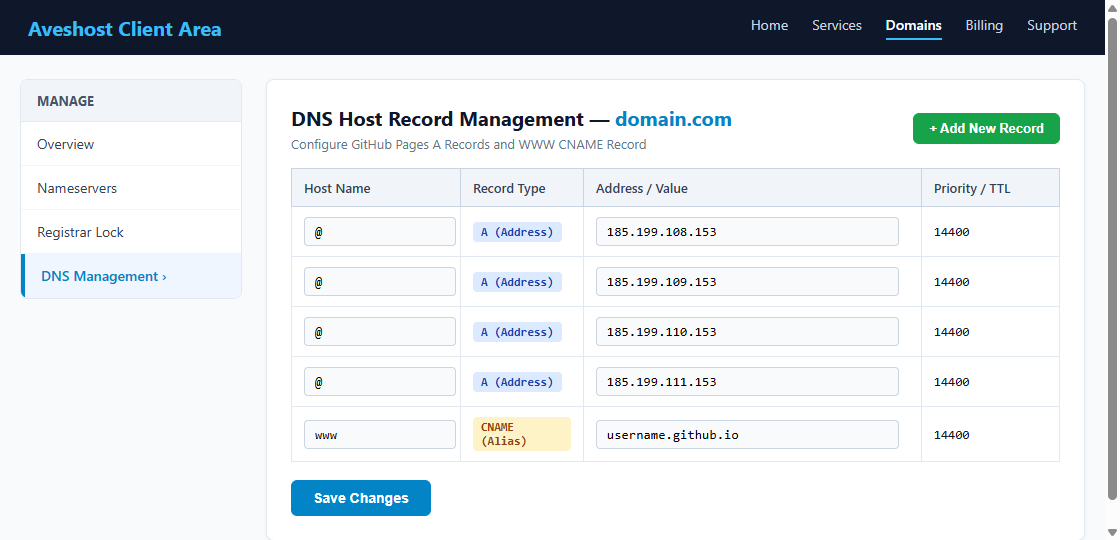
- Click Save Changes.
Scenario 2: Pointing a Subdomain or Domain Managed in DirectAdmin
If your domain is already connected to an Aveshost Shared Web Hosting plan (DirectAdmin) — for example, your main site runs WordPress on DirectAdmin at domain.com, and you want to point a subdomain like docs.domain.com or portfolio.domain.com to GitHub Pages (or point the entire domain via DirectAdmin DNS):
- Log in to your DirectAdmin Control Panel (see How to Login to DirectAdmin Control Panel).
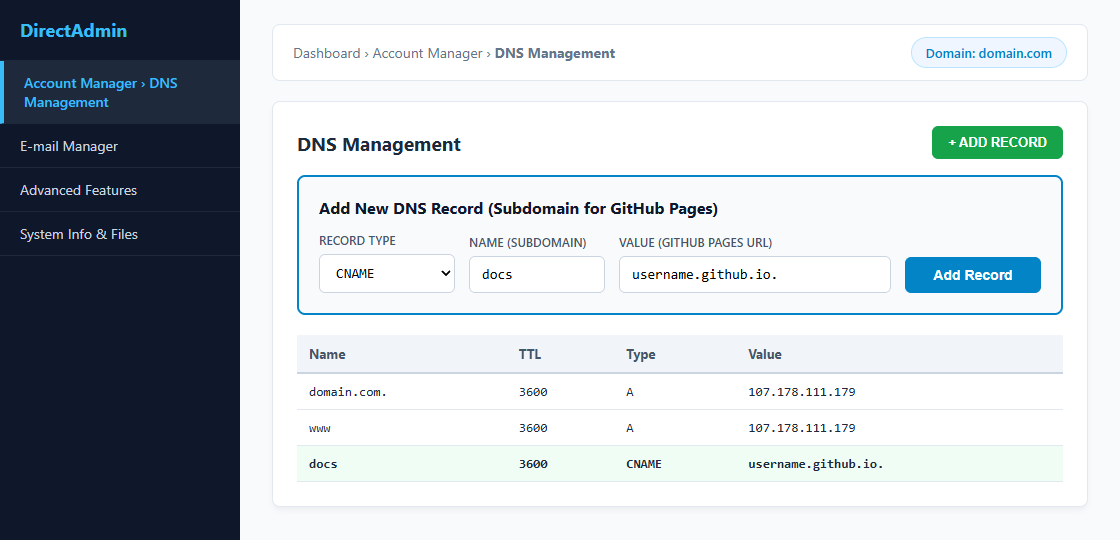
- Navigate to Account Manager > DNS Management.
- Click the green + ADD RECORD button at the top right.
- To connect a Subdomain (e.g.
docs.domain.comorapp.domain.com):- Record Type: Select
CNAME - Name: Enter your subdomain prefix (e.g.
docsorportfolio) - Value: Enter
username.github.io.(Notice the trailing dot.at the end — DirectAdmin requires a trailing dot for external domain values so it does not append your domain name to the end). - Click Add.
- Record Type: Select
- To connect the Root Domain in DirectAdmin: Delete the existing root
Arecord fordomain.com., click + ADD RECORD, and add the four GitHub PagesArecords (185.199.108.153through185.199.111.153) with the Name left blank (or set todomain.com.).
Step 3: Add Your Custom Domain in GitHub Pages Settings
Once your DNS records are saved in Aveshost, link the domain inside your GitHub repository:
- Log in to GitHub and open the repository hosting your website.
- Click on the Settings tab at the top of the repository.
- In the left sidebar under Code and automation, click on Pages.
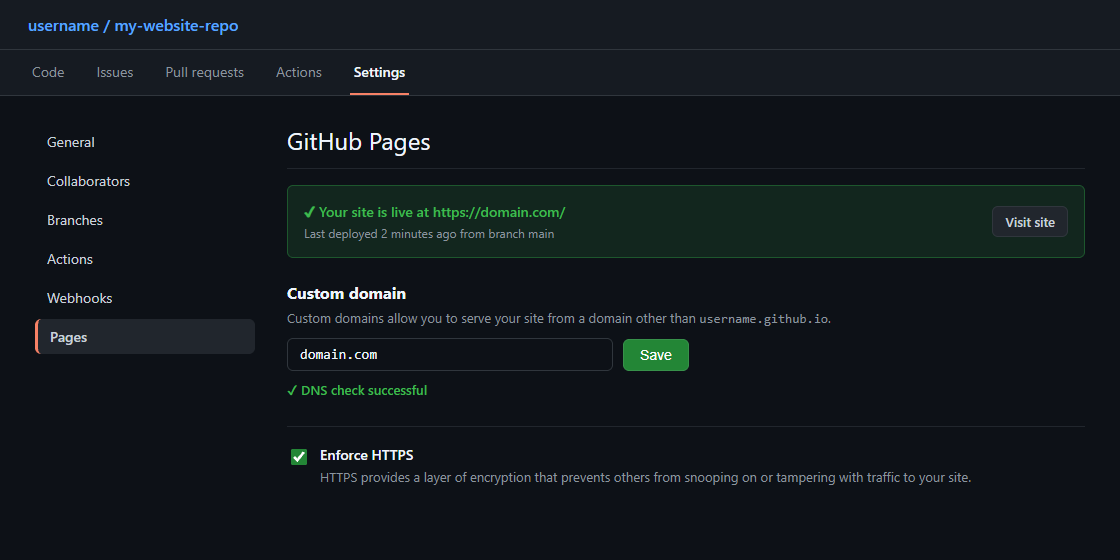
- Under the Custom domain section, enter your custom domain (e.g.
domain.comordocs.domain.com) into the text field. - Click Save.
- GitHub will automatically create a commit that adds a
CNAMEfile to the root of your publishing branch and begin running a DNS check. - Once the check displays ✔ DNS check successful, check the box next to Enforce HTTPS.
(Note: Provisioning the free Let’s Encrypt SSL certificate on GitHub can take anywhere from 5 to 30 minutes after DNS propagation completes).
Step 4: Keep Your Custom Domain Permanent During Builds (React, Vite, Next.js)
If you deploy your site using a build tool or GitHub Actions (such as gh-pages npm package, Vite, Create React App, or Next.js), the build process wipes and recreates the deployment folder on every push. If the CNAME file is missing from your static source folder, your custom domain will disconnect every time you deploy!
To prevent this permanently:
- Create a file named
CNAME(all uppercase, with no file extension like.txt) inside your project’spublic/directory (for React, Vite, Next.js, or Astro) or root directory (for plain HTML/Jekyll). - Inside the
CNAMEfile, place a single line with your custom domain:domain.com - Commit and push the file to GitHub:
git add public/CNAME
git commit -m "Add CNAME file for custom domain"
git push origin main
Step 5: Verify Your DNS Connection
You can verify that your Aveshost domain is properly resolving to GitHub Pages from your computer’s terminal or command prompt:
# Verify Root Domain A Records:
nslookup domain.com

# Verify WWW or Subdomain CNAME Record:
nslookup www.domain.com
If the output returns the 185.199.108.153 – 185.199.111.153 IP addresses and username.github.io, your DNS setup is 100% complete!
Frequently Asked Questions & Troubleshooting
Q: GitHub says "Domain's DNS record could not be retrieved" or "Improperly configured". What should I do?
A: DNS changes typically take between 10 minutes to a few hours to propagate globally. Also verify that you removed any old conflicting A or AAAA records pointing to previous hosting servers, and if using DirectAdmin, ensure you included the trailing period (username.github.io.) on the CNAME value.
Q: Why is the "Enforce HTTPS" checkbox greyed out on GitHub Pages?
A: GitHub automatically requests a free Let’s Encrypt SSL certificate as soon as the DNS check succeeds. While the certificate is being issued in the background (usually 5–20 minutes), the checkbox remains greyed out. Refresh the GitHub Pages settings page after a few minutes, or temporarily remove and re-save the custom domain in GitHub to re-trigger the SSL certificate request.
Q: Does connecting my root domain to GitHub Pages affect my DirectAdmin emails?
A: No, as long as your MX record and mail A record remain intact! If you use DirectAdmin for business email (e.g. [email protected]), keep your mail A record pointing to your Aveshost server IP and your MX record pointing to mail.domain.com. Only update the root (@) A records and www CNAME record for GitHub Pages.
Need Further Assistance?
If you need any help pointing your Aveshost domain to GitHub Pages, verifying DNS records, or configuring subdomains, our technical support team is available 24/7. Feel free to submit a support ticket through your client area for prompt assistance.
