


An SSL (Secure Sockets Layer) Certificate encrypts the communication between your website visitors and your web server. It protects sensitive user data (such as passwords, payment details, and form submissions), builds visitor trust with the secure padlock icon in web browsers, and improves your website's search engine rankings (SEO).
Aveshost DirectAdmin hosting includes free, automated SSL certificates powered by Let's Encrypt and ACME that issue automatically and renew every 60–90 days without any manual intervention. You can also install custom or third-party commercial SSL certificates at any time.
This comprehensive step-by-step guide will walk you through enabling free Let's Encrypt SSL, configuring ACME automation, enforcing HTTPS redirection, and troubleshooting common SSL issues in DirectAdmin.
Prerequisites
- An active Web Hosting account with DirectAdmin.
- A registered domain name added to your account (see How to Add a Domain Name in DirectAdmin).
- Your domain's nameservers properly pointed to Aveshost and fully propagated (refer to Where to find Aveshost nameservers).
- Access to your DirectAdmin control panel (see How to Login to DirectAdmin Control Panel).
Step-by-Step Guide: How to Install Free SSL in DirectAdmin
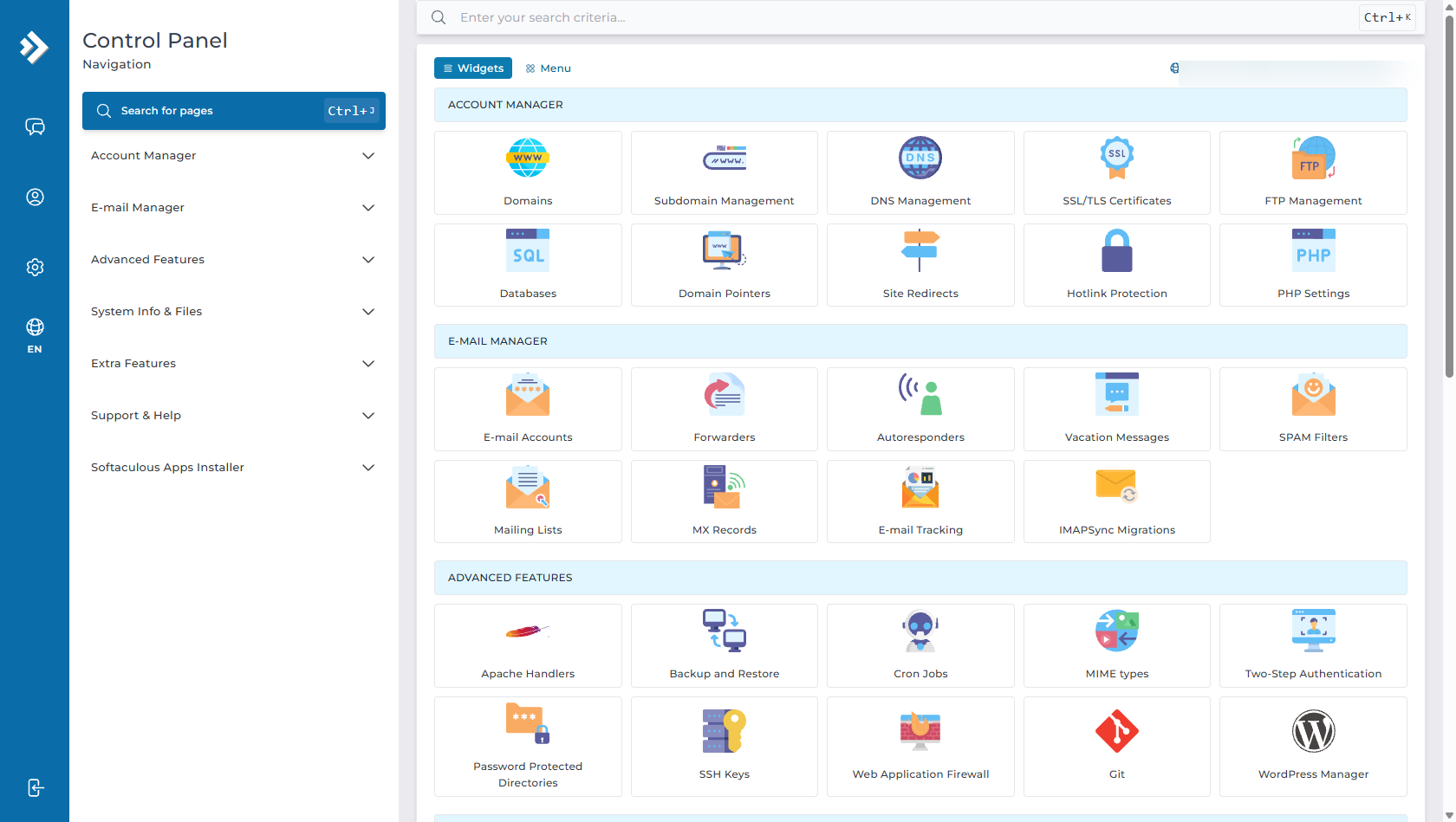
Step 1: Navigate to SSL/TLS Certificates in Account Manager
Log in to your DirectAdmin dashboard:
- In the left sidebar menu (or main dashboard icons), expand the Account Manager section.
- Click on SSL/TLS Certificates.
Step 2: Select Your Domain & Review Certificate Status
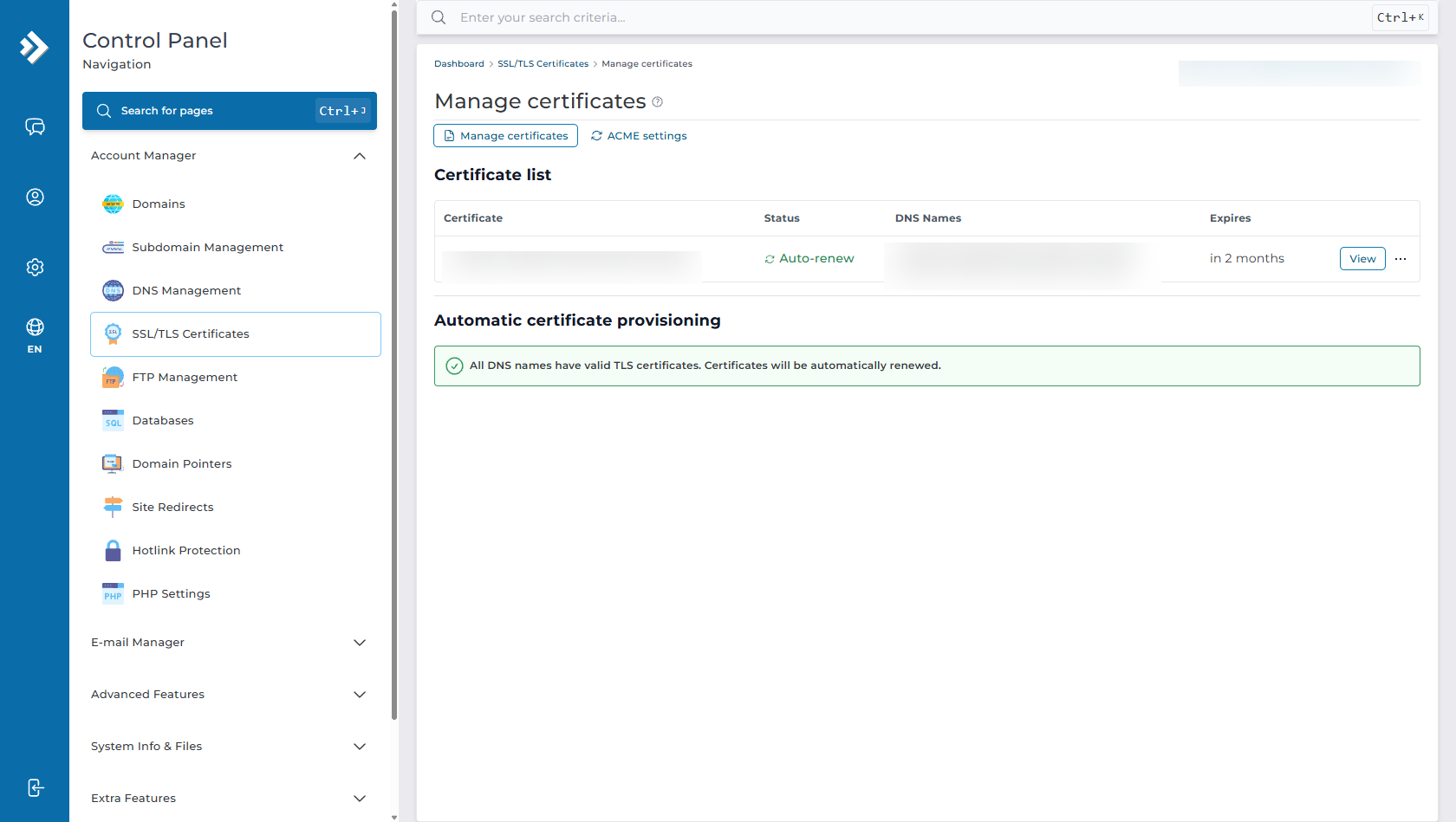
On the Manage certificates page:
- Ensure the domain you want to secure is selected in the top-right domain switcher.
- You will see your active certificates, certificate status (such as
Auto-renew), covered DNS hostnames (e.g.,yourdomain.comand*.yourdomain.com), and expiry timeline.
Step 3: Configure Automatic SSL via ACME Settings (Let's Encrypt)
Click on the ACME settings tab at the top of the SSL management area to configure automated certificate issuance:
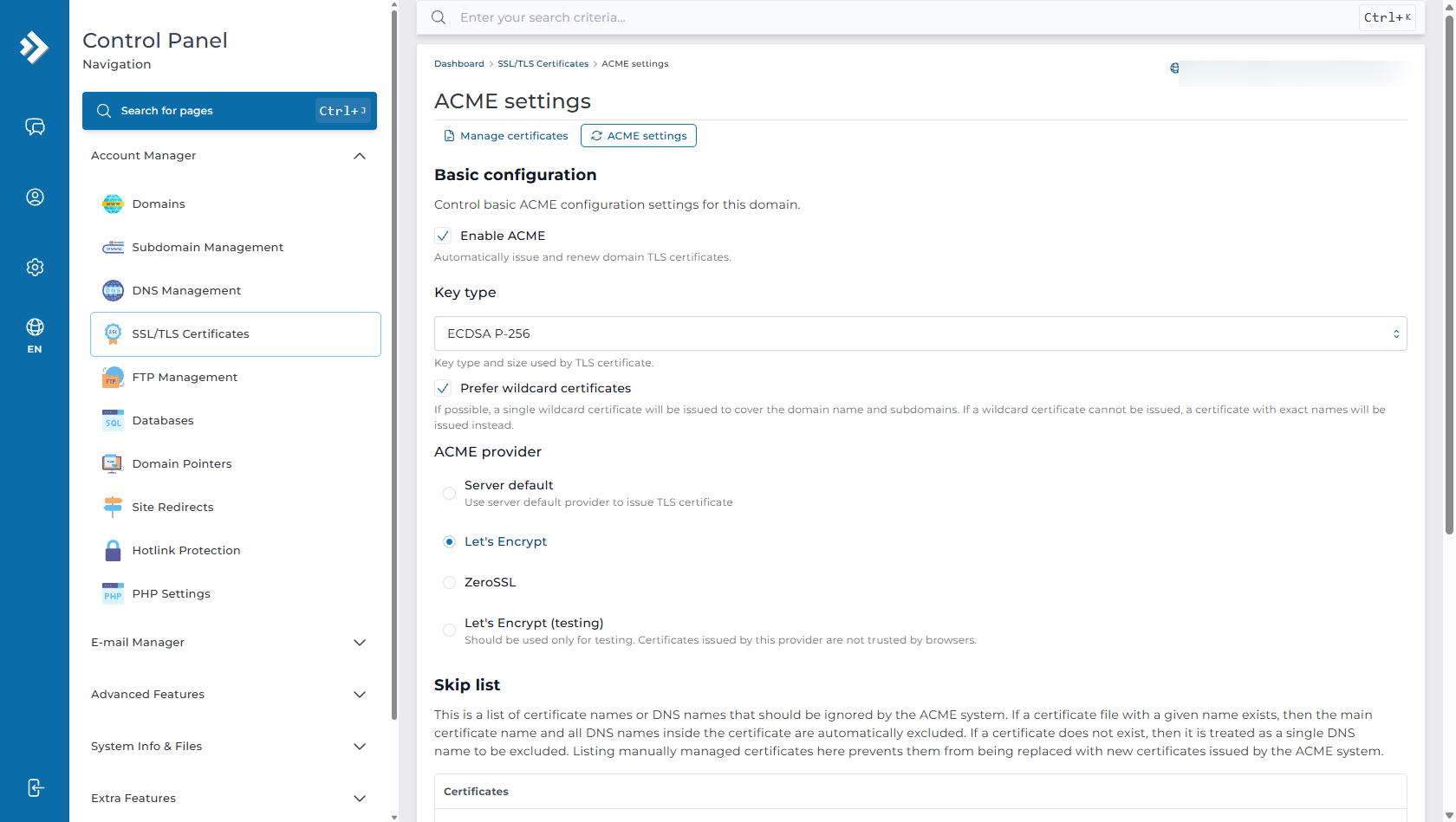
Configure the following settings:
- Enable ACME: Check this option (enabled) to allow DirectAdmin to automatically request, install, and renew TLS/SSL certificates for this domain.
- Key type: Choose your preferred cryptographic algorithm. ECDSA P-256 is recommended for modern, faster TLS handshakes, or RSA 2048/4096 for legacy compatibility.
- Prefer wildcard certificates: Check this box if you want a single wildcard certificate (
*.yourdomain.com) to cover all existing and future subdomains automatically. - ACME provider: Select Let's Encrypt (or Server default) as your trusted certificate authority provider.
- Skip list: Leave blank unless there are specific unused hostnames or external subdomains you wish to exclude from validation.
Click SAVE. DirectAdmin will contact the ACME certificate authority, perform automated domain validation, and install your certificate within 30–60 seconds.
Step 4: Enable Force SSL / HTTPS Redirection
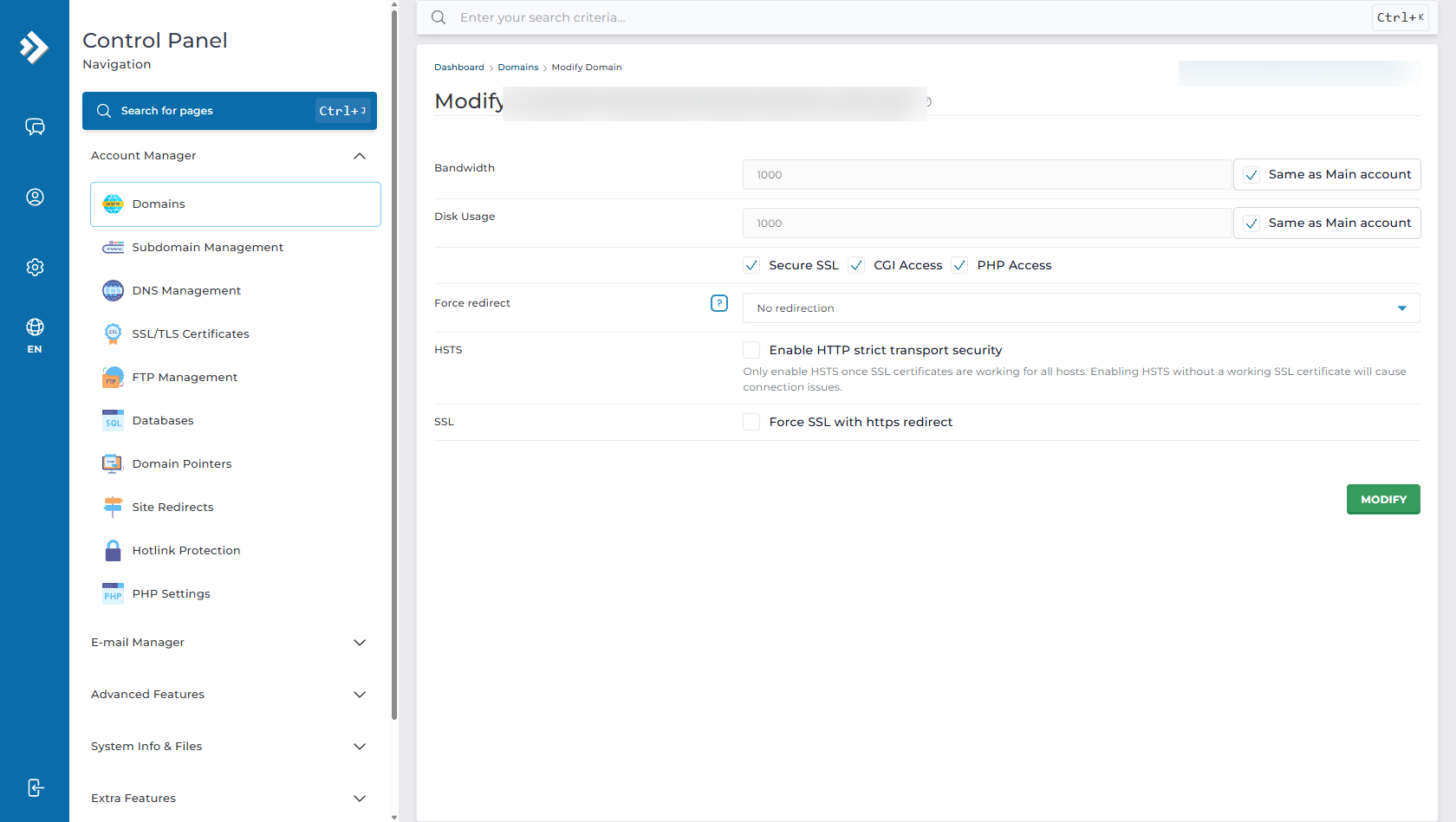
Once your SSL certificate is installed, configure your domain to automatically forward all unencrypted HTTP visitors to secure HTTPS:
- Navigate to Account Manager > Domains.
- Click on your domain name to open the Modify Domain screen.
- Ensure Secure SSL is checked.
- Under Force redirect or SSL, enable "Force SSL with https redirect".
- (Optional) Enable HSTS (HTTP Strict Transport Security) for maximum browser-enforced security once SSL is verified.
- Click MODIFY / SAVE to apply the changes.
How to Install a Custom or Commercial SSL Certificate
If you purchased an SSL certificate from an external certificate authority (such as Comodo/Sectigo, DigiCert, or GeoTrust):
- Go to Account Manager > SSL/TLS Certificates > Manage certificates.
- Select "Paste a pre-existing certificate and key".
- Paste your Private Key (KEY) in the first box.
- Paste your Primary Certificate (CRT) and any intermediate CA bundle certificates below it.
- Click Save to activate the commercial certificate.
How to Verify Your SSL Installation
- Browser Test: Open a private/incognito browsing window and visit
https://yourdomain.com. Check for the solid padlock icon next to your URL. - Certificate Details: Click the padlock icon in your browser address bar > Connection is secure > Certificate is valid to inspect the issuing authority and expiration date.
- Online SSL Checkers: You can also verify your SSL chain and cipher strength using free tools like Qualys SSL Labs or SSL Shopper.
Frequently Asked Questions & Troubleshooting
Q: I received a "Failed HTTP Checks" error when requesting a certificate. Why?
A: The ACME validation system sends an HTTP request to your domain to verify domain ownership. If your domain's DNS is pointing to another server or hasn't finished propagating, the check will fail. Ensure your nameservers are correctly set (see Where to find Aveshost nameservers) and wait for DNS propagation before re-requesting.
Q: Why does my browser show a "Mixed Content" or "Not Secure" warning despite having an SSL certificate?
A: This occurs when your HTML code or CMS (e.g., WordPress) loads images, scripts, or stylesheets over unencrypted http:// URLs instead of https://. In WordPress, update your Site Address (URL) and WordPress Address (URL) under Settings > General to start with https://, or use a plugin like Really Simple SSL.
Q: Do I need to manually renew my Let's Encrypt SSL certificate?
A: No. DirectAdmin automatically checks and renews your active Let's Encrypt certificates approximately 30 days prior to expiration as long as Enable ACME remains active.
Q: Does the SSL certificate also cover my subdomains and webmail?
A: Yes. If you enable "Prefer wildcard certificates" in ACME settings, all subdomains (such as blog.yourdomain.com, mail.yourdomain.com, webmail.yourdomain.com) will be secured under the same wildcard certificate.
Need Further Assistance?
If you encounter any issues installing or configuring SSL certificates in DirectAdmin, our 24/7 technical support team is always ready to assist you. Simply submit a support ticket through your client area.
