


A Subdomain is a division or child domain created under your primary domain name (for example, blog.yourdomain.com, shop.yourdomain.com, portal.yourdomain.com, or app.yourdomain.com). Subdomains are an effective way to create distinct sections of your website, run separate applications (like an e-commerce store, blog, customer portal, or staging environment), or test new web applications without purchasing a separate domain name.
In DirectAdmin, creating and managing subdomains is quick and automated. When you create a subdomain, DirectAdmin automatically configures the server virtual host, creates the corresponding DNS records, and sets up an isolated document root directory for your files.
In this guide, we will walk you through the step-by-step process of creating and configuring a subdomain in DirectAdmin.
Prerequisites
- An active Web Hosting account with DirectAdmin.
- A registered primary domain name added to your account (see How to Add a Domain Name in DirectAdmin).
- Your domain pointed to Aveshost nameservers (refer to Where to find Aveshost nameservers).
- Access to your DirectAdmin control panel (see How to Login to DirectAdmin Control Panel).
Step-by-Step Guide: How to Create a Subdomain in DirectAdmin
Step 1: Navigate to Subdomain Management
- Log in to your DirectAdmin control panel.
- Under the Account Manager section on the main dashboard (or from the left sidebar navigation), click on Subdomain Management.
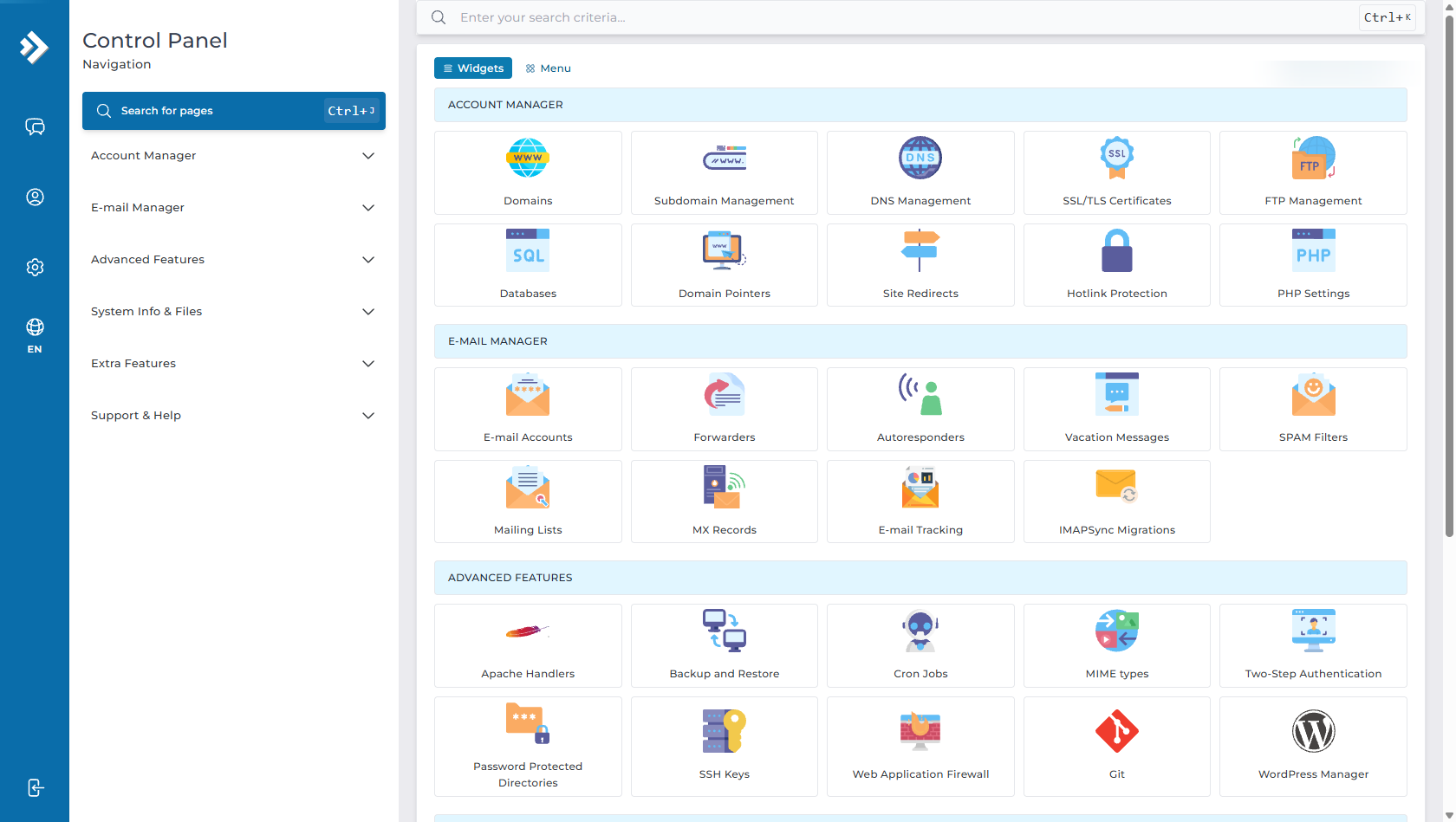
Step 2: Click the "ADD SUBDOMAIN" Button
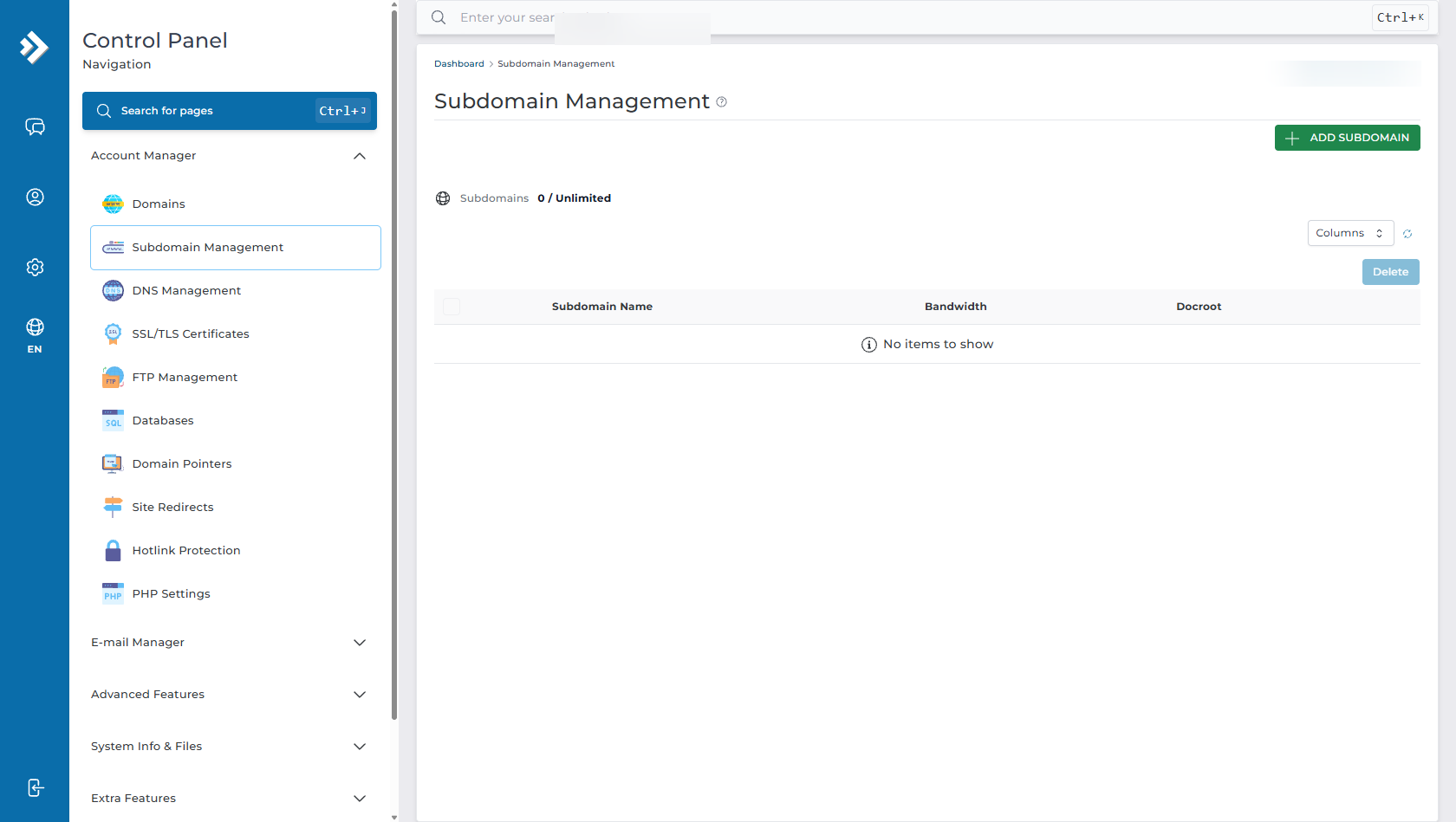
- On the Subdomain Management page, you will see a list of your existing subdomains along with usage metrics and document root paths.
- Click the green ADD SUBDOMAIN button located in the top-right corner of the table.
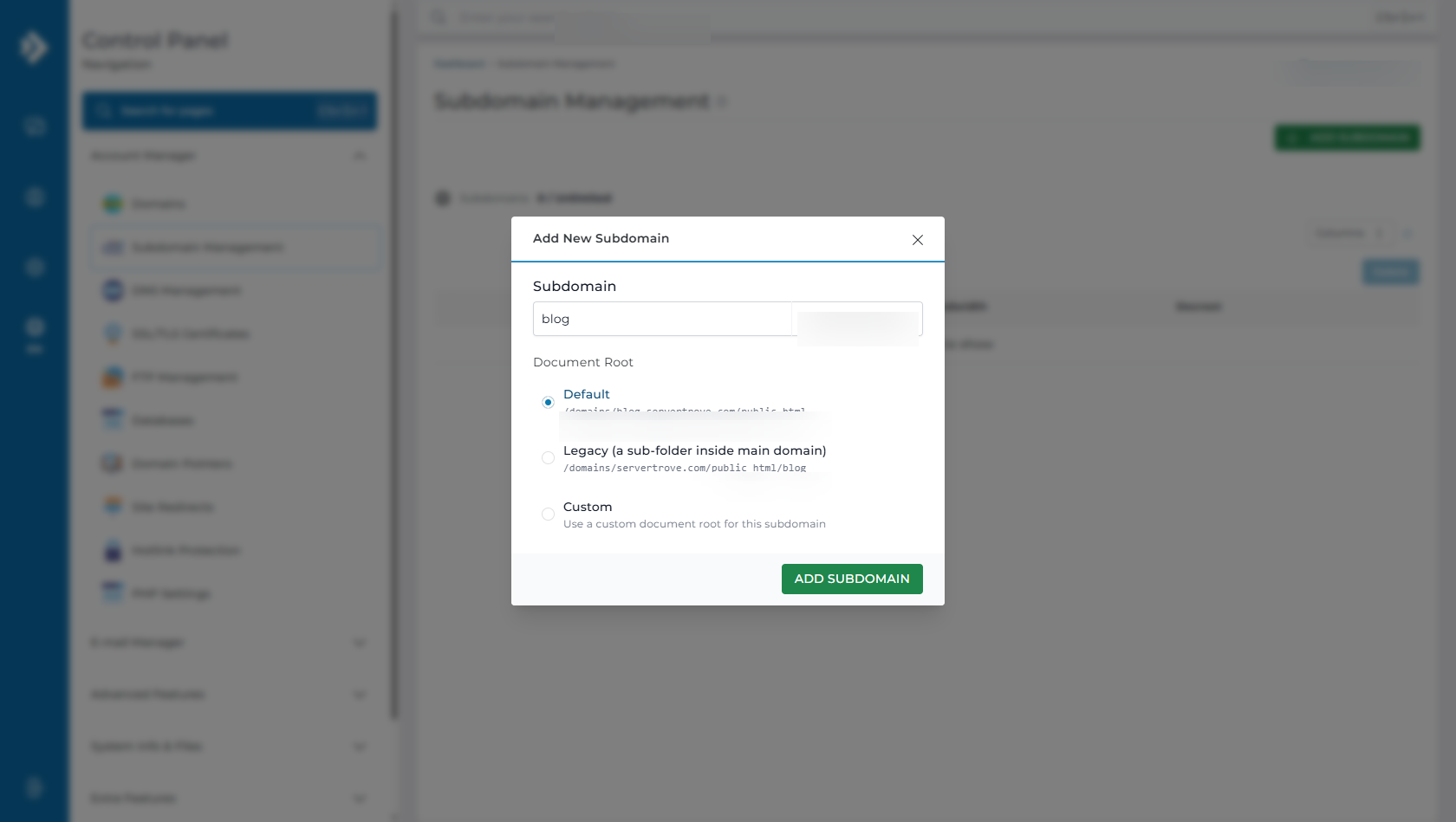
Step 3: Enter Your Subdomain Prefix & Choose Document Root
- Subdomain: Enter the prefix you want for your subdomain (e.g., enter
blogto createblog.yourdomain.com,shopforshop.yourdomain.com, orportalforportal.yourdomain.com). - Document Root: Select the directory where files for this subdomain will be stored:
- Default (Recommended): Creates an isolated directory under
/domains/subdomain.yourdomain.com/public_html. This gives the subdomain its own clean structure separate from your main site files. - Legacy: Creates a subfolder inside your main domain directory (
/domains/yourdomain.com/public_html/subdomain). - Custom: Allows you to specify a custom file path on the server.
- Default (Recommended): Creates an isolated directory under
- Click the green ADD SUBDOMAIN button to complete the creation.
Step 4: Locate the Subdomain Directory in File Manager
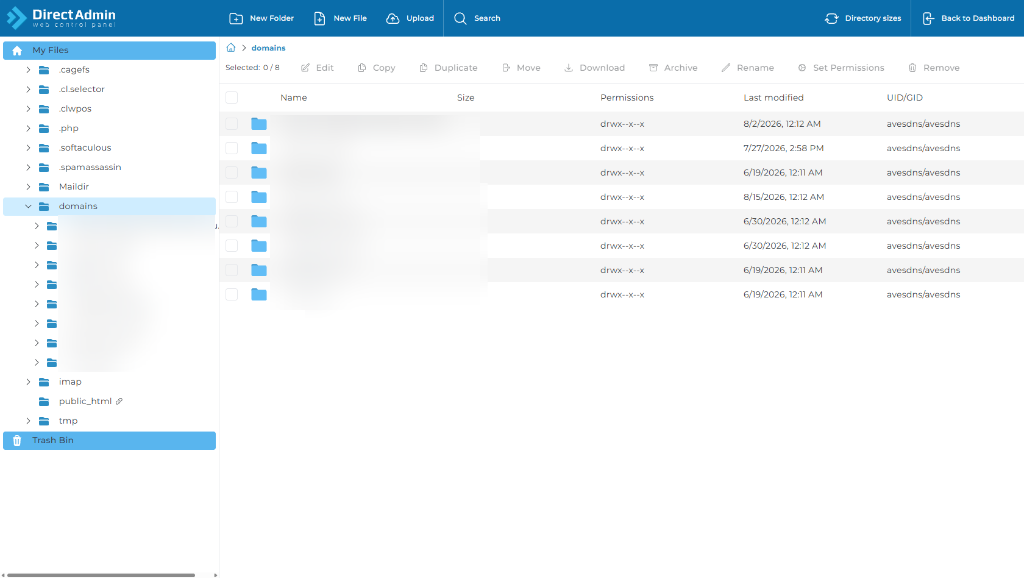
- Once created, DirectAdmin generates the directory structure automatically.
- Navigate to System Info & Files > File Manager in DirectAdmin.
- Open the
domains/folder to locate your new subdomain folder and access itspublic_htmldirectory to begin uploading website files.
Post-Creation Steps: What to Do Next
1. Upload Website Content
You can upload your website files (HTML, CSS, PHP, JS, or images) directly into the subdomain's public_html folder via the DirectAdmin File Manager or FTP. Follow our comprehensive guide on How to Upload Your Website in DirectAdmin.
2. Install an SSL Certificate for Your Subdomain
To ensure visitors can browse your subdomain securely over https:// without browser security warnings, issue a free Let’s Encrypt SSL certificate for the new subdomain and enable HTTPS redirection. See our step-by-step guides:
3. Install WordPress on Your Subdomain
If you want to run a WordPress blog, store, or portal on your new subdomain, you can use the built-in Softaculous Auto Installer. In the installation form, simply select your new subdomain from the Choose Domain dropdown. Follow our complete tutorial on How to Install WordPress in DirectAdmin.
Frequently Asked Questions & Troubleshooting
Q: How long does it take for a new subdomain to start working?
A: When using Aveshost nameservers, DNS records for new subdomains are added automatically on the server and usually resolve within 5 to 15 minutes (though global DNS propagation can occasionally take up to a few hours).
Q: What is the difference between a Subdomain and an Addon Domain?
A: A Subdomain is a child branch of an existing domain (e.g., blog.yourdomain.com) that does not require registering a new domain name. An Addon Domain is a completely separate top-level domain name (e.g., anotherdomain.com) hosted within the same hosting account.
Q: How do I delete or remove a subdomain?
A: To delete a subdomain, go to Account Manager > Subdomain Management, select the checkbox next to the subdomain name you want to remove, and click the Delete button at the top of the table. Confirm the deletion prompt.
Need Further Assistance?
If you have any questions about configuring subdomains, DNS records, or SSL certificates, our 24/7 technical support team is ready to help. Feel free to submit a support ticket through your client portal anytime.
