


React is the industry-leading JavaScript library for building fast, interactive Single-Page Applications (SPAs) and modern user interfaces. Whether your application is created using Vite, Create React App, Next.js (static export), or custom Webpack toolchains, deploying a production React build to DirectAdmin is straightforward, lightweight, and highly performant.
When deploying to DirectAdmin shared or cloud hosting, your React project is compiled into static production assets (HTML, CSS, bundled JavaScript, and media). DirectAdmin’s high-speed web servers (Apache / LiteSpeed) serve these files instantly with built-in compression and HTTP/2 performance.
In this comprehensive tutorial, we will guide you step-by-step on how to build, upload, and configure a React website in DirectAdmin, including how to configure Single-Page Application (SPA) routing with .htaccess to prevent 404 errors on page refresh.
Prerequisites
- An active Web Hosting account with DirectAdmin.
- A registered domain name added to DirectAdmin (see How to Add a Domain Name in DirectAdmin) or a subdomain (see How to Create a Subdomain in DirectAdmin).
- Your domain pointed to Aveshost nameservers (refer to Where to find Aveshost nameservers).
- An active SSL certificate installed and HTTPS enforced (see How to Install an SSL Certificate in DirectAdmin and How to Force HTTP to HTTPS in DirectAdmin).
- Access to your DirectAdmin control panel (see How to Login to DirectAdmin Control Panel).
- A local Node.js / npm environment on your development computer where your React source code is built.
Step-by-Step Guide: How to Deploy a React Website in DirectAdmin
Step 1: Generate the Production Build Locally
Before uploading files to DirectAdmin, you must compile your raw React source code (JSX, TSX, components) into optimized static files:
- Open your terminal or command prompt in your local React project directory.
- Run the build command for your package manager:
npm run build # OR if using yarn: yarn build # OR if using pnpm: pnpm build - Depending on your build tool, your compiled production files will be generated in an output folder:
- Vite: outputs to the
dist/folder. - Create React App: outputs to the
build/folder. - Next.js (Static Export): outputs to the
out/folder.
- Vite: outputs to the
- Compress the build output: Open the output folder (
distorbuild), select all the files and folders inside it (such asindex.html,assets/,favicon.ico), and compress them into a.zipfile (e.g.,react-build.zip).
Important Tip: Compress the contents INSIDE the dist/build folder, not the dist/build folder itself.
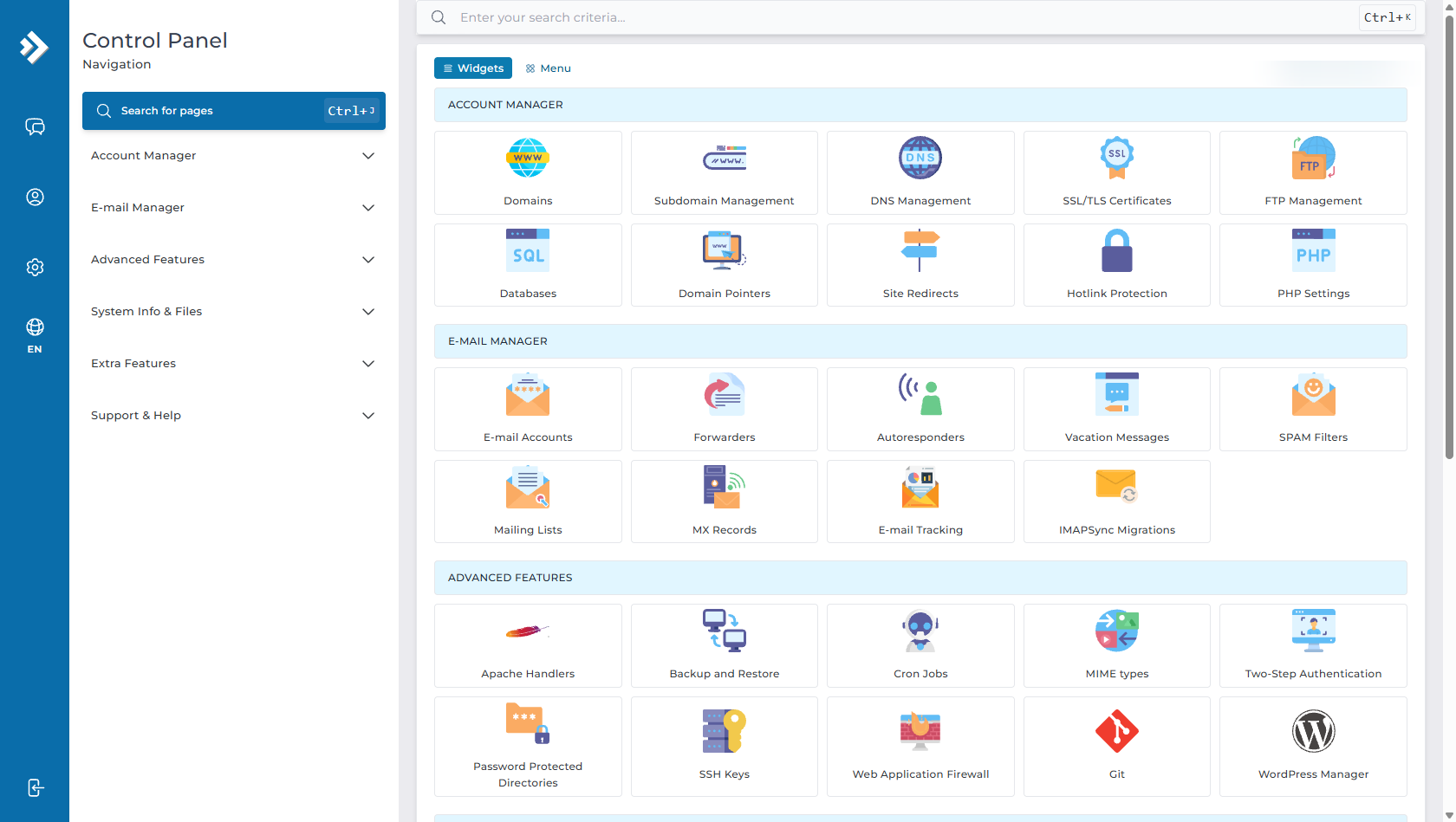
Step 2: Access DirectAdmin File Manager
- Log in to your DirectAdmin control panel.
- Under System Info & Files (or in the Quick Icons section), click on File Manager.
Step 3: Upload and Extract the React Build
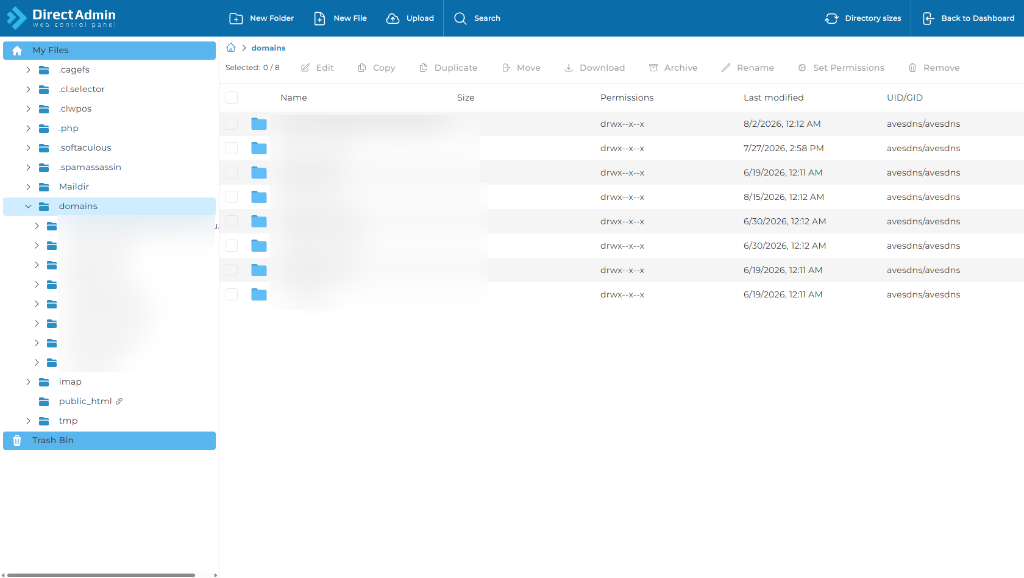
- In File Manager, navigate to:
(If you are deploying to a subdomain, navigate todomains > yourdomain.com > public_htmldomains > subdomain.yourdomain.com > public_html). - If there are default placeholder files (such as a default
index.html), select them and click Remove. - Click the Upload button in the top navigation bar.
- Drag and drop your
react-build.zipfile into the upload area. - Once the upload completes, right-click the
react-build.zipfile (or select it) and click Extract. - Confirm the extraction. Ensure that
index.htmland theassets/(orstatic/) directory are placed directly inside thepublic_htmlroot.
Step 4: Configure the .htaccess File for React Router (SPA Routing)
CRITICAL STEP FOR REACT APPLICATIONS: React uses client-side routing (via React Router). When a user navigates to https://yourdomain.com/about or https://yourdomain.com/dashboard and reloads the page, the web server looks for a physical directory named /about on the server. Because the folder doesn’t exist physically, the server will return a 404 Not Found error.
To fix this, you must add an Apache rewrite rule to direct all route requests back to index.html:
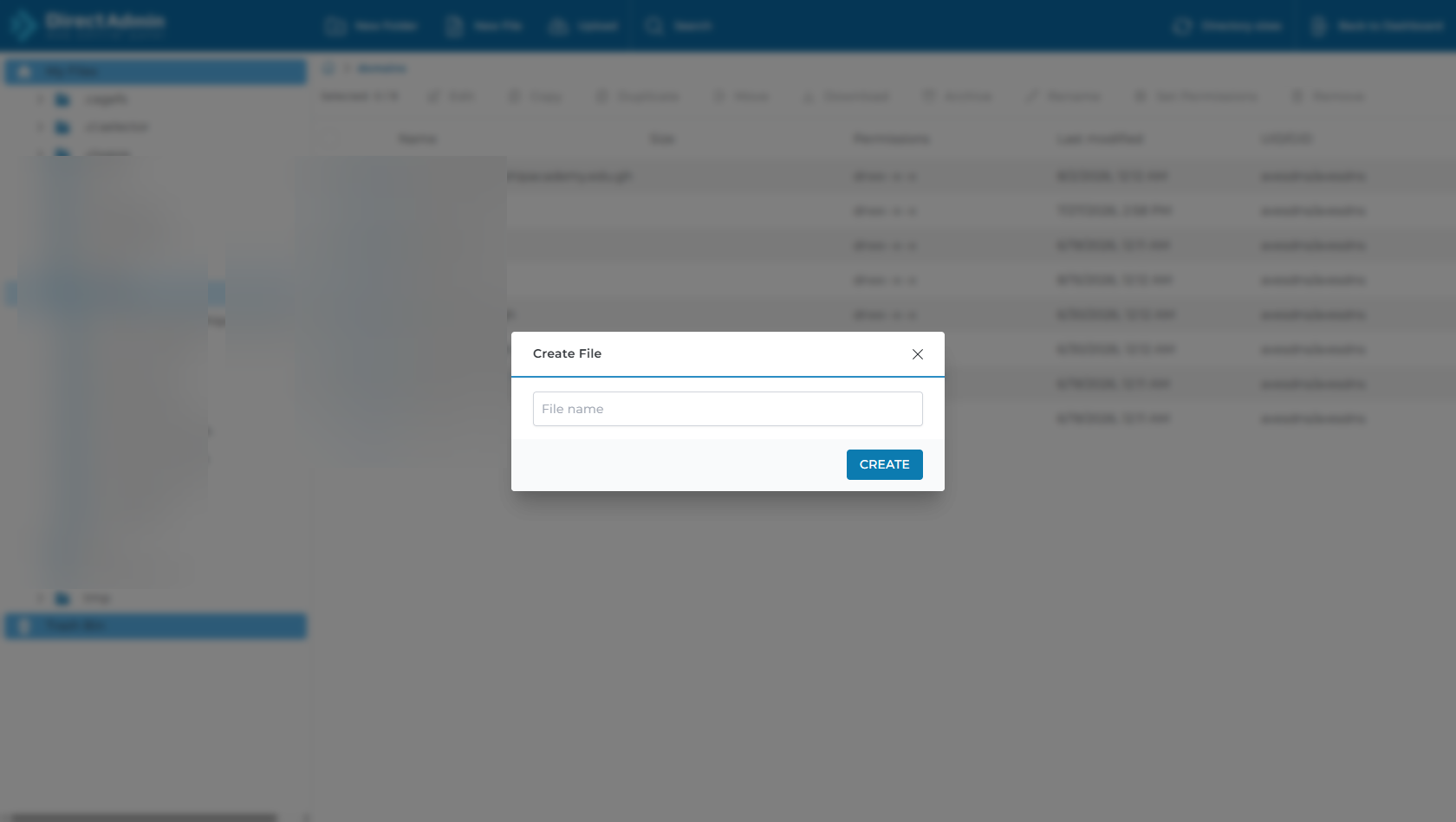
- Inside your domain's
public_htmldirectory in DirectAdmin File Manager, click the + New File button in the top toolbar. - Enter
.htaccessas the file name and click Create. - Select the
.htaccessfile, click Edit, and paste the following configuration:<IfModule mod_rewrite.c> RewriteEngine On RewriteBase / RewriteRule ^index\.html$ - [L] RewriteCond %{REQUEST_FILENAME} !-f RewriteCond %{REQUEST_FILENAME} !-d RewriteRule . /index.html [L] </IfModule> - Click Save in the code editor.
Step 5: Test and Verify Your Live React Website
- Open your web browser and navigate to your website:
https://yourdomain.com. - Your React website should load instantly with all styles, assets, and scripts.
- Test internal navigation (e.g. click navigation links to
/aboutor/contact). - Perform a hard refresh (
Ctrl + F5on Windows /Cmd + Shift + Ron Mac) on a subpage to verify that the.htaccessSPA rewrite properly maintains your route without throwing a 404 error!
Performance Optimizations & Best Practices
1. Environment Variables in Production
Ensure that your production API backend URLs (e.g., Node.js, Express, Django, Flask, or PHP endpoints) are configured in a local .env.production file prior to executing npm run build:
# For Vite:
VITE_API_BASE_URL=https://api.yourdomain.com

# For Create React App:
REACT_APP_API_BASE_URL=https://api.yourdomain.com
2. Enabling Browser Caching in .htaccess
Because modern React build tools (like Vite and Webpack) automatically append unique hash strings to JavaScript and CSS asset filenames (e.g., main.a8f23e.js), you can safely configure aggressive browser caching in your .htaccess file to maximize loading speeds:
<IfModule mod_expires.c>
  ExpiresActive On
  ExpiresByType image/jpg "access plus 1 year"
  ExpiresByType image/jpeg "access plus 1 year"
  ExpiresByType image/gif "access plus 1 year"
  ExpiresByType image/png "access plus 1 year"
  ExpiresByType image/svg+xml "access plus 1 year"
  ExpiresByType text/css "access plus 1 year"
  ExpiresByType application/javascript "access plus 1 year"
  ExpiresByType application/font-woff "access plus 1 year"
</IfModule>
Frequently Asked Questions & Troubleshooting
Q: Why does my React app show a blank white screen after deploying?
A: A blank screen is usually caused by incorrect asset path references. If you are using Vite, ensure your vite.config.js has base: './' (or base: '/' for root domains). If you are using Create React App, make sure your package.json does not have an incorrect "homepage" path specified.
Q: Why do subpages show "404 Not Found" when refreshed?
A: This occurs when the .htaccess file is either missing or mod_rewrite is not active. Make sure you created the .htaccess file directly inside your domain’s public_html folder containing the rewrite rule outlined in Step 4.
Q: Do I need Node.js running on the server to host a React app?
A: No! Standard React applications are client-side Single-Page Applications that run in the visitor’s web browser. DirectAdmin serves the compiled HTML, CSS, and JavaScript files natively with blazing speed without requiring a continuous Node.js background process.
Need Further Assistance?
If you encounter any issues building or deploying your React web application, our 24/7 technical support team is always ready to assist. Feel free to submit a support ticket through your client area.
