


Git is the industry-standard distributed version control system used by modern software developers and web engineering teams worldwide. Deploying a website or web application to DirectAdmin using Git streamlines your development workflow, eliminates manual FTP or ZIP file uploads, enables instant rollbacks, and allows you to set up automated Continuous Integration and Continuous Deployment (CI/CD) pipelines.
Whether you are hosting a static HTML/CSS/JavaScript website, a dynamic PHP application, WordPress, or a modern JavaScript framework, DirectAdmin provides full SSH terminal access, Git version control integration, and webhook capabilities to pull and deploy code seamlessly upon every git push.
In this comprehensive guide, we will walk you through setting up SSH deploy keys, cloning repositories from GitHub / GitLab / Bitbucket into DirectAdmin, configuring automated webhook deployments, securing your .git repository against public exposure, and managing framework-specific build processes.
Prerequisites
- An active Web Hosting account with DirectAdmin.
- A domain name configured in DirectAdmin (see How to Add a Domain Name in DirectAdmin) or a subdomain (see How to Create a Subdomain in DirectAdmin).
- Your domain pointed to Aveshost nameservers (refer to Where to find Aveshost nameservers).
- An active SSL certificate installed and HTTPS enforced (see How to Install an SSL Certificate in DirectAdmin and How to Force HTTP to HTTPS in DirectAdmin).
- Access to your DirectAdmin control panel (see How to Login to DirectAdmin Control Panel).
- A remote Git repository hosted on GitHub, GitLab, Bitbucket, or a private Git server.
Step-by-Step Guide: How to Deploy a Website Using Git in DirectAdmin
Step 1: Generate an SSH Key Pair for Git Authentication
To allow DirectAdmin to pull code securely from private repositories on GitHub or GitLab without typing passwords, generate an SSH deploy key:
- Open the DirectAdmin Terminal (or connect to your hosting account via SSH).
- Generate a new ED25519 (or RSA) SSH key pair:
(Press Enter to accept the default file location and leave the passphrase empty for automated deployments).ssh-keygen -t ed25519 -C "[email protected]" - Display your newly generated public key:
cat ~/.ssh/id_ed25519.pub - Copy the entire output starting with
ssh-ed25519 .... - Add Deploy Key in GitHub / GitLab:
- In GitHub: Navigate to your repository > Settings > Deploy Keys > Click Add deploy key. Paste your key, name it (e.g.
DirectAdmin Production Server), and click Add key. - In GitLab: Navigate to Settings > Repository > Deploy Keys > Paste your key and save.
- In GitHub: Navigate to your repository > Settings > Deploy Keys > Click Add deploy key. Paste your key, name it (e.g.
- Test your SSH connection to GitHub:
(Typessh -T [email protected]yeswhen prompted to add the host to known hosts. You should receive a success greeting from GitHub).
Step 2: Access DirectAdmin File Manager / Web Root
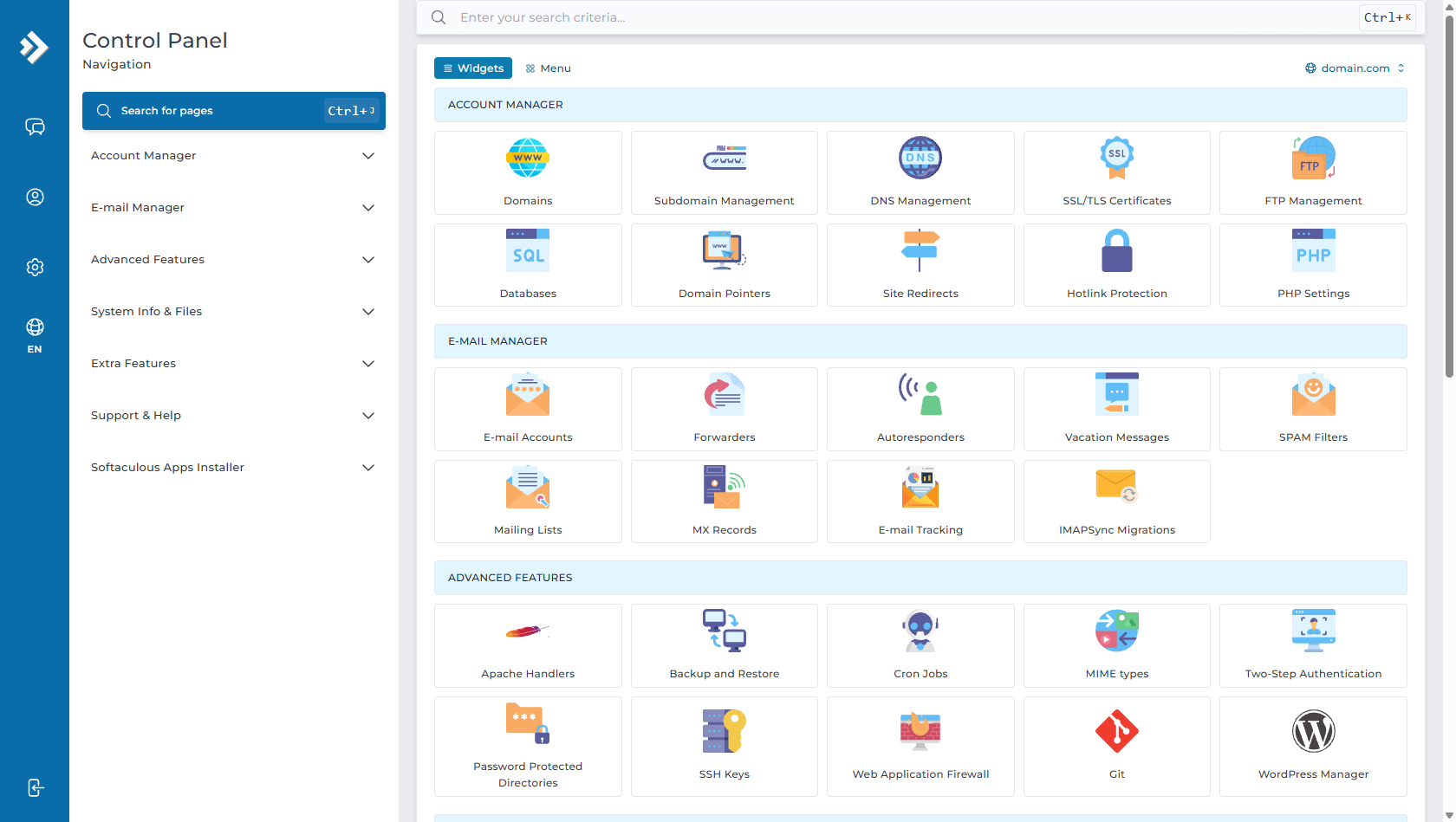
- Log in to your DirectAdmin control panel.
- Under System Info & Files, click on File Manager.
Step 3: Clone Your Git Repository into DirectAdmin
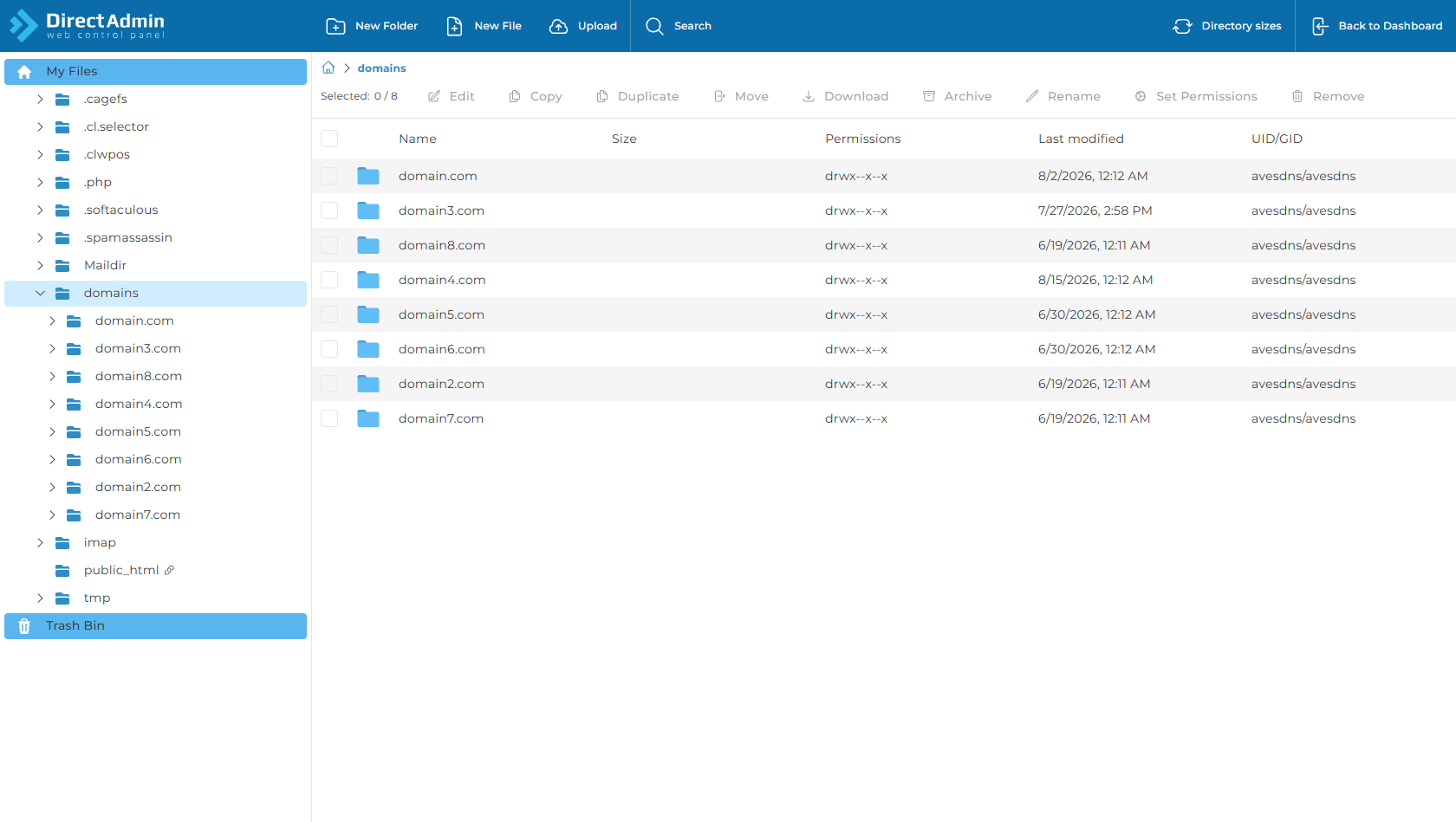
- In File Manager (or Terminal), navigate to your target domain’s document root:
domains > domain.com > public_html - Delete any default placeholder files (such as a default
index.html) so the folder is empty. - In Terminal, navigate to the document root and clone your repository using its SSH URL:
Important: Note the trailing dot (cd ~/domains/domain.com/public_html git clone [email protected]:username/your-repository.git ..) at the end of the command. This tells Git to clone the repository contents directly intopublic_htmlrather than creating an extra subfolder.
Step 4: Set Up Automated Deployments (Auto-Deploy Webhook)
To enable automatic deployment whenever you run git push origin main from your local computer, configure a secure webhook endpoint:
- Inside
public_htmlin File Manager, click + New File and name itdeploy.php. - Edit
deploy.phpand paste the following deployment script:<?php // deploy.php - Automated Git Webhook Deployment Script $secret_token = 'YourSuperSecretSecurityToken12345'; // Verify secret token from GET parameter or Webhook header if (!isset($_GET['token']) || $_GET['token'] !== $secret_token) { http_response_code(403); die("Access Denied: Invalid Security Token."); } // Execute git pull $repo_dir = __DIR__; $output = shell_exec("cd {$repo_dir} && git pull origin main 2>&1"); echo "<h3>Git Deployment Successful:</h3>"; echo "<pre>" . htmlspecialchars($output) . "</pre>"; ?> - Save the file.
- Configure the Webhook in GitHub / GitLab:
- In GitHub: Open your repository > Settings > Webhooks > Add webhook.
- Payload URL:
https://domain.com/deploy.php?token=YourSuperSecretSecurityToken12345 - Content type:
application/json - Which events: Select Just the push event.
- Click Add webhook.
Step 5: Secure the .git Directory via .htaccess
CRITICAL SECURITY STEP: When cloning a Git repository into public_html, the hidden .git/ directory is located inside the public web folder. If unprotected, visitors could download your source code repository history. You must block public access in .htaccess:
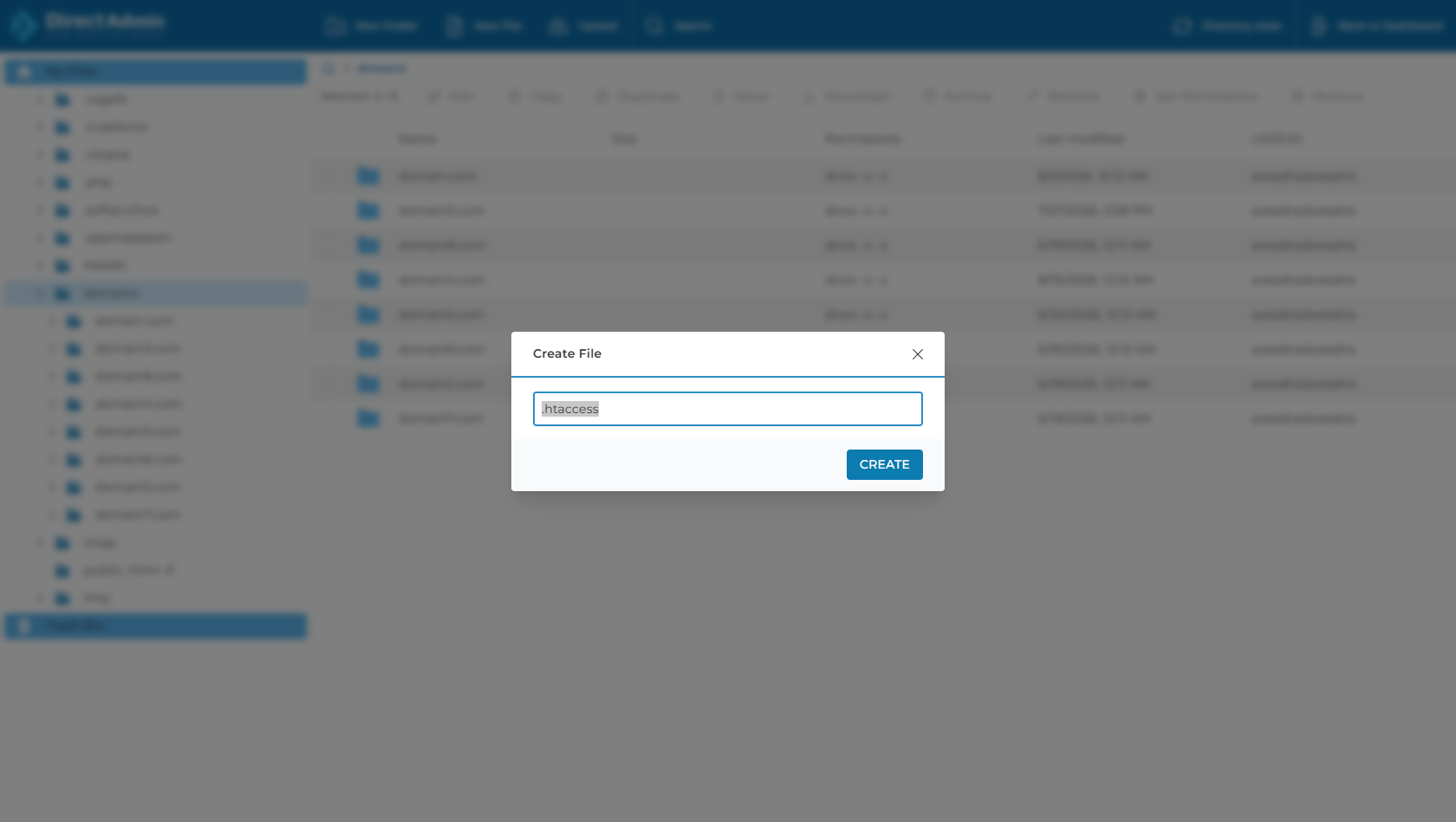
- In File Manager inside
public_html, click + New File, enter.htaccess, and click Create. - Edit
.htaccessand add the following security protection rules:# Block access to hidden Git files and directories <IfModule mod_rewrite.c> RewriteEngine On RewriteRule ^\.git - [F,L] RewriteRule ^\.env - [F,L] </IfModule> # Alternative security block RedirectMatch 404 /\.git - Click Save.
Step 6: Test the Automated Deployment Workflow
- On your local development machine, make a modification to any file in your project (e.g. edit an HTML header or CSS color).
- Commit and push your changes to GitHub:
git add . git commit -m "Update homepage styling" git push origin main - GitHub will automatically trigger your DirectAdmin webhook, executing
git pullbehind the scenes. - Open your browser, navigate to
https://domain.com, and verify your updated live website!
Deploying Different Frameworks with Git
1. Static Websites (HTML, CSS, JavaScript)
Static websites require no compilation on the server. As soon as git pull finishes, changes are live immediately.
2. PHP & Laravel Web Applications
For Laravel applications, your deploy.php script can automate composer dependencies, migrations, and cache clearing:
// Extend deploy.php for Laravel
shell_exec("cd {$repo_dir} && git pull origin main && composer install --no-dev --optimize-autoloader && php artisan migrate --force && php artisan optimize 2>&1");
3. Node.js, React, and Angular Applications
If your application requires a build step on the server, you can trigger npm builds automatically:
// Extend deploy.php for Node.js / React
shell_exec("cd {$repo_dir} && git pull origin main && npm install && npm run build 2>&1");
Alternative: Automated CI/CD with GitHub Actions
If you prefer using GitHub Actions to run automated testing before deploying to DirectAdmin via SSH, you can add a workflow file at .github/workflows/deploy.yml in your repository:
name: Deploy to DirectAdmin via SSH

on:
  push:
    branches: [ main ]

jobs:
  deploy:
    runs-on: ubuntu-latest
    steps:
      - name: Checkout Code
        uses: actions/checkout@v3

      - name: Deploy to DirectAdmin Server
        uses: appleboy/ssh-action@master
        with:
          host: ${{ secrets.SERVER_HOST }}
          username: ${{ secrets.SERVER_USERNAME }}
          key: ${{ secrets.SERVER_SSH_KEY }}
          port: 22
          script: |
            cd ~/domains/domain.com/public_html
            git pull origin main
Frequently Asked Questions & Troubleshooting
Q: Why does git clone fail with "Permission denied (publickey)"?
A: This means the SSH key generated on your DirectAdmin server has not been added to your GitHub/GitLab Deploy Keys, or you are attempting to clone using an HTTPS URL without credentials. Always use the SSH clone URL ([email protected]:username/repo.git).
Q: Why does Git say "destination path '.' already exists and is not an empty directory"?
A: Git requires the destination directory to be completely empty when cloning into the current folder (.). Delete any default placeholder files (e.g. index.html) in public_html before running git clone.
Q: How do I switch branches on DirectAdmin (e.g. to a staging branch)?
A: In Terminal inside your repository folder, run:
git fetch origin && git checkout staging && git pull origin stagingQ: How do I discard local server changes and force a clean sync?
A: If files were modified directly on the server causing merge conflicts during git pull, run:
git fetch origin && git reset --hard origin/mainNeed Further Assistance?
If you need any assistance setting up SSH keys, configuring Git deployment webhooks, or automating your CI/CD pipeline in DirectAdmin, our technical support team is available 24/7. Feel free to submit a support ticket through your client area for prompt assistance.
