


Cron Jobs are automated, time-based background task schedulers built into Linux web servers. They allow web developers, system administrators, and site owners to run specific scripts, commands, or URLs automatically at scheduled intervals—ranging from every minute to once a day, week, or month.
In DirectAdmin, setting up a Cron Job is fast, reliable, and user-friendly. You can automate vital background routines such as Laravel task scheduling, WordPress automated cron processing, database backups, sitemap generation, clearing cache directories, Python worker scripts, or sending scheduled emails without any manual intervention.
In this comprehensive step-by-step guide, we will cover cron syntax, how to create and manage cron jobs in DirectAdmin, the most common command patterns (PHP CLI, Laravel, WordPress, Python, and cURL), output redirection, and troubleshooting.
Prerequisites
- An active Web Hosting account with DirectAdmin.
- A domain name configured in DirectAdmin (see How to Add a Domain Name in DirectAdmin) or a subdomain (see How to Create a Subdomain in DirectAdmin).
- Your domain pointed to Aveshost nameservers (refer to Where to find Aveshost nameservers).
- An active SSL certificate installed and HTTPS enforced (see How to Install an SSL Certificate in DirectAdmin and How to Force HTTP to HTTPS in DirectAdmin).
- Access to your DirectAdmin control panel (see How to Login to DirectAdmin Control Panel).
- The absolute server path to the script or URL you wish to execute.
Understanding Cron Schedule Syntax
Every cron job consists of 5 time fields followed by the command to execute:
*     *     *     *     *     command_to_execute
-     -     -     -     -
|     |     |     |     +----- Day of Week (0 - 6, where 0 = Sunday)
|     |     |     +----------- Month (1 - 12)
|     |     +----------------- Day of Month (1 - 31)
|     +----------------------- Hour (0 - 23, in 24-hour format)
+----------------------------- Minute (0 - 59)
Common Cron Schedule Intervals
| Interval | Cron Expression | Description |
|---|---|---|
| Every Minute | * * * * * |
Runs once every minute (commonly used for Laravel scheduler). |
| Every 5 Minutes | */5 * * * * |
Runs every 5 minutes. |
| Every 15 Minutes | */15 * * * * |
Recommended for WordPress real cron (wp-cron.php). |
| Every Hour | 0 * * * * |
Runs at the start of every hour (e.g. 1:00, 2:00, 3:00). |
| Daily at Midnight | 0 0 * * * |
Runs once every night at 12:00 AM (ideal for daily backups). |
| Weekly (Sunday) | 0 0 * * 0 |
Runs once every Sunday at midnight. |
| Monthly (1st of Month) | 0 0 1 * * |
Runs on the 1st day of every month at midnight. |
Step-by-Step Guide: How to Set Up a Cron Job in DirectAdmin
Step 1: Access the Cron Jobs Manager
- Log in to your DirectAdmin control panel.
- In the top search bar, search for Cron Jobs (or navigate to Advanced Features > Cron Jobs in the left sidebar).
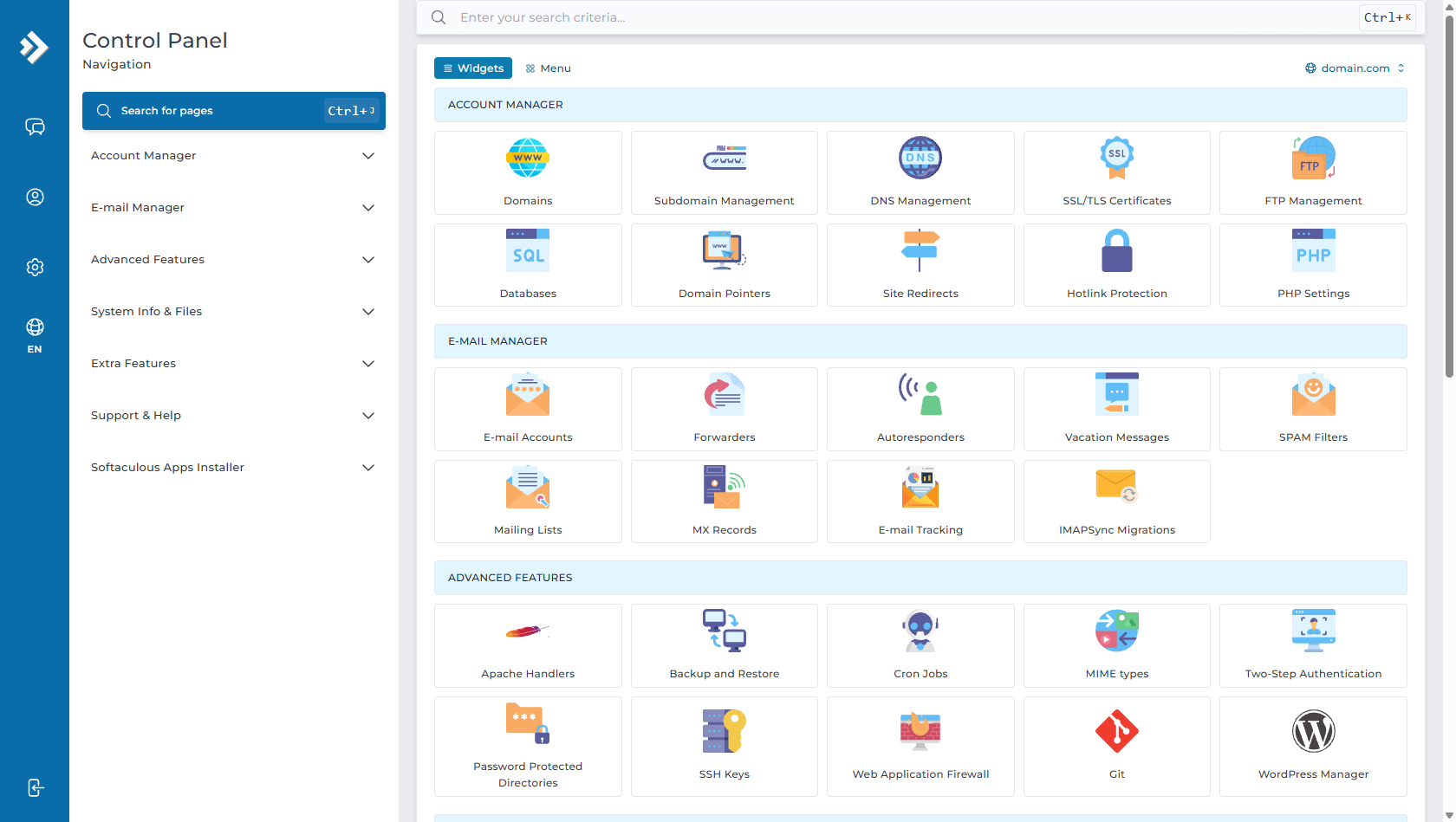
- You will be taken to the Cron Jobs dashboard, which displays all your currently active scheduled tasks.
Step 2: Open the "Create Cron Job" Form
- Click the + CREATE CRON JOB button located in the top right corner.
- A configuration form will open displaying the time interval options and the Command input field.
Step 3: Define the Time Schedule
- Specify the time schedule using the Minute, Hour, Day of Month, Month, and Day of Week fields.
- DirectAdmin will automatically display a human-readable summary of your schedule below the fields (e.g., "Cron job will run: Every minute" or "Cron job will run: Every 15 minutes").
- Optional: If you need a command to execute upon server reboot, check the Run on @reboot box.
Step 4: Enter the Cron Command
In the Command field, enter the full path to your script or executable. Below are the most common command examples used in web hosting:
1. Running a Standard PHP Script (PHP CLI - Recommended)
Running PHP via command line is the fastest, most reliable method because it bypasses HTTP timeouts and web server limits:
/usr/local/bin/php /home/username/domains/domain.com/public_html/cron.php >/dev/null 2>&1(Replace username with your DirectAdmin account username and domain.com with your target domain).
2. Running the Laravel Task Scheduler
For Laravel applications, schedule this command to run Every Minute (* * * * *):
cd /home/username/domains/domain.com/laravel && /usr/local/bin/php artisan schedule:run >> /dev/null 2>&13. Running Real WordPress Cron (Optimizing wp-cron.php)
By default, WordPress executes cron tasks only when visitors load a page, which can slow down high-traffic websites. You can disable default WP-Cron in wp-config.php (define('DISABLE_WP_CRON', true);) and schedule a real DirectAdmin cron job every 15 minutes (*/15 * * * *):
/usr/local/bin/php /home/username/domains/domain.com/public_html/wp-cron.php >/dev/null 2>&14. Running a Python Script
To run a Python script using your CloudLinux virtual environment:
/home/username/virtualenv/django-app/3.11/bin/python /home/username/django-app/cron_worker.py >/dev/null 2>&15. Triggering a URL via cURL or Wget
If your script must be triggered over HTTP/HTTPS (for example, triggering an API webhook or third-party CRM sync):
/usr/bin/curl -s "https://domain.com/cron/sync-data" >/dev/null 2>&1
# OR using Wget:
/usr/bin/wget -q -O - "https://domain.com/cron/sync-data" >/dev/null 2>&1
Step 5: Output Redirection & Email Notifications
By default, Linux sends an email to your account inbox whenever a cron job generates output (standard output or errors). If a task runs every minute, this could fill up your mailbox with thousands of emails.
- To Suppress All Output (Recommended for normal tasks): Append
>/dev/null 2>&1to the end of the command. - To Receive Output via Email: On the main Cron Jobs page, click SEND ALL CRON OUTPUT TO E-MAIL, specify your email address, and save.
Step 6: Save and Verify Your Cron Job
- Click the CREATE button at the bottom of the form.
- Your new cron job will appear in the table with its full schedule and command.
- DirectAdmin will now automatically execute the task according to your defined schedule!
Managing Existing Cron Jobs
- Editing a Cron Job: In the Cron Jobs table, click on the pencil Edit icon next to any task to update its schedule or command parameters.
- Deleting a Cron Job: Select the checkbox next to the cron job you wish to remove, then click the red Delete button.
Frequently Asked Questions & Troubleshooting
Q: Why is my cron job failing with "No such file or directory"?
A: Cron runs in a minimal environment without working directory context. Always use absolute paths (e.g. /home/username/domains/domain.com/public_html/script.php) instead of relative paths (e.g. public_html/script.php).
Q: How do I find my account username and home directory?
A: In DirectAdmin, your home directory is always /home/username/, where username is your primary DirectAdmin account username visible in the top navigation bar.
Q: Why am I receiving too many emails from Cron?
A: Make sure you append >/dev/null 2>&1 to the end of your command to silence regular output and error notifications.
Q: What is the difference between running a script via PHP CLI vs cURL?
A: Running via PHP CLI (/usr/local/bin/php /path/to/script.php) runs directly on the server without going through the web server, avoiding HTTP request timeouts, SSL checks, and browser memory limits. cURL makes an actual HTTP web request and is subject to web server timeout limits (e.g. 60 seconds).
Need Further Assistance?
If you need any help setting up complex cron schedules, automating background workers, or configuring custom command scripts in DirectAdmin, our technical support team is available 24/7. Feel free to submit a support ticket through your client area for expert assistance.
