


Monitoring your email delivery is critical for ensuring that business correspondence, order receipts, password reset links, and customer inquiries reach their intended recipients without interruption. If a recipient claims they did not receive your message, or if you suspect incoming emails are failing to arrive, Email Tracking in DirectAdmin gives you real-time visibility into every mail transaction.
DirectAdmin includes a comprehensive E-mail Tracking and SMTP Log system powered by the server's Exim Mail Transfer Agent (MTA). This tool records detailed delivery routes, acceptance confirmations (250 OK), temporary delays (Deferred), and permanent bounces (Failed) for both incoming and outgoing messages.
In this step-by-step guide, we will walk you through accessing Email Tracking in DirectAdmin, filtering logs by sender or recipient, understanding delivery status codes, and diagnosing common mail delivery issues.
Prerequisites
- An active Web Hosting account with DirectAdmin.
- A domain name configured in DirectAdmin (see How to Add a Domain Name in DirectAdmin) or a subdomain (see How to Create a Subdomain in DirectAdmin).
- Your domain pointed to Aveshost nameservers (refer to Where to find Aveshost nameservers).
- An active SSL certificate installed and HTTPS enforced (see How to Install an SSL Certificate in DirectAdmin and How to Force HTTP to HTTPS in DirectAdmin).
- Access to your DirectAdmin control panel (see How to Login to DirectAdmin Control Panel).
- An active email account created in DirectAdmin (see How to Create an Email Account in DirectAdmin).
Method 1: Using the Global "E-mail Tracking" Tool
Step 1: Access E-mail Tracking in DirectAdmin
- Log in to your DirectAdmin control panel.
- In the top search bar, search for E-mail Tracking (or navigate to E-mail Manager > E-mail Tracking in the left sidebar).
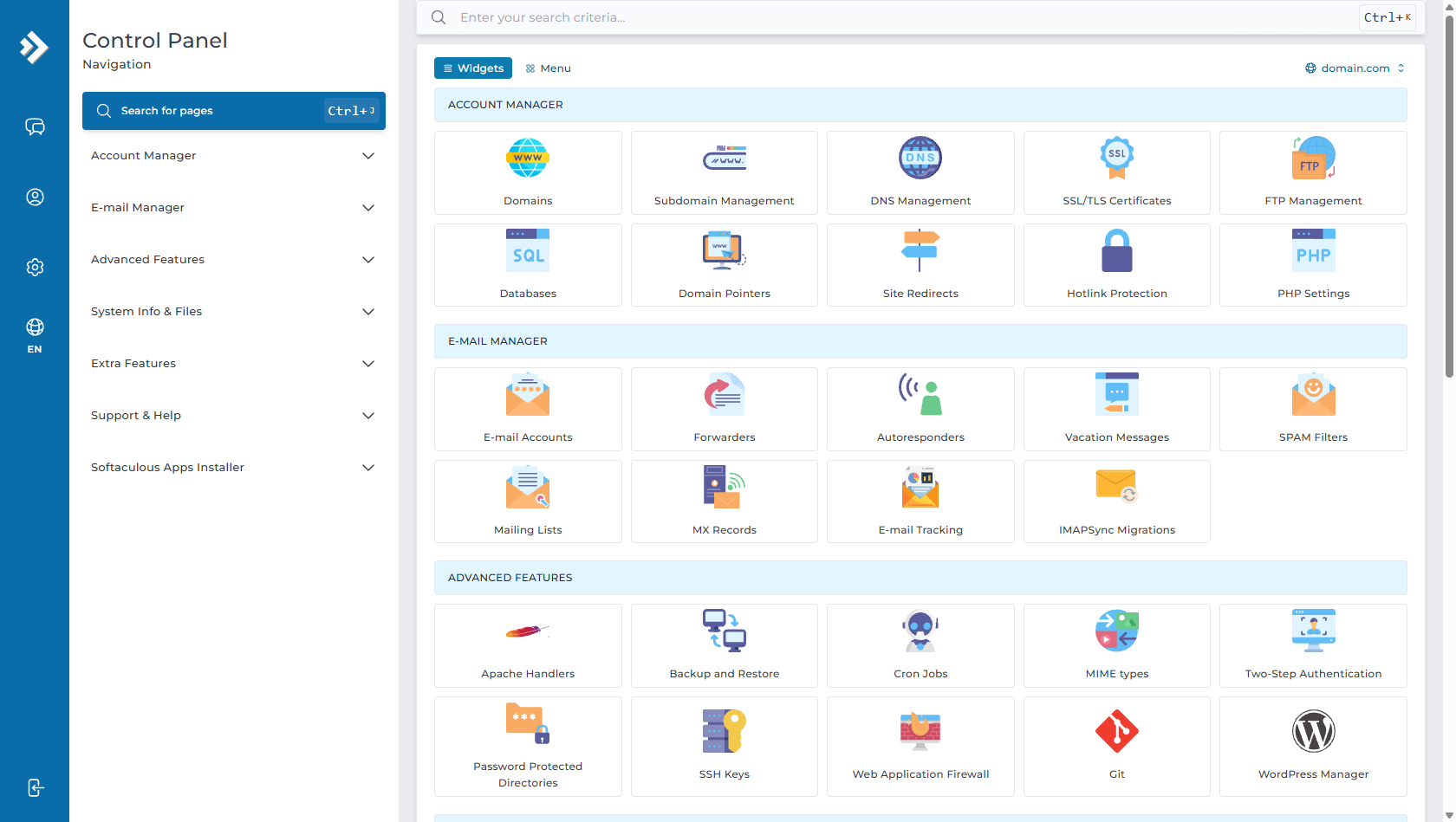
- You will be taken to the E-mail Tracking interface.
Step 2: Filter Your Email Search Criteria
To locate specific messages quickly, configure the search filters according to your needs:
| Filter Field | Description | Usage Example |
|---|---|---|
| From / To (Date Range) | Specify the date and time window during which the message was sent or received. | Past 24 hours, past 7 days |
| Address | Search for a specific email address (sender or recipient). | [email protected] or [email protected] |
| State | Filter by message delivery outcome. | Delivered, Deferred, Failed, In Progress |
| Show | Filter by message flow direction. | All, Incoming Only, Outgoing Only |
Step 3: Search and Inspect Delivery Status
- Click the blue SEARCH button.
- DirectAdmin will populate the delivery log table with all matching records, showing:
- Direction: Indicates whether the email was incoming (received by your server) or outgoing (sent from your server).
- State: The final delivery status code returned by the receiving mail server.
- From / To: The sender and recipient email addresses.
- Subject: The subject line of the email.
- Size: Total message size in bytes or kilobytes.
- Date: The exact date and timestamp when the transaction occurred.
- Click on any individual row to view the full SMTP trace route, including server response headers and error messages.
Method 2: Viewing Account-Specific SMTP Logs (In & Out)
If you only want to inspect logs for a single email mailbox (such as [email protected]):
- In DirectAdmin, navigate to E-mail Manager > E-mail Accounts.
- Locate your email account in the table.
- Under the SMTP Log column, click:
- In: To view all incoming emails and spam filtering scores received by this mailbox.
- Out: To view all outgoing emails sent from this mailbox and their delivery results.
Understanding Email Delivery Status Codes
| Delivery State | SMTP Code | What It Means |
|---|---|---|
| Delivered / Success | 250 OK |
The email was successfully accepted by the recipient's mail server for delivery into the inbox. |
| Deferred / In Progress | 4xx (e.g. 451, 421) |
A temporary delay occurred (e.g. recipient server busy, rate limit, or greylisting). The server will automatically retry redelivery periodically for up to 48 hours. |
| Failed / Bounced | 5xx (e.g. 550, 554) |
Permanent failure. The recipient server rejected the email (e.g. invalid recipient address, recipient mailbox full, or domain blocked). |
| Spam Rejected | 550 5.7.1 |
The message failed recipient security checks (such as missing or misconfigured SPF, DKIM, or DMARC records). |
Best Practices to Ensure High Email Deliverability
- Enable DKIM: In DirectAdmin, go to E-mail Manager > E-mail Accounts and verify that DKIM is enabled so outgoing emails are cryptographically signed.
- Verify SPF Records: Ensure your domain has an active SPF TXT record in DirectAdmin DNS Management (e.g.
v=spf1 a mx ip4:YOUR_SERVER_IP ~all). - Configure DMARC: Add a DMARC policy record (
_dmarc.domain.com) to protect your domain against email spoofing and phishing. - Avoid Spam Triggers: Ensure your email content does not contain broken links, all-caps subject lines, or spam-like phrasing.
Frequently Asked Questions & Troubleshooting
Q: Why does my sent email show as "Deferred"?
A: A Deferred status indicates a temporary delay at the recipient's mail provider (common with Microsoft 365, Yahoo, or servers using greylisting). DirectAdmin automatically retries sending the message at regular intervals for up to 48 hours until delivered.
Q: How do I find out why an email bounced or failed?
A: In the E-mail Tracking table, look for records marked in red (Failed) and click on the entry. DirectAdmin will display the exact SMTP error message returned by the recipient's server (such as "550 5.1.1 User unknown" or "552 5.2.2 Mailbox is full").
Q: How long are email tracking logs retained in DirectAdmin?
A: Delivery logs are typically stored on the server for 7 to 30 days before older records are automatically rotated and archived.
Q: Why are my emails going to the recipient's Spam folder instead of Inbox?
A: Major email providers (Gmail, Yahoo, Outlook) require valid SPF, DKIM, and DMARC authentication. Ensure all three DNS records are active for your domain in DirectAdmin DNS Management.
Need Further Assistance?
If you are experiencing persistent email delivery issues, bouncing messages, or need help configuring SPF, DKIM, and DMARC authentication records, our technical support team is available 24/7. Feel free to submit a support ticket through your client area for expert assistance.
